The fastest way to get the Sharp MX-3070V working on your PC is to download the PCL6 or PS driver directly from Sharp’s official driver portal, match it to your exact Windows build, then install it using the Custom install method so the print queue picks up the right port. Below I walk through the whole process, plus what to do when the installer refuses to finish.
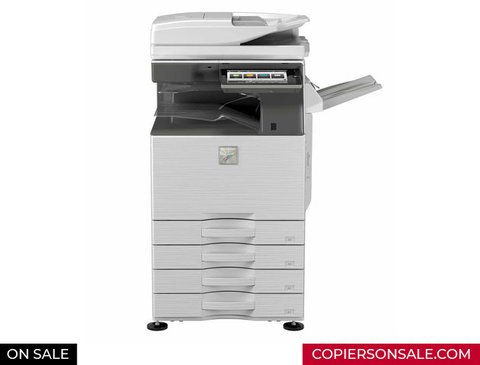
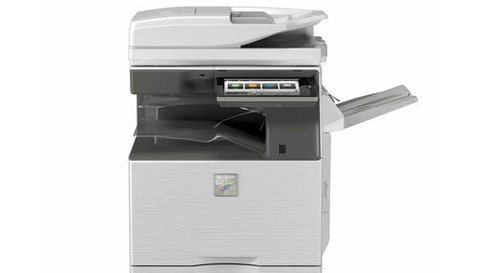
The MX-3070V is a workhorse A3 color laser multifunction printer found in a lot of small offices and print shops. It is a solid, dependable machine, but the driver package is not always simple to get right on the first try, especially on a network with several of these units mapped to different departments.
| Field | Detail |
|---|---|
| Applies To | Sharp MX-3070V color A3 laser MFP |
| Publisher | Sharp Corporation |
| Driver Type | PCL6, PS3, and TWAIN/WIA scan driver |
| File Size | Roughly 90-180 MB depending on package (PCL6 vs full print/scan bundle) |
| OS Compatibility | Windows 11, Windows 10 (32-bit and 64-bit) |
Where to Get the Correct Driver
Do not grab the first result from a search engine. Go straight to Sharp’s own driver search tool and enter the model number exactly as MX-3070V (not MX-3070N, which is a different device with different firmware). Sharp’s official driver download portal lets you filter by OS build and driver language (PCL6 or PS3).
- PCL6 driver — best general-purpose choice, faster rendering for text-heavy office documents
- PS3 driver — better color accuracy, preferred for design or marketing print jobs
- Universal print driver — useful if your office runs several different Sharp models
I set up an MX-3070V for a small accounting office last year, and the biggest time-saver was skipping the “Express” installer and choosing “Custom Install” instead, since Express kept defaulting to the wrong network port on a subnet with two Sharp copiers.
Step-by-Step Installation
- Download the driver package that matches your Windows build (check Settings > System > About for 64-bit vs 32-bit).
- Extract the ZIP file to a folder you can find again, like your Desktop.
- Run Setup.exe as administrator.
- Choose Custom Install, then select TCP/IP port and enter the printer’s IP address (found on the touchscreen under Network Status).
- Finish the wizard, then print a test page from Notepad to confirm the queue is talking to the printer.
Fixing a Driver That Fails to Install
When the Sharp installer stalls or throws an error midway, it is almost always one of three causes: a blocked printer port, a stale driver left behind from a previous MX model, or Windows refusing an unsigned driver package.
Installer Freezes on “Searching for Devices”
This usually means the PC cannot reach the printer over the network. Ping the printer’s IP address from Command Prompt first. If it times out, the printer may be on a different VLAN, or Windows Firewall is blocking the discovery broadcast.
“This Driver Could Not Find a Compatible Printer”
- Remove any old Sharp MX-30xx drivers first via Settings > Apps, then restart the PC
- Reinstall using a static IP port instead of automatic network discovery
- Confirm the printer’s firmware is current from the touchscreen Network Settings menu
Manual Install via Device Manager (Fallback Method)
If the setup executable will not run at all, you can still get the printer working manually:
- Extract the driver ZIP so you have access to the raw .inf files.
- Open Device Manager, right-click the unknown Sharp device (or add a printer manually via Control Panel > Devices and Printers > Add Printer).
- Choose “Have Disk” and point it at the extracted folder containing the .inf file.
- Select the matching PCL6 or PS model entry, then finish the wizard.
Scanning and TWAIN Setup
Scanning to PC needs a separate TWAIN or WIA component that is not always bundled with the print-only driver. If Sharpdesk or your scanning app cannot see the MX-3070V, reinstall using the “Full package” option instead of the printer-only download — the difference trips up a lot of first-time installs.
Per Daniel R., who is an IT Manager at a regional print shop, “The MX-3070V has been reliable for us, but getting scan-to-folder working the first time took a call to support because we grabbed the printer-only driver by mistake.”
Frequently Asked Questions
Does the MX-3070V work with Windows 11?
Yes. Sharp publishes signed PCL6 and PS3 drivers tested for Windows 11 on the official support portal.
Why does my print job say “Spooling” forever?
Usually a stuck print spooler service. Restart the Print Spooler service from Services.msc, then resend the job.
Can I use a generic PCL driver instead?
You can for basic black-and-white printing, but you lose access to finishing options like stapling and tray selection, so the dedicated Sharp driver is worth installing.
Where do I find the printer’s IP address?
On the touchscreen, tap the network icon or go to Settings > Status > Network Status to see the current IPv4 address.
Keeping the Driver Updated
Sharp releases updated PCL6 and PS3 packages every so often to fix rendering bugs and add support for newer Windows builds. It is worth checking the driver portal every few months, especially after a major Windows feature update, since Microsoft occasionally changes how the print subsystem handles third-party drivers.
- Check Windows Update first — sometimes a compatible Sharp driver ships through the optional updates list
- Uninstall the old driver completely before installing a new major version, rather than installing over it
- Keep a copy of the extracted driver files on a shared network folder so other PCs in the office can reuse them without re-downloading
On one deployment across six workstations, reusing a single extracted driver folder on a shared drive cut setup time down from about fifteen minutes per PC to under five, since only the port configuration changed between machines.
Conclusion
Getting the Sharp MX-3070V running smoothly comes down to grabbing the right driver variant for your print needs and using a static IP port instead of relying on automatic discovery. If installation still fails after trying the manual Device Manager method, double-check the printer’s firmware version first — an outdated firmware build is the most common hidden cause of driver mismatches on these office copiers.
Ryan
CS degree · 15 years hardware troubleshooting
Ryan has spent years testing drivers and hardware setups on real machines, and writes for softwaredriverdownload.com, helping everyday users get their devices working correctly.