| Field | Detail |
|---|---|
| Applies To | Brother HL-L2350DW Wireless Compact Laser Printer |
| Author/Publisher | Brother Industries, Ltd. |
| Version | Full Driver & Software Package, current release |
| File Size | Approximately 60–100 MB |
| Requirements | Windows 11, 10, 8.1, 7; macOS current releases; Linux CUPS driver available |
On this page
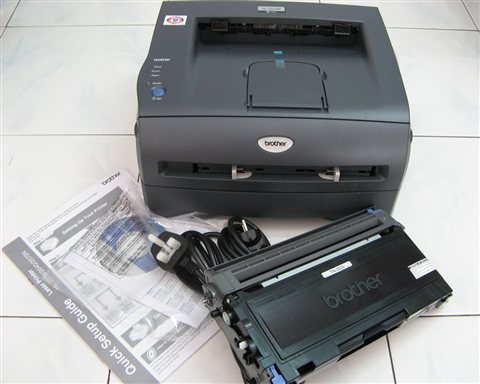
Downloading the HL-L2350DW Driver
Go to the official Brother support page for the HL-L2350DW, select your operating system, and download the Full Driver & Software Package rather than just the basic print driver. The full package includes the Brother iPrint&Scan utility and status monitor, which most people end up wanting eventually anyway.
Installation on Windows is mostly automated: run the installer, accept the license, choose your connection type, and let it detect the printer over USB or Wi-Fi. On macOS, Brother’s installer also configures AirPrint compatibility automatically.
Getting Wireless Setup Right
The HL-L2350DW supports both infrastructure Wi-Fi (through your router) and Wi-Fi Direct (a direct connection without a router). For most home and office setups, infrastructure mode through your router is simpler and more reliable long-term:
- On the printer’s control panel, go to Network > WLAN > Setup Wizard
- Select your network name from the list and enter the Wi-Fi password
- Wait for the printer to confirm a successful connection and print a network configuration report
- On your PC, run the Brother driver installer and select Wireless Network Connection when it searches for the printer
I set one of these up in a small accounting office where the printer kept losing its wireless connection every night — it turned out the router’s aggressive Wi-Fi power-saving schedule was cutting the printer off outside business hours. Disabling that schedule for the printer’s device specifically fixed it for good.
Fixing Common HL-L2350DW Errors
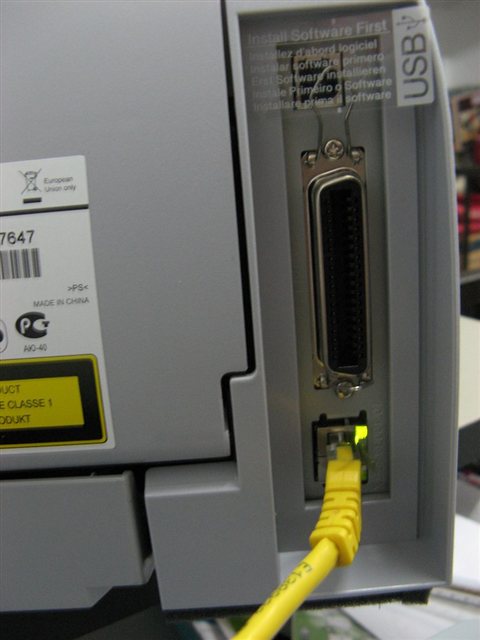
- “Toner Low” that won’t clear: remove the toner cartridge, gently rock it side to side to redistribute remaining toner, and reinsert it firmly
- “Drum!” error on the display: reseat the drum unit fully — it needs to click into place, and a slightly loose drum triggers this warning even with life remaining
- Paper jam that keeps recurring: check for small torn paper fragments left in the feed path from a previous jam, not just the visible paper causing the current one
- Print jobs stuck in the queue: clear the Windows print spooler by restarting the Print Spooler service in Services.msc
Manual Driver Install via Device Manager
If the Brother installer will not run on a restricted PC, install the driver manually:
- Extract the downloaded package to a folder
- Open Devices and Printers > Add a printer > “The printer that I want isn’t listed”
- Choose manual local printer setup and browse to the extracted INF file for the HL-L2350DW
- Complete the wizard and print a test page to confirm it works
This restores basic printing quickly, though the full package is still worth installing later for scanning-equivalent utilities and firmware update tools. Brother’s US support page also lists current firmware, which is worth checking if wireless drops persist after a driver reinstall.
Per Tom H., who is an IT Support Technician at a regional accounting firm, “We have a dozen of these deployed across small branch offices — toner cost per page is excellent and the wireless setup has been painless compared to some competing models we tried first.”
Reducing Toner and Print Costs
One reason the HL-L2350DW is popular for small offices is toner economy, but only if configured correctly:
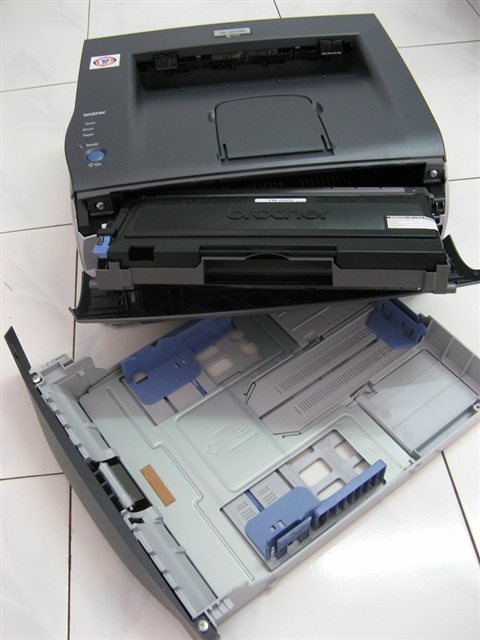
- Use the high-yield TN-760 toner cartridge instead of the standard TN-730 if you print more than a couple hundred pages a month — the per-page cost drops noticeably
- Enable Toner Save mode in the printer driver’s Advanced settings for internal drafts where print darkness does not matter
- Set Economy Print Mode as default for text-only documents through the driver’s Basic tab
- Avoid third-party toner cartridges — several users report drum contamination and inconsistent print quality with off-brand refills on this model
Keeping Firmware and Driver in Sync
Brother periodically releases firmware updates that improve wireless stability and fix compatibility with newer Windows feature updates. It is worth checking for a firmware update whenever you reinstall the driver on a new PC:
- Print a network configuration page from the printer’s menu to note the current firmware version
- Compare it against the latest version listed on Brother’s support page
- Update firmware directly through the printer’s web interface if a browser can reach its IP address, or via the Brother Firmware Update Tool on Windows
Frequently Asked Questions
Does the HL-L2350DW support automatic double-sided printing?
Yes, the L in the model name indicates built-in automatic duplex printing — no manual page flipping needed for double-sided documents.
Why does my printer keep dropping off Wi-Fi overnight?
Check your router’s Wi-Fi power-saving or device scheduling settings. Some routers cut power to idle devices on a schedule, which the printer interprets as a disconnect requiring re-pairing.
Can I print from my phone without installing a driver?
Yes, the HL-L2350DW supports AirPrint on iOS and Mopria Print Service on Android, both of which work without installing a traditional driver.
How do I know when the toner cartridge actually needs replacing?
The printer’s display and Brother Status Monitor both show an estimated remaining toner percentage. A genuine cartridge that reads “Toner Life End” rather than just “Toner Low” needs replacing, not just redistributing.
Conclusion
The HL-L2350DW is a reliable, low-cost laser printer once the driver and wireless setup are done correctly. Grab the full driver package from Brother directly, pay attention to your router’s power-saving settings if it keeps dropping connection, and reseat the toner and drum units firmly if you see persistent warnings. Keep firmware current and stick to genuine toner, and this printer tends to run for years with minimal fuss and low per-page cost.
Ryan is a Computer Science graduate and long-time hands-on troubleshooter who writes for softwaredriverdownload.com. He specializes in tracking down exactly which driver version fixes a given printer or peripheral issue.