| Field | Detail |
|---|---|
| Applies To | NVIDIA GeForce RTX 3060 (8GB and 12GB variants, all board partners) |
| Author/Publisher | NVIDIA Corporation |
| Version | Latest Game Ready Driver, current release channel |
| File Size | Approximately 600–900 MB |
| Requirements | Windows 10/11 64-bit, PCIe 3.0/4.0 slot, minimum 550W PSU recommended |
Getting the RTX 3060 Driver Installed Cleanly
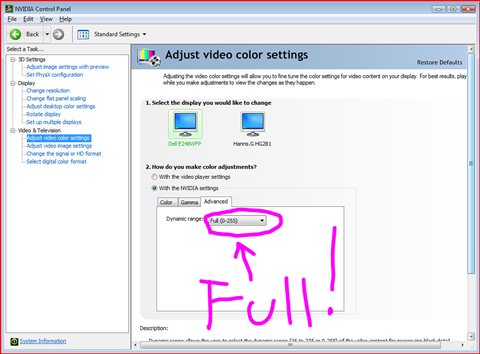
Download from NVIDIA or GeForce Experience
Get the driver either through the NVIDIA driver download page by selecting GeForce RTX 30 Series > RTX 3060, or through the GeForce Experience/NVIDIA app’s Drivers tab, which also flags new releases automatically.
Choose Clean Install
During installation, tick the “Perform a clean installation” checkbox in the advanced options. This wipes leftover settings from any previous GPU driver, which prevents a large chunk of black-screen and stuttering complaints after an upgrade.
Restart After Install
Reboot even if the installer does not force it. A restart clears out driver components still loaded in memory from before the update and avoids odd display glitches.
Verify in Device Manager
Open Device Manager, expand Display adapters, and confirm the RTX 3060 is listed with no yellow warning icon and the correct driver version shown under its Properties > Driver tab.
When a Fresh Driver Causes Crashes or Black Screens
A driver update that goes wrong on an RTX 3060 usually falls into one of three patterns, and each needs a slightly different fix:
- Black screen on boot: boot into Safe Mode, uninstall the driver completely with DDU (Display Driver Uninstaller), then reinstall from scratch
- Random driver crashes with “Display driver stopped responding and has recovered”: usually a TDR timeout triggered by an overclock or unstable power delivery — reset any GPU overclock and check PSU cable seating first
- Stuttering in specific games only: often a game-specific shader cache issue rather than the driver itself — clearing the NVIDIA shader cache folder resolves this more often than a full driver reinstall
I ran into the TDR-style crash myself after a friend’s RTX 3060 build kept freezing mid-game following a driver update. It turned out to be a marginal 6-pin PCIe cable connection, not the driver at all — reseating both power cables solved it completely.
Doing a Clean Driver Wipe with DDU
When a driver reinstall alone does not fix instability, a full wipe is the next step:
- Download Display Driver Uninstaller (DDU) from Guru3D
- Boot into Windows Safe Mode
- Run DDU, select the NVIDIA driver package, and click Clean and Restart
- After reboot, install the latest driver from NVIDIA fresh, again ticking Clean Installation
This resolves the majority of stubborn crash loops that survive a normal uninstall/reinstall cycle, since a standard uninstall often leaves registry entries and cached settings behind.
Manual Driver Install When the Installer Won’t Run
On rare occasions the NVIDIA installer itself refuses to launch (common after a corrupted download or an interrupted previous install):
- Extract the driver package’s contents using 7-Zip instead of running the .exe directly
- Open Device Manager, right-click the RTX 3060 entry, and choose Update Driver
- Select “Browse my computer for drivers” and point it at the extracted folder
- Reboot once the driver installs to finish loading all display components
Per Jonathan P., who is a Software Engineer and PC gaming enthusiast, “The RTX 3060 remains a great value card for 1080p and light 1440p gaming — the driver has been rock solid for me across multiple Windows feature updates.”
Choosing Between Studio and Game Ready Drivers
NVIDIA publishes two driver branches for the RTX 3060: Game Ready Drivers and Studio Drivers. The right choice depends on what you mainly use the card for:
- Game Ready Drivers ship on a faster cadence, timed around new game releases, and prioritize gaming performance and day-one compatibility
- Studio Drivers go through extended testing with creative applications like Adobe Premiere, DaVinci Resolve, and Blender, trading a slightly slower release cycle for more stability in those workloads
- Both branches work fine for general use — switching between them does not require a special uninstall process, just install the other branch over the current one
If your RTX 3060 is doing double duty for gaming and video editing, either branch is a reasonable choice; the practical difference in day-to-day stability is smaller than the marketing suggests.
Monitoring Temperatures and Confirming a Healthy Install
After any driver change, it is worth a quick sanity check rather than assuming everything is fine:
- Open the NVIDIA app or GPU-Z and confirm the driver version matches what you just installed
- Run a short benchmark or launch a game you know well and compare frame rates to your usual baseline
- Watch GPU temperature under load — anything consistently above 83–85°C on stock cooling is worth investigating, whether that is dust buildup or thermal paste that needs reapplying
- Check that the fan curve is responding normally rather than staying at a fixed low speed under heavy load, which can indicate a driver setting reverted to default
Frequently Asked Questions
Should I use GeForce Experience or download drivers manually?
Either works fine. GeForce Experience is more convenient for notifications and game-specific optimization settings, while a manual download from NVIDIA’s site gives more control over exactly which driver version you install.
Why does my RTX 3060 show reduced performance after a driver update?
Check Windows Power Plan settings first — a plan set to Balanced or Power Saver can throttle GPU boost clocks. Also confirm the NVIDIA Control Panel’s Power Management Mode is set to Prefer Maximum Performance for demanding games.
Is it safe to skip driver updates if the card is working fine?
Generally yes for stability, but new driver releases often include game-specific optimizations and security fixes, so it is worth updating every month or two even without an active problem.
Why does Device Manager show a code 43 error for the RTX 3060?
Code 43 usually points to a driver or hardware handshake failure. Try a clean DDU wipe and reinstall first; if the error persists, reseat the card in its PCIe slot and check both power cables are fully connected.
Conclusion
Most RTX 3060 driver problems trace back to leftover files from a previous driver install rather than the new driver itself — always use the clean install option, and reach for DDU if instability continues afterward. Keep an eye on power cable seating too, since marginal connections often masquerade as driver crashes. With a clean driver in place, the RTX 3060 remains a dependable card for both gaming and general GPU-accelerated work.
Ryan holds a Computer Science degree and has over 20 years of hands-on experience with PC hardware, software, and driver troubleshooting. He is the author behind softwaredriverdownload.com, where he helps everyday users fix driver issues quickly and accurately.