The fastest way to get your Canon PIXMA TR4720 printing and scanning again is to download the full driver and scan utility package directly from Canon’s support site — not just the “basic” print driver, which leaves scanning and wireless setup half-working. Here is exactly where to find it and how to avoid the install problems that trip up most people.
| Field | Detail |
|---|---|
| Applies To | Canon PIXMA TR4720 / TR4722 all-in-one printer |
| Author/Publisher | Canon U.S.A., Inc. |
| Driver/Software Date | Varies — always take the newest listed on Canon’s page |
| Version | Full Driver and Scan Utility package, current release |
| File Size | Approximately 100–180 MB |
| OS Compatibility | Windows 11, Windows 10, macOS current releases |
Where to Download the TR4720 Driver
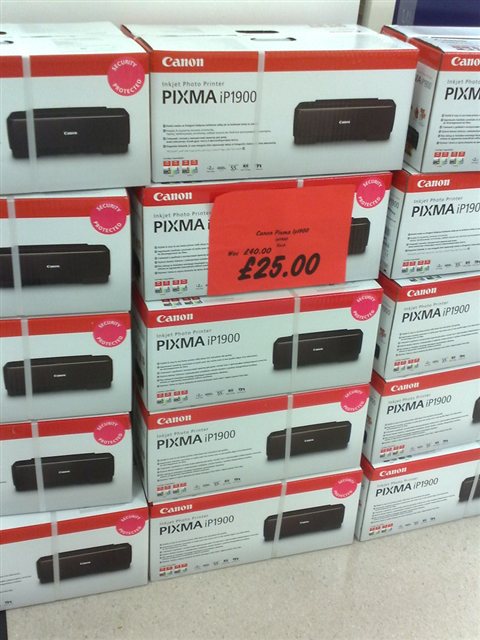
Head to the Canon PIXMA TR4720 support page, select Drivers under Download Type, and grab the “Print Driver and Scan Utility Installer” instead of the print-only driver. The bundled installer sets up both printing and the IJ Scan Utility in one pass, which saves you a second trip back to the support page later when scanning does not show up in Windows.
I set up a TR4720 for my mother-in-law last month, and installing just the basic print driver from a search result link left the scanner completely invisible in Windows Fax and Scan. Re-running the full installer from Canon’s own page fixed it in under five minutes.
Installing the Driver Step by Step
- Close any open Office or PDF apps that might be holding a print queue lock
- Run the downloaded .exe as Administrator
- Choose USB or Wireless LAN connection when prompted — for wireless, keep the printer within a few meters of the router during setup
- Let the installer finish the full sequence, including the scan utility and status monitor components
- Print a test page from Settings > Printers & scanners to confirm everything is working
Fixing a Failed or Stuck Installation
If the installer freezes at “Searching for printer” or errors out with a connection failure, work through these in order:
- Temporarily disable third-party antivirus/firewall software, which can block the discovery step
- Restart the printer by holding the power button for a few seconds until it fully powers off, then back on
- Forget and re-add the printer’s Wi-Fi network on the printer’s own control panel
- Make sure your PC and the TR4720 are on the same Wi-Fi band — some routers split 2.4GHz and 5GHz into separate network names, and the TR4720 only supports 2.4GHz
That last point catches a surprising number of people, since many newer mesh routers hide the band split behind a single network name by default.
Manual Install via Device Manager
If the setup executable refuses to run at all (common on locked-down work laptops), you can still get basic printing working manually:
- Extract the downloaded package using 7-Zip or Windows’ built-in extractor
- Open Devices and Printers, click Add a printer, and choose “The printer that I want isn’t listed”
- Select “Add a local printer or network printer with manual settings” and point Windows to the extracted INF file
- Complete the wizard and print a test page
This gets print working, though you will still want the full Canon installer later for scan functionality. Canon’s own support hub has firmware updates too, which are worth checking if the printer disconnects from Wi-Fi repeatedly.
Per Marcus T., who is a Small Business Owner at a home-based print shop, “For the price, the TR4720 has been reliable — once I got past the initial Wi-Fi setup, it has not dropped connection once in months of daily use.”
Print Quality Problems After a Driver Update
Occasionally, after updating the TR4720 driver, print jobs come out with faded colors, horizontal streaking, or missing lines of text. Before assuming the cartridges are bad, work through the software side first:
- Open the Canon IJ Printer Assistant Tool and run the built-in Nozzle Check pattern
- If the pattern shows gaps, run Head Cleaning, then Deep Cleaning if the first pass does not fully resolve it
- Check that the correct paper type is selected in the print dialog — plain paper settings on photo paper (or vice versa) causes visible banding
- Reseat both ink cartridges by removing and firmly reinserting them, since a loose contact can mimic a clogged nozzle
Genuine Canon cartridges also matter more than people expect on inkjet printers — refilled or third-party cartridges are a common source of streaking that no amount of driver reinstalling will fix, since the print head itself sits inside the cartridge on this printer series.
Setting Up Mobile Printing
The TR4720 supports Canon PRINT for Android and iOS, which lets you print and scan directly from a phone once the printer is on the same Wi-Fi network. A few points that save time during setup:
- Install Canon PRINT from the app store rather than relying on AirPrint or default OS print dialogs for full feature access
- Grant the app local network permission when prompted — on iOS this is a separate permission from location or camera access, and it is easy to miss
- If the app cannot find the printer, confirm the phone is on the same 2.4GHz network, not a separate guest network
Frequently Asked Questions
Why won’t my TR4720 connect to Wi-Fi during setup?
The TR4720 only supports 2.4GHz Wi-Fi. If your router broadcasts a combined 2.4/5GHz network name, temporarily split the bands or connect to the 2.4GHz-specific network during setup.
Do I need the scan utility installed separately?
No — download the combined Print Driver and Scan Utility Installer from Canon’s site and it installs both at once.
Can I print without installing any driver?
Windows may auto-detect a generic driver over USB that handles basic printing, but you will lose ink-level monitoring, scanning, and quality settings without the full Canon package.
Why does my printer show as offline in Windows?
Usually a stale IP address after a router reboot. Remove the printer from Settings > Printers & scanners and re-add it, or set a static IP reservation for the printer on your router.
Why are my prints coming out streaked or faded?
Run a nozzle check and head cleaning cycle from the Canon IJ Printer Assistant Tool first. If streaking continues, check that you are using genuine Canon cartridges, since the print head is built into the cartridge on this model.
Does the TR4720 support automatic double-sided printing?
No, the TR4720 does not have an automatic duplexer. You can still print double-sided manually by selecting Manual Duplex in the print dialog and flipping the paper when prompted.
Conclusion
Most TR4720 driver headaches come down to grabbing the wrong installer or hitting a Wi-Fi band mismatch during setup. Download the full package from Canon directly, run it as Administrator, and double check your router’s 2.4GHz band if wireless setup stalls. Keep the driver updated periodically, since Canon does push out compatibility fixes for newer Windows builds.
Ryan T. is a PC hardware enthusiast with 15+ years of experience fixing drivers on everything from decade-old laptops to brand-new desktops. He writes for softwaredriverdownload.com, where the goal is always the fastest working fix, not the longest article.