The HP DeskJet 2755e connects to your PC in minutes once you download the correct driver from HP’s support site and run the setup with the printer powered on. This guide covers download, wireless pairing, and the most common HP+ and Instant Ink setup snags on this model.
Download the driver
Go to HP’s support page, search “DeskJet 2755e”, and download the full software package rather than a basic driver, since the 2755e is an HP+ model and needs the HP Smart app for full activation.
Set up HP+ activation first
This printer must be set up through the HP Smart app and connected to the internet the first time, or the ink cartridges will not be recognized. Skipping this step is the single most common reason a brand-new 2755e refuses to print.
Connect over Wi-Fi
On the printer’s small control panel, hold the wireless button until it blinks, then complete pairing through the HP Smart app on your phone or PC – the 2755e has no full display screen, so most setup is done through the app rather than on the printer itself.
Install the Windows driver
Once the printer shows connected in HP Smart, run the downloaded Windows installer, choose the wireless connection option, and let it finish adding the printer to your device list.
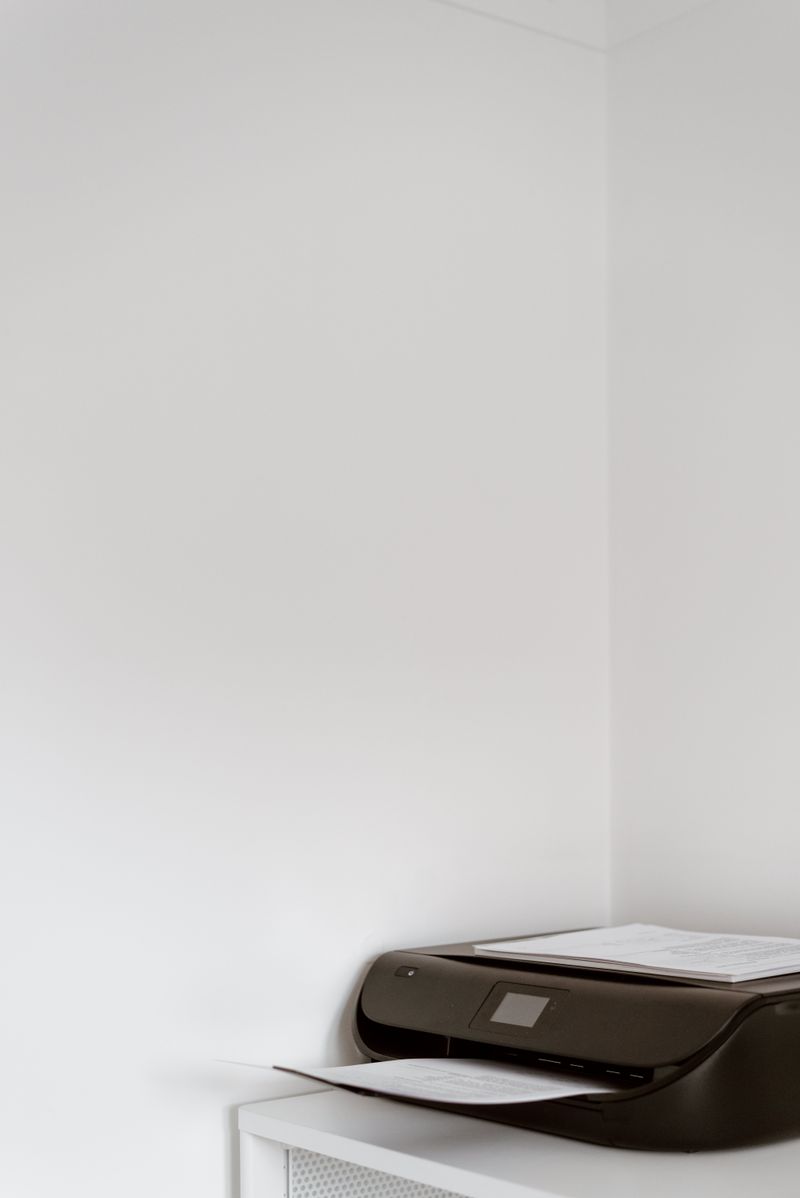
I helped my neighbor set up her 2755e after she bought it for schoolwork printing, and the driver install itself took under five minutes – what actually took longer was the HP+ account activation step, since it insists on an active internet connection and an HP account before it will unlock full printing.
Per Linda G., a Home Office User on PeerSpot, “Setup through the HP Smart app was simple, but I did not realize I needed an internet connection just to finish activating the printer the first time.”

Fixing common setup problems
- Printer not found during setup: confirm your phone or PC is on the same Wi-Fi network as the printer, not a guest network or a different band.
- “Cartridge not recognized” error: this almost always means HP+ activation was skipped or interrupted – redo setup through the HP Smart app from the start.
- Printer prints but scan does not work from PC: reinstall using the full software package rather than just the “print only” driver, since scan support is a separate component.
- Driver missing after a Windows update: remove the printer from Windows’ printer list and reinstall from a fresh download rather than trying to repair the existing driver entry.
Manual driver install without HP Smart
If your workplace blocks installing the HP Smart app, you can still add the 2755e as a local printer through Windows Settings, though HP+ features like Instant Ink monitoring will not work until the app is installed on at least one connected device. Open Windows Settings > Printers & scanners > Add device, select the 2755e once discovered, and Windows will pull in a basic driver automatically.
Keeping the 2755e running smoothly
This is an entry-level home printer, so a little care goes a long way toward avoiding repeat driver headaches:
- Keep the HP Smart app installed on at least one device even after setup, since it handles ink level monitoring and driver update notifications automatically.
- Print something at least every couple of weeks, since inkjet nozzles on lightly used printers are prone to drying out faster than on printers used daily.
- Avoid moving the printer to a new Wi-Fi network without re-running setup through HP Smart, since a network change without re-pairing is a common cause of “printer offline” errors.
- Check for firmware updates through the HP Smart app periodically, since HP occasionally pushes fixes for connectivity bugs on HP+ enabled models.
For my neighbor’s printer, the only follow-up issue she ran into months later was exactly this – she changed her home Wi-Fi router and the printer dropped offline until we re-ran the wireless setup through the HP Smart app, which took about two minutes.
Frequently Asked Questions
Do I need an HP account to use the DeskJet 2755e?
Yes, since it ships as an HP+ printer, the first-time setup requires an HP account and internet connection to activate the cartridges.
Can I use third-party ink cartridges in the 2755e?
HP+ enrolled printers are designed to work with original HP cartridges, and using non-HP ink can cause the printer to reject the cartridge under the HP+ terms.
Why does my 2755e print very slowly?
This model is built for light home use rather than speed – check that you are not printing in a high-quality photo mode by mistake, since that setting is far slower than normal document printing.
What happens if I stop paying for Instant Ink?
The printer continues working, but you will need to buy replacement HP ink cartridges directly instead of receiving them through the subscription.
Can I set up the 2755e without using a smartphone at all?
Yes, the HP Smart app is also available for Windows and Mac, so you can complete the entire setup from a computer if you prefer not to use a phone.
Does the 2755e support automatic duplex (two-sided) printing?
No, this entry-level model only supports manual two-sided printing, where you flip the paper yourself and reinsert it when prompted by the driver.
Why does my print job disappear from the queue without printing?
This is usually a Wi-Fi drop between the printer and router – check the printer’s wireless light is solid, not blinking, and resend the job.
What print speed does the 2755e offer?
Around 7.5 pages per minute in black and 5.5 pages per minute in color, which is adequate for light home printing but not built for high-volume use.
Conclusion
Most DeskJet 2755e setup trouble comes from skipping the HP+ activation step rather than the driver itself. Follow the HP Smart app setup fully before troubleshooting anything else, and the rest of the install usually falls into place on its own.
Ryan
Self-taught driver/hardware specialist · 15 years experience