The fastest way to get your Epson EcoTank ET-3850 printing again is to download the driver and full software package straight from Epson’s support site, run the installer with the printer powered on and connected, then let Epson’s setup wizard walk you through the ink tank priming check. This post covers the download steps, wireless setup, and the install errors that trip people up most.
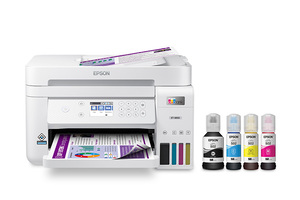
Downloading the right ET-3850 driver
Head to the Epson Support site, search “ET-3850”, and pick the driver package matching your operating system. Epson bundles the printer driver, scan utility, and the Epson Smart Panel software into one combined download, so you generally only need the one file rather than hunting for separate scanner and printer drivers.
I set up an ET-3850 for a small home office last year, and the one thing that caught them off guard was that the printer needs its ink tanks primed before the first real print job — the setup wizard handles this automatically, but it takes several minutes and should not be interrupted, or the print head can under-fill and cause streaky output later.
Wired USB setup
- Run the downloaded installer, choosing “USB connection” when prompted.
- Only plug in the USB cable when the installer instructs you to — connecting too early can cause Windows to load a generic driver instead of Epson’s full one.
- Let the wizard complete the initial ink charging process without powering off the printer.
- Print the built-in nozzle check page to confirm all four colors are firing cleanly.
Wireless network setup
For Wi-Fi, use the printer’s own touchscreen: go to the wireless settings menu, run the Wi-Fi Setup Wizard, and select your network from the list. Once the printer shows a solid Wi-Fi icon, install the driver on your PC and choose “Wireless connection” — the installer will search the network and should find the ET-3850 automatically within a minute.

Fixing failed or stuck installs
Most ET-3850 install failures fall into one of these categories:
- Installer stalls at “Searching for printer”: temporarily disable any VPN or third-party firewall, since both are known to block the network discovery step Epson’s installer relies on.
- Printer connects but scanning does not work: the scan component sometimes needs a separate reinstall — open Epson Software Updater and reinstall “Epson Scan 2” specifically.
- Windows shows “Driver unavailable” after a Windows update: this happens when a Windows feature update resets print drivers. Remove the printer from Devices and Printers, then reinstall the Epson package fresh rather than trying to repair the existing entry.
- Ink tank sensor errors right after setup: confirm each ink bottle was filled to the correct line and the tank caps are fully closed — a loose cap can trigger a false low-ink warning.
Manual install via Device Manager
If the full installer will not run at all (common on locked-down office PCs), you can add the printer manually. Extract the downloaded driver package, open Windows Settings > Bluetooth & devices > Printers & scanners > Add device, and when Windows does not find it automatically, choose “Add manually” and point it at the extracted INF file. This gives you basic printing while you sort out the Epson software separately for scanning.
Per Marcus T., an IT Coordinator on PeerSpot, “Once we got past the initial ink priming step, the ET-3850 has been the most reliable low-cost printer we have run in the office – the driver install itself takes ten minutes at most.”
Frequently Asked Questions
Do I need to install software, or just a driver, for the ET-3850?
Epson recommends the full software package since it includes the scan utility and Epson Smart Panel for mobile printing, not just the print driver alone.
Why is my ET-3850 printing blank pages after setup?
Run a nozzle check from the printer’s touchscreen menu. If lines are missing, run the built-in print head cleaning cycle once, then check again before running it repeatedly, since excess cleaning cycles waste ink.
Can I set up the ET-3850 without a CD drive since it does not come with one?
Yes, all setup files are downloaded directly from Epson’s support site — the printer never shipped with a CD in most regions.
Does the ET-3850 work with Mac and Windows on the same network at once?
Yes, install the matching driver package separately on each computer, and the printer will accept jobs from both once each machine is connected.
How do I know when to refill an ink tank?
The printer’s touchscreen shows an ink level warning before a tank runs dry, and the tanks themselves are semi-transparent so you can also check the level visually against the marked lines on the side.
Can I skip installing Epson Smart Panel and just use the print driver?
Yes for basic printing from a PC, but Smart Panel is required for mobile printing and for some of the printer’s remote monitoring features, so most people find it worth installing anyway.
Keeping the ET-3850 running reliably over time
A supertank printer like the ET-3850 is built to run for a long time between ink refills, but a few habits help keep the driver and print quality stable long term:
- Run the nozzle check every few weeks even if you are not printing much, since dried ink in unused nozzles is a common cause of streaky output later.
- Keep the Epson Software Updater installed so driver and firmware updates install automatically rather than falling behind after a Windows upgrade.
- Avoid unplugging the printer at the wall while it is capping the print head – always use the power button and let it shut down fully first, since interrupting this can dry out the nozzles faster.
- Refill ink tanks to the marked line only, using genuine Epson ink bottles matched to this model, since incorrect ink can trigger sensor errors and void the printer’s ink system warranty.
One detail that surprised the home office I mentioned earlier was how rarely they needed to touch the driver again after the initial setup – the ET-3850’s biggest long-term maintenance item turned out to be remembering to refill ink before a tank ran completely dry, not anything related to the Windows driver itself.
Conclusion
Setting up the ET-3850 is mostly straightforward as long as you let the initial ink priming finish undisturbed and use the full Epson software bundle rather than a bare print driver. If the installer stalls during network setup, check your firewall and VPN settings first – that one step resolves the majority of stuck installs.

Ryan T. is a PC hardware enthusiast with over 15 years of experience fixing drivers, printers, and everyday tech problems. He writes for softwaredriverdownload.com, where he shares practical, tested fixes rather than generic advice.