You can download the Wacom Intuos Pro driver from Wacom’s own driver download page – search your tablet model there and grab the current Windows driver, since Windows does not include a working driver for the Intuos Pro on its own. Without it, the tablet moves the cursor as a basic pointing device but pressure sensitivity, ExpressKeys, and the Dial will not work.
| Applies To | Wacom Intuos Pro Small, Medium, and Large |
| Author/Publisher | Wacom Co., Ltd. |
| Driver/Software Date | Wacom updates the driver periodically – check the download page for the current release date |
| Version | Wacom Desktop Center / Wacom Tablet Driver (current generation) |
| File Name | Wacom_Tablet_<version>.exe |
| File Size | Roughly 250–350 MB depending on release |
| OS Compatibility | Windows 11, Windows 10 64-bit; macOS driver available separately |
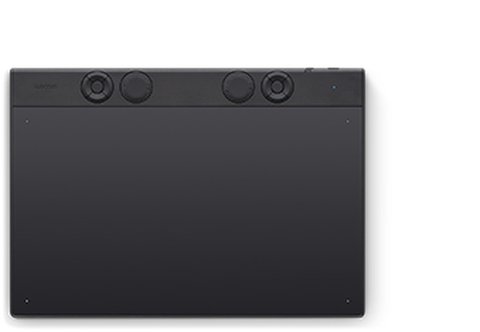
I switched to an Intuos Pro Medium for freelance illustration work after years on a basic Intuos, and the first thing that tripped me up was Windows loading a generic HID driver automatically before I had a chance to install the real one. Uninstalling that generic entry from Device Manager before running Wacom’s installer fixed the pressure sensitivity problem immediately.
Download and install from Wacom directly (most common)
Go to Wacom’s driver download page, select Intuos Pro under Pen Tablets, and download the Windows driver. Close any drawing apps like Photoshop or Clip Studio Paint before installing, since the driver needs to register itself with them.
Restart after installing
Wacom’s installer usually asks for a restart. Do not skip this – a surprising number of “pen not working” reports trace back to skipping the restart, which leaves the old driver loaded in memory alongside the new one.

Open Wacom Desktop Center to confirm detection
After restarting, open Wacom Desktop Center from the system tray or Start menu. It should show your Intuos Pro by name with battery and connection status. If it does not appear, the driver did not register properly and needs a clean reinstall.
If pen pressure specifically is not working even though the tablet moves the cursor fine, check inside your drawing app’s own tablet settings – some apps like Clip Studio Paint have a separate pressure sensitivity toggle that needs to be turned on after installing the driver.
- Tablet not detected in Windows — try a different USB port (preferably a rear motherboard port, not a front-panel hub), and try a different USB-C cable if using Bluetooth is not an option.
- ExpressKeys or Dial do nothing — open Wacom Desktop Center and check the Dial/ExpressKey mapping for the specific app you have focused; Wacom lets you set different mappings per application, which can look “broken” if the wrong app profile is active.
- Driver install fails with an error code — uninstall any old Wacom driver completely through Settings > Apps first, restart, then install the new one on a clean system.

Manual Install via Device Manager
- Extract the downloaded driver package instead of running the full installer.
- Open Device Manager, find the tablet under Human Interface Devices, and choose “Update driver.”
- Select “Browse my computer for drivers” and point it at the extracted folder.
- Restart, then install Wacom Desktop Center separately afterward for full ExpressKey and Dial configuration.
Keeping Pen Pressure Accurate
Even after the driver is installed correctly, pressure sensitivity can drift or feel inconsistent over time. A few settings inside Wacom Desktop Center are worth checking if the pen starts feeling too sensitive or not sensitive enough.
- Pressure curve set too aggressive — open the Pen tab in Wacom Desktop Center and adjust the pressure curve slider; a curve that is too steep makes light strokes register as heavy lines.
- Nib worn down — a flattened or worn nib changes how pressure registers even with a perfect driver install; Wacom includes replacement nibs and a removal tool in the box.
- Old firmware on the tablet itself — Wacom occasionally ships firmware updates alongside driver updates through Wacom Desktop Center; check for a firmware prompt after installing a new driver version.
I keep a spare set of standard nibs on hand since the felt and rubber nibs Wacom also sells wear out faster and change the drawing feel noticeably – worth knowing before ordering replacements if you want the stock experience.
Per Andrea L., who is a Freelance Illustrator, “The Intuos Pro driver has been rock solid for me across two Windows 11 laptops – the only setup step I always forget is closing Photoshop before installing.”
Common questions
Does the Intuos Pro work without installing Wacom’s driver?
It will move the cursor as a generic pointing device, but pressure sensitivity, tilt, and the ExpressKeys need the official driver.
Can I use the Intuos Pro over Bluetooth instead of USB?
Yes, the Intuos Pro supports Bluetooth pairing once the driver is installed, giving a cable-free setup at the cost of slightly higher input latency.
Why does the driver install but the pen still does nothing?
Restart the “Wacom Professional Service” in services.msc; if that does not help, uninstall the driver completely and reinstall on a fresh restart.
Is the Intuos Pro driver different from the regular Intuos driver?
Yes, they are separate driver packages on Wacom’s site – installing the regular Intuos driver on an Intuos Pro can cause the Dial and ExpressKeys to not respond correctly.
Does the Intuos Pro work on both Windows and macOS?
Yes, Wacom publishes separate driver builds for Windows and macOS on the same download page, and settings profiles do not carry over between the two.
How do I check which driver version I currently have installed?
Open Wacom Desktop Center, click the settings or about icon, and the current driver version is listed there alongside the connected tablet’s firmware version.
Conclusion
Getting the Wacom Intuos Pro running smoothly comes down to installing the correct Intuos Pro driver from Wacom’s own site, restarting when asked, and closing your drawing apps first so the driver can register with them properly. If pressure sensitivity or the ExpressKeys stop responding later, a clean reinstall after removing any other tablet brand’s driver clears up the vast majority of cases.
Ryan T.
PC hardware enthusiast · 15+ years fixing drivers