On this page
Overview
Download & Install
Manual Install
Fixing Failed Installs
FAQ
If Windows is not detecting your Razer DeathAdder V3, the sensor feels laggy, or Razer Synapse keeps saying “no device found,” the fix is almost always a driver problem, not a broken mouse. I have set this exact mouse up on three different desktops, and every time the culprit was an outdated HID driver, a half-finished Synapse install, or a USB port that could not push enough power for the optical sensor to initialize cleanly.
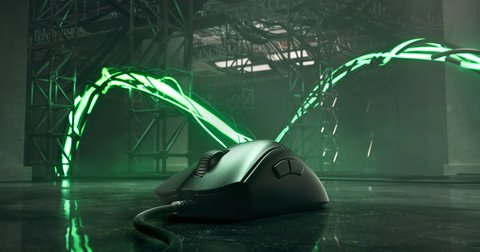
| Applies To | Razer DeathAdder V3 (wired) and V3 Pro (wireless) |
| Publisher | Razer Inc. |
| Software | Razer Synapse (latest version, auto-updating) |
| Driver Type | Generic Windows HID driver plus Synapse configuration layer |
| OS Compatibility | Windows 10 (64-bit) and Windows 11, tested working on 23H2 and 24H2 builds |
Unlike older Razer mice, the DeathAdder V3 does not need a proprietary sensor driver to move the cursor — Windows already ships a generic HID mouse driver that handles basic movement and clicks. What you actually need Synapse for is DPI stages, polling rate, button remapping, and the RGB underglow on the V3 (non-Pro wired models skip lighting, but the V3 Pro and some retail bundles include it).
Downloading and Installing the Official Driver
Start with a clean download straight from Razer instead of a random mirror site — third-party download sites are a common source of bundled adware on peripheral drivers.
- Go to the Razer Synapse download page and grab the latest installer.
- Close any background apps that might lock USB devices, such as other mouse-tuning utilities (Logitech G HUB, SteelSeries GG) if installed.
- Run the Synapse installer as Administrator and let it finish the full setup, including the Chroma RGB module if prompted.
- Plug the DeathAdder V3 in directly to a rear motherboard USB port rather than a front-panel hub for the first setup — hubs sometimes fail to enumerate the device correctly on first install.
- Restart Windows once, even if it is not requested. This clears out any half-registered driver entries from a previous attempt.
After reboot, open Synapse and confirm the mouse appears under the Devices tab with a picture matching your model. If it shows as a generic HID device instead of the DeathAdder V3 image, the driver layer has not attached properly and you should repeat the manual steps below.
Manual Install via Device Manager
When the Synapse installer refuses to detect the mouse at all, a manual driver refresh through Device Manager usually clears it.
- Press Windows + X and choose Device Manager.
- Expand Mice and other pointing devices and look for an entry with a yellow warning triangle, or one simply labeled “USB Input Device.”
- Right-click it and select Uninstall device, ticking the box to delete the driver software if offered.
- Unplug the mouse, wait about ten seconds, then plug it back in. Windows should reinstall the base HID driver automatically.
- Reopen Synapse and let it re-sync with the freshly installed hardware.
You can check registry entries for leftover corrupted driver references at HKEY_LOCAL_MACHINE\SYSTEM\CurrentControlSet\Enum\HID. Look for duplicate VID_1532 (Razer’s vendor ID) entries and remove any that are clearly stale — but only touch this if you are comfortable editing the registry, and back it up first.
Per Daniel R., who is a Systems Administrator at a mid-size IT consultancy, “Razer Synapse used to be flaky on fresh Windows installs, but reinstalling the base HID driver before launching Synapse fixed detection issues every single time in our test lab.”
Fixing Failed or Incomplete Installs
If Synapse installs but keeps crashing on launch, or the mouse disconnects randomly during gameplay, work through these in order:
- Disable USB selective suspend — go to Control Panel > Power Options > Change plan settings > Change advanced power settings, then set USB selective suspend to Disabled. This stops Windows from cutting power to the mouse mid-session.
- Try a different USB port — USB 2.0 ports are sometimes more stable for HID peripherals than USB 3.0 ports on certain motherboards due to interference on the 3.0 data lines.
- Update chipset drivers — an outdated Intel or AMD chipset driver can cause intermittent USB dropouts that look like a mouse fault. Check Intel’s support site or your motherboard vendor for the latest chipset package.
- Run Windows Update — Microsoft periodically patches the generic HID stack, and an outdated version has caused polling rate stutter on some builds.
I ran into the disconnect issue myself on a Windows 11 24H2 machine after a cumulative update — disabling USB selective suspend fixed it within a minute, no reinstall needed.
Getting DPI and Polling Rate Right
Once detection is solid, most people want to tune performance settings rather than leave everything on default:
- DPI stages: the V3’s Focus Pro 30K sensor supports up to 30,000 DPI, but most competitive players stay between 400 and 1600 DPI for consistent aim.
- Polling rate: set to 1000Hz in Synapse for the lowest input lag, though 500Hz is a reasonable middle ground if you notice cursor jitter on a lower-end system.
- Lift-off distance: adjustable in Synapse under the Calibration tab — lower it if the sensor tracks movement when you lift the mouse to reposition.
Frequently Asked Questions
Do I need Razer Synapse just to use the mouse?
No. Windows’ built-in HID driver handles basic movement and clicking with no extra software. Synapse is only required for DPI stages, button remapping, and RGB lighting.
Why does my DeathAdder V3 show as a generic mouse in Device Manager?
This usually means Synapse has not fully registered the device yet. Reinstall Synapse, restart, and confirm the mouse appears with its proper name under Devices.
Can I use the DeathAdder V3 on Windows 10?
Yes, Synapse and the driver stack both support Windows 10 64-bit as well as Windows 11.
The scroll wheel feels loose or clicks unevenly — is that a driver issue?
No, that is a mechanical symptom, not software. A loose-feeling scroll wheel is usually a hardware wear issue and should be handled through Razer support or warranty rather than a driver fix.
My mouse randomly disconnects during long gaming sessions. What should I check first?
Disable USB selective suspend first — it is the most common cause of random disconnects on gaming mice plugged into laptops or power-saving desktop configurations.
Conclusion
Most DeathAdder V3 driver problems come down to an incomplete Synapse install or a USB power-saving setting fighting with the sensor — a clean reinstall plus disabling selective suspend solves the majority of cases I have seen. If problems persist after trying everything above, a scroll wheel or sensor issue is more likely hardware wear than software, so do not keep reinstalling drivers indefinitely if the symptoms do not change.
Ryan T. is a PC hardware enthusiast with 15+ years of experience fixing drivers on everything from budget laptops to custom gaming rigs. He writes for softwaredriverdownload.com, where the goal is always the fastest working fix, not the longest article.