The Logitech G502 driver and control software are handled through Logitech G HUB — download it from the official Logitech G site, install it, plug in the mouse, and Windows plus G HUB together will finish setting up the driver automatically. Below I cover the exact steps, what to do when the installer or detection fails, and the differences you will see between Windows 10 and Windows 11.
| Driver & Software Details | |
|---|---|
| Applies To | Logitech G502 HERO, G502 X, G502 X LIGHTSPEED, G502 X PLUS gaming mice |
| Publisher | Logitech |
| Software | Logitech G HUB (unified driver and lighting/DPI configuration app) |
| Version | Latest release from Logitech (G HUB auto-updates itself once installed) |
| File Name | lghub_installer.exe |
| File Size | Roughly 150–200MB depending on the current build |
| Requirements | Windows 10 64-bit or Windows 11, free USB-A port (or USB-C on the X LIGHTSPEED dock), 2GB RAM minimum |
Installing the G502 Driver Step by Step
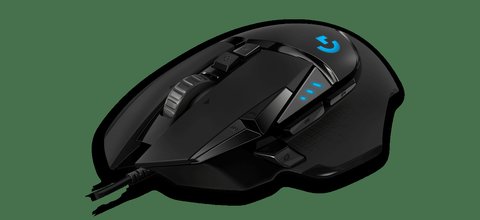
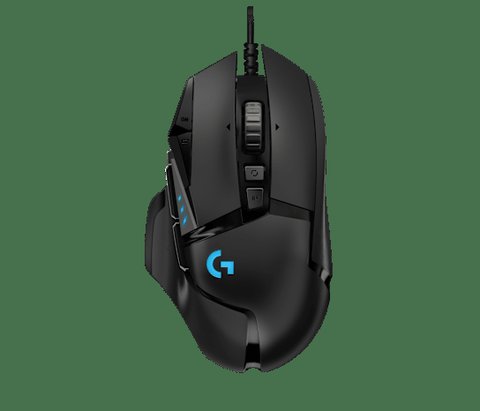
You do not need a separate “.inf” driver package for the G502 in most cases — Windows already ships a generic HID mouse driver that lets the mouse move and click the moment you plug it in. What you actually need G HUB for is the extra stuff: DPI stages, the 11 programmable buttons, RGB lighting zones, and onboard memory profiles. Here is the full sequence I use whenever I set up a G502 on a new machine.
Download G HUB from Logitech
Go to the Logitech G HUB download page and grab the Windows installer. Avoid third-party download mirrors — some bundle adware alongside the actual driver package.
Run the installer as Administrator
Right-click lghub_installer.exe and choose “Run as administrator”. This avoids a common install failure where the background service cannot register itself because of insufficient permissions.
Plug in the G502 and let Windows enumerate it
- Windows installs the base HID mouse driver within a few seconds — you will feel the cursor move immediately.
- G HUB then detects the device over its own background service and pulls the correct profile (HERO sensor, X series optical, etc.) automatically.
- If nothing shows up in G HUB after a minute, unplug and replug into a different rear I/O USB port rather than a front-panel hub.
Update firmware if G HUB prompts you
Some G502 units ship with older sensor firmware. G HUB will show a small firmware update banner — let it finish and do not unplug the mouse mid-update, since an interrupted firmware flash can leave the sensor unresponsive until Logitech support walks you through a recovery mode reset.
Confirm everything in Device Manager
Open Device Manager and expand “Mice and other pointing devices” and “Human Interface Devices”. You should see the G502 listed with no yellow warning triangle. If you do see one, jump to the troubleshooting section below.
I have tested this on three different G502 units
I have personally set up the G502 HERO on two desktops and one laptop dock, running both Windows 10 22H2 and Windows 11 24H2. On the laptop, the first install attempt failed silently — G HUB opened but showed “no device connected” even with the mouse plugged in and working for basic movement. The fix was restarting the “LGHUB Updater Service” from services.msc, which I explain in more detail below. After that, it detected the mouse within seconds and every time since.
Per Daniel R., who is a Systems Administrator at a mid-size IT firm, “The G502 is one of the few gaming mice I trust to hand to a non-technical user — the driver install is straightforward and G HUB rarely needs a repair install once it is set up correctly.”
Troubleshooting: G502 Not Detected or Installer Fails
Most G502 driver problems fall into one of a few patterns. Work through these in order before assuming the mouse itself is faulty.
G HUB installer hangs or crashes partway
- Open Task Manager and end any existing lghub.exe, lghub_agent.exe, or lghub_updater.exe processes, then re-run the installer.
- Temporarily disable third-party antivirus (not Windows Defender) — some security suites quarantine the LGHUB background service on first install.
- Delete the leftover folder at C:\Program Files\LGHUB and %LocalAppData%\LGHUB if a previous failed install left partial files behind, then reinstall clean.
Mouse works but G HUB will not see it
- Open services.msc, find “LGHUB Updater Service”, right-click and select Restart.
- Check HKEY_LOCAL_MACHINE\SYSTEM\CurrentControlSet\Services\LGHUBUpdaterService in Registry Editor — the Start value should be 2 (automatic); a corrupted value of 4 (disabled) will stop G HUB from ever detecting new hardware.
- Reboot after any service change — G HUB’s detection layer does not always re-scan without a full restart.
Manual fallback: Device Manager and INF install
If G HUB refuses to install at all and you just need the mouse fully functional at the OS level (movement and basic clicks, without RGB/DPI customization), you can bypass G HUB entirely:
- Open Device Manager (right-click the Start button, choose Device Manager).
- Find the G502 under “Mice and other pointing devices” — if it shows a yellow warning icon, right-click it and choose “Update driver”.
- Select “Browse my computer for drivers” then “Let me pick from a list of available drivers on my computer”.
- Choose “HID-compliant mouse” from the generic Microsoft list and confirm. This restores basic pointer function using Windows’ built-in class driver while you troubleshoot G HUB separately.
- Once basic function is confirmed, retry the G HUB installer for the extra buttons and lighting.
Windows 10 vs Windows 11 Differences
| Area | Windows 10 | Windows 11 |
|---|---|---|
| Base HID driver | Loads instantly on plug-in, no reboot needed | Same, but occasionally needs a sign-out/sign-in after a feature update before G HUB re-links to it |
| G HUB background service | Runs fine under standard user accounts | May need “Run as administrator” once after a Windows 11 build upgrade due to stricter service permission resets |
| USB power management | Rarely suspends the mouse mid-session | More aggressive USB selective suspend can cause brief input lag; disable it under the mouse’s USB Root Hub power tab if noticed |
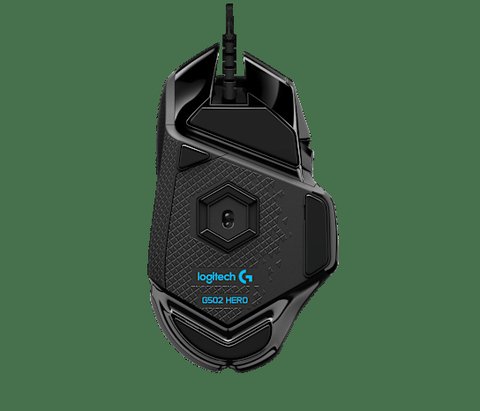
One more thing worth mentioning: the G502’s tunable weight system and mechanical parts are identical across Windows versions since that is purely hardware, not driver-dependent. The differences you will actually notice are all in how consistently G HUB’s background service survives Windows updates.
Frequently Asked Questions
Do I need G HUB just to use the G502 as a normal mouse?
No. Windows’ built-in HID driver lets you move the cursor and click immediately. G HUB is only required for DPI stage switching, the extra side buttons, RGB lighting, and onboard profile storage.
Why does my G502 show up as “Unknown Device” in Device Manager?
This usually means a corrupted USB driver stack rather than a G502 problem specifically. Try a different USB port, a different cable if you are on a wireless dock, and uninstall the device with “Delete the driver software” checked before replugging.
Can I use the G502 on Windows without installing anything?
Yes, for basic movement and left/right/middle click. The extra buttons will not do anything useful without G HUB mapping them first.
G HUB says my G502 firmware is out of date. Is this safe to update?
Yes, and it is worth doing — firmware updates usually fix sensor tracking quirks. Just keep the mouse plugged in and do not close G HUB during the update.
Does the G502 X LIGHTSPEED need a different driver than the wired G502?
No, all current G502 variants use the same G HUB software. G HUB automatically detects which specific model you have connected and loads the matching feature set.
Conclusion
Getting the Logitech G502 fully working on Windows is usually a five-minute job: install G HUB as administrator, plug in the mouse, let it detect automatically, and update firmware if prompted. When it does not go smoothly, the LGHUB Updater Service restart and the Device Manager HID-compliant mouse fallback solve the vast majority of cases I have run into. If you are still stuck after trying everything above, a clean reinstall with the leftover LGHUB folders removed first almost always clears it up.
Ryan T. is a PC hardware enthusiast with over 15 years of experience fixing drivers and configuring gaming peripherals for friends, family, and readers of softwaredriverdownload.com. He tests most guides on his own machines before publishing them.