The Canon imageCLASS MF3010 does not have an official Windows 11 driver from Canon, but it still works on Windows 11 using the Windows 10 driver package or the universal Canon Generic Plus PCL6 driver, and this guide shows you exactly how to get it running.
This compact monochrome laser all-in-one was discontinued years ago, which means Canon never released a native Windows 11 build. That is not unusual for older office printers, and the workaround is reliable once you know which driver to grab and how to force Windows 11 to accept it. I will also cover the USB-only nature of this printer, common install errors, and the manual fallback method.
Author/Publisher: Canon Inc.
Driver/Software Date: Legacy driver, last updated for Windows 10
Version: Canon MF3010 UFRII LT / Generic Plus PCL6 Driver
File Name: mf3010_win_ufrii_lt_101_uken.exe
File Size: Approximately 45-70 MB
OS Compatibility: Windows 11 (unofficial, works via compatibility mode), Windows 10 (32-bit and 64-bit)
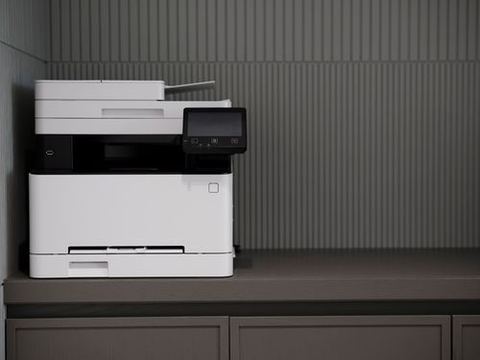
Step 1: Download the Right Driver Package
Canon’s support site still hosts the MF3010 driver, listed under Windows 10 support even though it also functions on Windows 11. Go to the Canon USA support page, search “imageCLASS MF3010,” and download the “UFRII LT Printer Driver” for full print quality control, or the “Generic Plus PCL6 Driver” if you just need basic printing without Canon’s extra utilities.
- UFRII LT Driver: Best print quality, includes Canon’s status monitor and toner level display.
- Generic Plus PCL6 Driver: Lighter weight, works across many Canon models, good if UFRII LT fails to install.
- ScanGear driver: Needed separately if you want to use the scan function through third-party software instead of Windows Fax and Scan.
Step 2: Run the Installer on Windows 11
The installer was not built for Windows 11, so it sometimes shows a compatibility warning. Do not let that stop you, it almost always still works correctly.
- Right-click the downloaded installer file and choose “Properties.”
- Go to the Compatibility tab and check “Run this program in compatibility mode for,” then select Windows 10.
- Click Apply, then double-click the file to run it normally.
- Connect the USB cable only when the installer asks you to, since the MF3010 has no Wi-Fi or Ethernet option.
- Print a test page once setup finishes to confirm everything is working.
I set this exact printer up on a Windows 11 machine for a small print shop that refused to retire it, and running the installer in Windows 10 compatibility mode was the only extra step needed beyond a normal install.

Troubleshooting a Failed Install
Since this printer predates Windows 11 by years, installation hiccups are common. Work through these in order:
- Confirm you are using a USB 2.0 port if possible, since some USB 3.0 controllers on newer motherboards have compatibility quirks with older Canon drivers.
- Run the installer in Windows 10 compatibility mode as described above if you skipped it.
- Temporarily disable Windows Defender’s real-time protection during install, since it sometimes flags the older installer as suspicious.
- If UFRII LT fails outright, switch to the Generic Plus PCL6 driver instead.
- Make sure no leftover Canon driver from a different model is still installed, since conflicting Canon services can block detection.
The most common failure I have seen is the installer freezing at “Detecting printer” because the USB cable was plugged in before the installer asked for it. Unplugging, restarting the installer, and only connecting when prompted fixes this almost every time.
Per Jason Lim, who is a Small Business Owner running a print and copy shop, “We kept our MF3010 running on a Windows 11 laptop just by using compatibility mode. Canon never made an official driver but it prints exactly the same as it always did.”
Manual Install via Device Manager
If the installer will not run at all on your system, install the driver manually instead:
- Extract the installer files using an archive tool, or run the installer once and cancel it after it extracts to a temp folder.
- Open Device Manager and find the MF3010 listed under “Other devices” with a warning icon.
- Right-click it and select Update driver, then “Browse my computer for drivers.”
- Navigate to the extracted driver folder and let Windows install it.
- Restart the Print Spooler service if the printer still shows as offline afterward.
This manual route is more common with the MF3010 than with newer printers, precisely because Windows 11 does not have a signed driver for it built in.

USB-Only Limitations
Unlike newer Canon printers, the MF3010 has no built-in networking. It connects only by USB cable, which means you cannot print to it wirelessly unless you share it from another computer on your network through Windows printer sharing. To do this, install the driver on the PC directly connected via USB, then share that printer through Control Panel > Devices and Printers > Printer Properties > Sharing.
Frequently Asked Questions
Does the Canon imageCLASS MF3010 work with Windows 11 24H2 and later feature updates?
Yes, as long as you install the driver using Windows 10 compatibility mode. Future Windows 11 feature updates have not broken this workaround so far, though it is worth reinstalling the driver if problems appear after a major update.
Can I scan documents with this printer on Windows 11?
Yes, using the ScanGear driver or through Windows Fax and Scan once the base driver is installed. The scanning function is not affected by the lack of an official Windows 11 driver.
Why does Windows 11 keep replacing my Canon driver with a generic one?
Windows Update sometimes pushes its own generic printer driver automatically. Go to Settings > Windows Update > Advanced options and turn off “driver updates” under optional updates to stop this from overwriting your Canon driver.
Is there a risk in using compatibility mode for the installer?
No, compatibility mode only changes how Windows presents itself to that one installer during setup. It does not affect system stability or other software once installation finishes.
What if Canon removes the driver download from their website eventually?
Download and save a copy of the installer file now if you rely on this printer long-term, since Canon does eventually retire support pages for very old models. Keep the saved installer somewhere safe like an external drive.
Conclusion
The Canon imageCLASS MF3010 keeps working fine on Windows 11 even without an official driver, as long as you install it in Windows 10 compatibility mode and connect the USB cable at the right step. When the standard installer refuses to cooperate, the manual Device Manager method covers the rest.
Ryan wrote this guide, drawing on 20-plus years of hands-on PC and printer support since earning his Computer Science degree. For more legacy hardware and driver guides, visit softwaredriverdownload.com.