If your wireless mouse is not connecting on Windows 11, the fix is usually one of a handful of things: a dead or low battery, a USB receiver in the wrong port, a Bluetooth pairing that needs to be redone, or a driver conflict. This guide runs through every fix, from Logitech and Microsoft USB dongle mice to Bluetooth-only models, in the order that solves the problem fastest.
Wireless mice fail to connect for reasons that have nothing to do with the mouse itself more often than people expect. I have fixed this on everything from a basic Dell USB receiver mouse to a Bluetooth-only Apple Magic Mouse paired to a Windows 11 laptop, and the causes usually overlap no matter the brand.
Common Causes
- Dead, low, or incorrectly inserted batteries
- USB receiver plugged into a weak or hub-routed port
- Bluetooth pairing dropped or never completed properly
- Mouse power switch left off or stuck in sleep mode
- Outdated Bluetooth or HID driver
- USB selective suspend powering down the receiver
Step 1: Rule Out the Battery and Power Switch
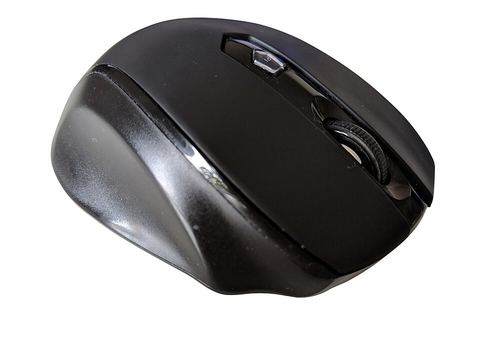
This sounds obvious, but it is the single most common cause of a wireless mouse “not connecting” when it was working fine before.
- Check the battery level. Most wireless mice have an LED that blinks or turns red when the battery is low, though some give no warning at all.
- Swap in a fresh battery even if the old one seems fine. A battery that reads as “half charged” on a tester can still be too weak to power a stable wireless connection.
- Confirm the physical power switch on the bottom of the mouse is actually in the ON position. It is easy to bump this switch while carrying the mouse in a bag.
- If the mouse uses a rechargeable battery, plug it in to charge for at least 10 minutes before testing, since some models will not power on at all when fully drained.
Step 2: Check the USB Receiver Connection
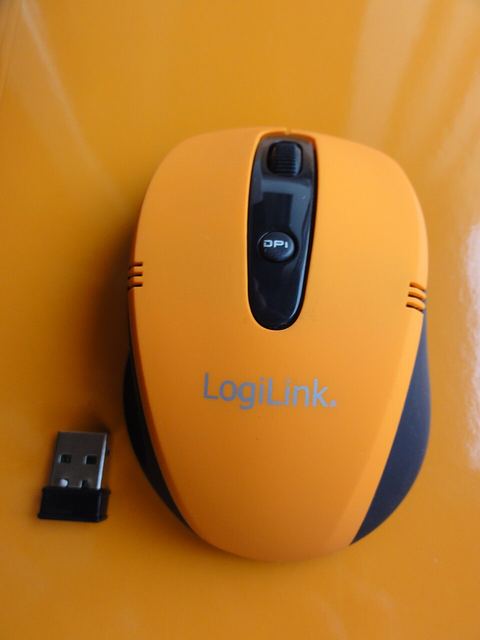
If your mouse uses a small USB dongle instead of Bluetooth, the port matters more than most people realize.
- Unplug the USB receiver and plug it into a different USB port, preferably one on the back of a desktop that connects directly to the motherboard.
- Avoid USB hubs and keyboard-integrated USB ports for the receiver. These often supply less power and can cause a wireless mouse to disconnect randomly even when it initially pairs.
- If you are using a USB-C laptop with an adapter or dock, try plugging the receiver directly into a USB-A port on the laptop if one is available, to rule out the adapter.
Step 3: Re-Pair a Bluetooth Mouse From Scratch
Bluetooth mice are more likely to need a full re-pair than USB receiver mice, especially after a Windows update.
- Go to Settings > Bluetooth & devices and remove the mouse from the paired devices list if it appears there, even if it shows as “connected.”
- Turn the mouse off, wait five seconds, then turn it back on and put it into pairing mode, usually by holding a small button on the underside for a few seconds until the LED blinks rapidly.
- Click Add device in Windows Bluetooth settings and select the mouse when it appears in the list.
- If it does not show up at all, toggle Bluetooth off and back on in Windows, and confirm Bluetooth is not disabled in Airplane mode.
I had a Microsoft Bluetooth mouse that worked fine for months on a Windows 11 desktop, then suddenly stopped connecting after a feature update. Removing it from Bluetooth devices and re-pairing from scratch fixed it in under a minute, but simply toggling Bluetooth off and on first did nothing that time.
Step 4: Update or Reinstall the Mouse and Bluetooth Drivers
- Open Device Manager and check under Mice and other pointing devices and Bluetooth for any yellow warning icons.
- Right-click the affected entry and choose Update driver > Search automatically.
- If that does not help, uninstall the device entry, restart the PC, and let Windows reinstall it automatically when it reconnects.
- For brand-specific mice, install the manufacturer’s software (Logitech Options+, Microsoft Mouse and Keyboard Center, or similar) since it can restore custom pairing profiles that Windows’ generic driver does not handle.
Step 5: Disable USB Selective Suspend
Windows tries to save power by putting idle USB devices to sleep, and this setting is a common cause of a wireless mouse receiver dropping the connection intermittently rather than never connecting at all.
- Open Control Panel > Power Options.
- Click Change plan settings next to your active plan, then Change advanced power settings.
- Expand USB settings > USB selective suspend setting and set both On battery and Plugged in to Disabled.
Per Elena Kruger, who is a Desktop Support Analyst at a university IT department, “Nine times out of ten a wireless mouse that stops connecting just needs a fresh battery or a different USB port. We only get into driver reinstalls once those two are ruled out.”
Run the Windows Hardware Troubleshooter
Windows includes a built-in troubleshooter that can catch configuration problems a manual check might miss.
- Go to Settings > System > Troubleshoot > Other troubleshooters.
- Run the Bluetooth troubleshooter if your mouse uses Bluetooth, or the general hardware troubleshooter for a USB receiver mouse.
Microsoft’s own Bluetooth troubleshooting guide and general guidance from sites like How-To Geek cover additional edge cases worth checking if the steps above do not resolve the connection issue.
When Nothing Restores the Connection
- Test the mouse on a different PC. If it still will not connect anywhere, the mouse itself or its receiver has likely failed.
- If you lost the original USB receiver, most receivers are paired specifically to that one mouse and cannot simply be swapped for another receiver of the same brand.
- For Bluetooth mice, check whether your PC’s Bluetooth adapter itself is having issues by trying to pair a different Bluetooth device, like a headset, to isolate the problem.
Frequently Asked Questions
Why did my wireless mouse suddenly stop connecting after working fine for months?
The most common causes are a battery that finally dropped below a usable threshold, or a Windows Update that reset a Bluetooth pairing or USB power setting. Start with a fresh battery and a Bluetooth re-pair before assuming the mouse has failed.
Can I use a wireless mouse’s USB receiver with a different mouse of the same model?
Usually not. Most consumer wireless mice pair their receiver to the specific mouse at the factory. A few higher-end models support re-pairing a replacement receiver, but check the manufacturer’s support page for your exact model first.
My mouse cursor moves but clicks do not register. Is that a connection problem?
That is usually a separate issue, often a worn-out microswitch inside the mouse rather than a wireless connection problem, since movement and click signals travel over the same wireless link. If clicks fail consistently on multiple PCs, the mouse hardware itself is the likely cause.
Does USB selective suspend affect Bluetooth mice too?
It can, if the Bluetooth adapter itself is USB-connected internally, which is common on both desktops and laptops. Disabling USB selective suspend is worth trying for Bluetooth connection drops, not just USB receiver mice.
Should I try a wired mouse to test if the problem is Windows or the mouse?
Yes, this is a useful diagnostic step. If a wired mouse works fine, the problem is isolated to wireless connectivity, either the mouse, its battery, or the USB/Bluetooth path, rather than a broader Windows input problem.
Conclusion
Most wireless mouse connection problems on Windows 11 come down to power, whether that is a weak battery or a USB port that cannot supply enough of it. Work through the battery, USB port, and Bluetooth re-pairing checks first, since they resolve the majority of cases without needing a driver reinstall at all.
Ryan has a Computer Science background and over 20 years of experience troubleshooting PC peripherals, from wired keyboards to Bluetooth mice. He shares hands-on guides like this one at SoftwareDriverDownload.com, based on devices he has actually tested and fixed.