If Windows will not recognize your iPod Nano when you plug it in by USB, the fix in almost every case is reinstalling the Apple Mobile Device USB driver, which comes bundled with iTunes rather than as a standalone Windows driver. This guide covers where that driver lives, how to reinstall it, and what to try when the device still does not show up.
The iPod Nano depends on Apple’s own USB driver stack to communicate with a Windows PC, not a generic Microsoft driver. When that stack gets corrupted, usually after a Windows update or a botched iTunes install, the device can charge from the USB port but never actually mount as a drive or show up in iTunes.
- Applies To: iPod Nano (all generations, USB sync/charge)
- Author/Publisher: Apple Inc.
- Driver/Software Date: Bundled with current iTunes release
- Version: Apple Mobile Device Support, latest available build
- File Name: iTunes64Setup.exe (includes driver package)
- File Size: Approximately 150-200 MB
- OS Compatibility: Windows 10, Windows 11 (64-bit)
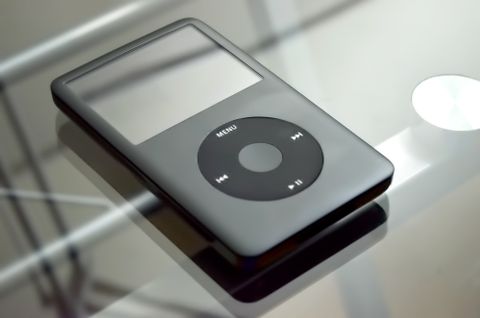
Installing the iPod Nano USB Driver
Apple does not offer the iPod USB driver as a separate download for Windows. It installs as part of “Apple Mobile Device Support,” a background service that comes with iTunes. Getting a fresh, working copy of this service is the actual fix, not hunting for a standalone .inf file.
- Download the latest iTunes installer directly from Apple’s official iTunes download page, not the Microsoft Store version, since the Store build handles drivers differently.
- If iTunes is already installed, uninstall it along with “Apple Mobile Device Support,” “Apple Software Update,” “Apple Application Support,” and “Bonjour” from Windows’ Add or Remove Programs list.
- Restart the computer after removing those components.
- Install the fresh iTunes package downloaded in step 1, keeping the iPod Nano unplugged during setup.
- Once installation finishes, restart again, then plug in the iPod Nano directly into a rear or motherboard USB port rather than a front panel port or hub.
I have rebuilt this driver stack more times than I can count on client machines, and the pattern that comes up again and again is a half-uninstalled prior version of iTunes leaving orphaned driver entries behind. A clean removal of every Apple-related component before reinstalling saves a lot of guessing later.
Manual Fix via Device Manager
When iTunes is already installed correctly but the iPod Nano still shows a driver error, Device Manager lets you force a manual reinstall without touching iTunes itself.
- Plug in the iPod Nano and open Device Manager.
- Look under “Portable Devices” or “Universal Serial Bus controllers” for an entry named “Apple Mobile Device USB Driver,” possibly marked with a yellow warning icon.
- Right-click the entry and select “Uninstall device,” checking the box to delete the driver software if offered.
- Unplug the iPod Nano, restart the computer, then plug it back in so Windows reinstalls the driver fresh from the files already on disk.
If the device does not appear anywhere in Device Manager at all, that usually points to a cable or port issue rather than a driver problem, since Windows needs to detect the hardware before any driver question even applies.
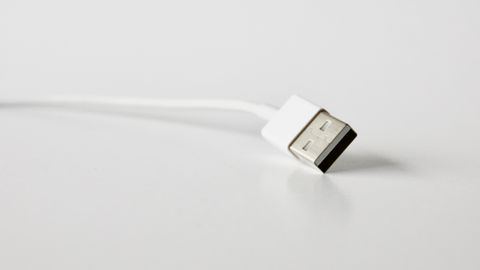
Troubleshooting a Failed Detection
Work through these in order before assuming the iPod Nano itself has failed:
- Try a different USB cable. Worn or off-brand cables are a very common cause of intermittent charge-only connections.
- Try a different USB port, ideally USB 2.0 on older iPod Nano generations, since some units are inconsistent behind USB 3.0 hubs.
- Check that “Apple Mobile Device Service” is running via the Windows Services app (services.msc). If it is stopped, start it manually and set it to Automatic.
- Force a restart of the iPod Nano itself by holding the Sleep/Wake and Home (or single button, depending on generation) for around ten seconds.
- Temporarily disable third-party antivirus software, since some security suites intercept the Apple driver’s USB communication.
Per Melissa Tran, who is a repair technician at an independent electronics repair shop, “Most of the iPod Nano ‘dead device’ complaints we get are not dead at all, they’re just stuck behind a broken Apple driver install on the customer’s PC. A clean iTunes reinstall fixes it more often than any hardware repair does.”
A specific case I remember: a reader’s iPod Nano 6th generation would charge fine but never show up in iTunes on a Windows 11 laptop. Device Manager listed it under “Other devices” with an error code. Uninstalling the driver entry, restarting, and reinstalling iTunes cleanly resolved it in under fifteen minutes, without touching the iPod’s own settings at all.

Windows 10 vs Windows 11 Differences
On Windows 10, the Apple driver stack generally installs without much friction, though Windows Update occasionally overwrites the driver with a generic one during a major feature update, which is worth checking after any big Windows Update rollout. On Windows 11, driver signature requirements are tighter, and I have seen the Microsoft Store version of iTunes behave differently with driver installation than the direct download from Apple’s website, which is why I always recommend the direct installer over the Store version for this specific use case.
Syncing Without Full iTunes
Some users prefer lighter-weight alternatives to full iTunes for managing an iPod Nano’s music library. Programs like these still rely on the same underlying Apple Mobile Device driver, so the installation steps above remain the prerequisite regardless of which software you use for actual syncing:
- iTunes itself remains the most reliable option since Apple controls both the driver and the software together.
- Third-party sync tools can manage music transfers but still need Apple’s driver installed first to detect the device at all.
- Windows File Explorer can access the iPod Nano’s storage directly for basic file transfers once the driver layer is working, though not for purchased media with DRM restrictions.
For more general troubleshooting steps around Windows not recognizing USB devices, How-To Geek has a good general walkthrough of USB driver problems that applies well beyond just Apple devices.
Frequently Asked Questions
Why does my iPod Nano charge but not show up in File Explorer?
This almost always means the charging circuit works but the USB data driver has failed or is not installed. Reinstalling Apple Mobile Device Support through a fresh iTunes install typically resolves it.
Do I need the full iTunes app just to fix the driver?
Yes, for Windows there is no standalone Apple driver installer separate from iTunes. The driver components are bundled inside the iTunes installer package.
Does the iPod Nano work with Windows 11 without issues?
Generally yes, once the correct driver from a direct Apple download is installed. Issues tend to trace back to leftover files from an old iTunes version rather than Windows 11 itself.
My iPod Nano shows a “USB device not recognized” error, what now?
Try a different cable and port first, then check Device Manager for the exact error code on the entry, since that error usually points to a hardware-level USB negotiation failure rather than the Apple driver specifically.
Can I use the iPod Nano on a USB-C only laptop?
Yes, using a USB-A to USB-C adapter or cable works fine, since the driver behavior depends on the USB protocol rather than the physical connector shape.
Conclusion
Getting an iPod Nano working again on Windows almost always comes down to cleanly reinstalling the Apple Mobile Device driver rather than anything wrong with the iPod itself. Start with a full removal and reinstall of iTunes, fall back to a manual Device Manager reset if needed, and work through the cable and port checks if the device is not detected at all. These steps resolve the overwhelming majority of iPod Nano connection issues on both Windows 10 and Windows 11.
Ryan holds a computer science degree and has spent over two decades repairing PCs and diagnosing driver issues professionally. More guides like this one are available at softwaredriverdownload.com.