The Tripp Lite UPS driver you need is Eaton’s free PowerAlert software, which replaced the older Tripp Lite PowerAlert package after Eaton acquired the brand, and it handles USB communication, battery status, and automatic Windows shutdown during a power outage.
If your Tripp Lite SmartPro or SMART-series UPS shows up in Windows as an unknown device, or you plugged it in and got no monitoring software at all, this walks through getting it fully recognized. I will cover the download, a manual Device Manager fix, and the specific errors I have run into personally with SmartPro units in a small office setup.
Author / Publisher: Eaton (formerly Tripp Lite)
Driver / Software: Eaton PowerAlert Software Suite
Version: 22.x (check the Eaton site for the current build)
File Name: PA_Suite_Setup.exe
File Size: approximately 200-260 MB
OS Compatibility: Windows 10, Windows 11, Windows Server 2016/2019/2022
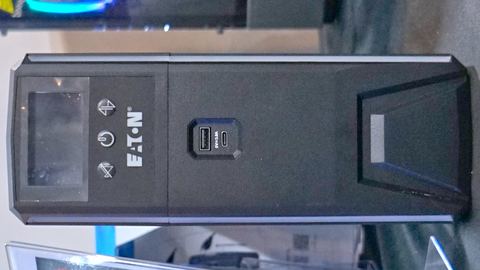
Why Tripp Lite Downloads Now Point to Eaton
Eaton bought Tripp Lite, and over the past few years the company has consolidated software under the Eaton brand and the PowerAlert name. If you search for “Tripp Lite PowerAlert Local” on an old forum post, the link is probably dead now. The current package lives on Eaton’s own support site, searchable by your UPS model number, and it works the same way the old Tripp Lite software did, just with an updated interface.
- USB models: Windows loads a generic HID UPS driver on its own, same as most other UPS brands.
- Serial/DB9 models: need PowerAlert Local with the correct COM port selected manually.
- Network card (WEBCARDLX) models: use PowerAlert Network Management Module software instead.
Getting the Right Installer
- Find your model number on the rear label, for example SMART1500LCD or SU1500RTXL2Ua.
- Go to Eaton’s Tripp Lite software and firmware download page and search that model.
- Download the PowerAlert software suite listed for your unit, not the standalone firmware update tool.
- Save the installer and check the file size roughly matches what is listed on the page — a truncated download is a common cause of install failures.
Installing PowerAlert on Windows
- Right-click the installer and choose Run as administrator.
- Accept the license terms and pick a standard install (not the network management module unless you specifically have a card installed).
- Allow the installer to add the PowerAlert Windows service — this is the background process that watches battery state.
- Connect the USB cable from the UPS to the PC if not already connected.
- Reboot once the install finishes, even if it does not explicitly ask you to.
- Open PowerAlert from the Start menu, or browse to
https://localhost:7686, and confirm it reads battery charge and runtime correctly.
I set up a Tripp Lite SMART1500LCD for a small office file server a while back, and the install itself went fine, but PowerAlert kept reporting “device not found” until I rebooted. The installer never mentioned that a restart was necessary — I found that out through trial and error after the third failed attempt at a fresh install.
Manual Driver Install via Device Manager
When to Use This
If PowerAlert installs cleanly but never sees the UPS, force Windows to reload the hardware driver directly.
- Open Device Manager (Windows key + X, then Device Manager).
- Look under Batteries and Universal Serial Bus controllers for a device labeled “Tripp Lite” or generic “USB UPS.”
- If you see a yellow exclamation mark, right-click and select Uninstall device, then check “delete the driver software.”
- Unplug the USB cable, wait ten seconds, then plug it back in so Windows reinstalls the driver fresh.
- Restart the PowerAlert service afterward from
services.msc.
Common Install Problems and Fixes
- Installer stalls on “Configuring service”: temporarily disable antivirus, especially anything with aggressive behavioral scanning, then retry the install.
- PowerAlert opens but shows zero load and zero runtime: the USB cable is likely charge-only or damaged — swap it for a known-good data cable.
- “Device communication error” on every launch: another program, sometimes leftover NUT (Network UPS Tools) software from a Linux dual-boot setup, may be holding the USB port open. Close or uninstall it.
- Web console at port 7686 refuses to load: confirm the PowerAlert service is set to Automatic startup, not Manual, in Services.
- Firmware shown as “Unknown”: reconnect the cable and give it thirty seconds; some SmartPro units are slow to report firmware over USB after a cold boot.
Per Marianne Cho, who is an IT Coordinator at a nonprofit clinic network, “Our older Tripp Lite units switched over to Eaton PowerAlert without much drama once we found the right download page. The one thing that still gets people is thinking the software is discontinued because the Tripp Lite branding disappeared — it did not, it just moved.”
Windows 10 and Windows 11 Differences
On Windows 10, PowerAlert’s system tray icon typically appears right after install without issue. On Windows 11, I have seen the tray icon fail to load until you manually open the app once from the Start menu, after which it registers correctly for future logins. If you rely on the tray icon to confirm the UPS is being monitored, do not assume it is broken just because it is missing right after setup — open the app directly first.
For general Windows service and driver troubleshooting, Microsoft Support is a reliable starting point, and Tom’s Hardware has useful background on UPS sizing and runtime if you are also deciding whether your current unit is adequate.
Frequently Asked Questions
Is Tripp Lite PowerAlert the same as Eaton PowerAlert?
Yes. Since Eaton acquired Tripp Lite, the software has been unified under the Eaton PowerAlert name, but it still fully supports Tripp Lite hardware and is downloaded from Eaton’s Tripp Lite support pages.
My Tripp Lite UPS works fine without software — do I still need it?
The UPS will protect connected equipment from power loss regardless, but without PowerAlert you lose automatic OS shutdown scheduling, battery health alerts, and load monitoring, which matters most for servers or NAS devices left unattended.
Why does Device Manager show my UPS as “Unknown USB Device”?
This usually means a driver failed to bind correctly, often from a bad cable or a corrupted install. Uninstall the device in Device Manager, unplug and replug the cable, and let Windows reinstall the generic driver before reinstalling PowerAlert.
Can I monitor multiple Tripp Lite UPS units from one PC?
PowerAlert Local is designed for one UPS per installed instance connected directly. For monitoring multiple units centrally, you need network-connected models with a WEBCARDLX card and PowerAlert’s network management console.
Does PowerAlert work on Windows Server as well as desktop Windows?
Yes, the same installer supports Windows Server 2016, 2019, and 2022, which is common in small server rooms where the UPS protects a physical server directly.
Conclusion
Getting a Tripp Lite UPS fully working in Windows mostly means finding the right download under the Eaton PowerAlert name and giving the service a reboot before assuming something is broken. Once it is installed and communicating, it is a low-effort way to protect a PC or server from sudden power loss, and the software itself has not gotten any harder to use despite the rebrand.
Written by Ryan, a CS graduate who has spent two decades troubleshooting PC hardware and peripheral drivers for home users and small offices alike. More driver and hardware guides are available at softwaredriverdownload.com.