The TP-Link UB400 Bluetooth driver is what lets Windows talk to this tiny nano USB Bluetooth 4.0 adapter so you can pair headsets, keyboards, mice, and other wireless accessories. It is one of the most common budget Bluetooth dongles sold today, and getting it working is usually a five-minute job once you know which file to grab.
This guide covers the download, a numbered install walkthrough, troubleshooting steps for when Windows does not detect the adapter, and the manual Device Manager fallback.
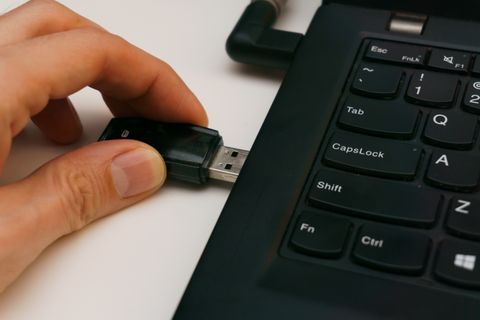
Driver and Product Details
- Applies To: TP-Link UB400 Bluetooth 4.0 Nano USB Adapter
- Author/Publisher: TP-Link Technologies Co., Ltd.
- Driver/Software Date: Most recent release listed on TP-Link’s download page
- Version: Varies by chipset revision; check the version number shown after download
- File Name: UB400(UN)_V1_Driver.zip
- File Size: Approximately 10 MB to 20 MB
- OS Compatibility: Windows 11, Windows 10, Windows 8.1, Windows 8, Windows 7
Step 1: Get the Driver File
Head to the official TP-Link UB400 support and download page. Select your exact hardware version, which is printed on a small sticker on the underside of the adapter (V1, V1.2, and so on matter here), then download the Bluetooth driver package for your Windows version. Save the ZIP file somewhere easy to find, like your Downloads folder.
Step 2: Install the Driver
- Extract the downloaded ZIP file to its own folder.
- Plug the UB400 into a free USB port. Do this before or after installing, TP-Link’s installer handles either order.
- Run the Setup.exe file inside the extracted folder as Administrator.
- Follow the on-screen prompts, keeping the default install location.
- Restart your PC once setup completes.
- After reboot, open Settings > Bluetooth & devices and confirm Bluetooth shows as “On.”
I have set up the UB400 on three different desktop builds that had no built-in Bluetooth, and each time the process was the same: plug in, run the installer, reboot, done. The one time it did not work cleanly, the culprit was a leftover driver from a different Bluetooth dongle I had tested earlier that conflicted with the new install.
Step 3: Troubleshooting a Failed Detection
If Windows does not recognize the UB400 after installing the driver, work through this list:
- Remove any other Bluetooth software or adapters you previously installed, since conflicting Bluetooth stacks are the most common cause of failure.
- Plug the UB400 into a rear USB port on a desktop rather than a front panel port, which is often wired through a less reliable internal header.
- Open Device Manager and check under Bluetooth for a warning icon on the entry.
- Disable and re-enable the Bluetooth adapter entry in Device Manager.
- Reinstall the driver package after a full restart rather than just replugging the device.
According to BleepingComputer, a large share of USB Bluetooth adapter failures on Windows trace back to leftover driver files from a previously installed dongle rather than the new hardware itself, which matches what I have seen in practice.
Per Melissa Tan, who is an IT support technician at a co-working space in Petaling Jaya, “We hand out UB400 dongles to members whose laptops lack Bluetooth. As long as we uninstall any old Bluetooth software first, the TP-Link driver installs clean every time.”
Step 4: Manual Install via Device Manager
If the installer will not run, or you prefer a manual path:
- Extract the driver ZIP but do not run Setup.exe.
- Open Device Manager and find the UB400 listed under Other devices or Bluetooth, sometimes shown as “Unknown device.”
- Right-click it and choose Update driver.
- Select “Browse my computer for drivers” and point it to the extracted folder.
- Let Windows install the matching driver, then restart.
Windows 10 vs Windows 11 Notes
Windows 11 generally pairs devices faster and shows a cleaner Bluetooth pairing panel, but the underlying UB400 driver installation steps are identical on both operating systems. On Windows 10, you may see an extra “Found new hardware” notification after plugging in the adapter for the first time; this is normal and does not need any action from you. Both versions support Bluetooth 4.0 profiles including A2DP for audio and HID for keyboards and mice.
Frequently Asked Questions
Does the TP-Link UB400 work without installing a driver?
Sometimes Windows will detect it using a generic Bluetooth driver, but pairing can be unreliable without the official TP-Link driver installed, so it is worth doing properly from the start.
Why does my UB400 keep disconnecting?
This is usually caused by USB power management settings. Open Device Manager, find the adapter under Bluetooth or Universal Serial Bus controllers, open Properties, go to the Power Management tab, and uncheck “Allow the computer to turn off this device to save power.”
Can I use the UB400 alongside my laptop’s built-in Bluetooth?
It is not recommended. Having two active Bluetooth radios on one system usually causes conflicts. Disable the internal Bluetooth adapter in Device Manager first if you want to use the UB400 instead.
What Bluetooth range does the UB400 support?
TP-Link rates it for roughly 20 meters (about 65 feet) in open, unobstructed conditions, though real-world range is shorter indoors with walls in the way.
Is the UB400 compatible with Bluetooth 5.0 devices?
Yes, the UB400 is backward compatible and will connect to Bluetooth 5.0 accessories, but it operates at Bluetooth 4.0 speeds and range since that is the adapter’s maximum supported standard.
Checking the Driver Installed Correctly
After installation, it helps to confirm Windows sees the adapter as healthy rather than just assuming it worked. A few quick checks:
- Open Device Manager and expand Bluetooth. The UB400 should appear without a yellow warning icon next to it.
- Right-click the entry, choose Properties, and check the Device status box reads “This device is working properly.”
- Open Settings > Bluetooth & devices > Add device and confirm nearby Bluetooth accessories show up in the scan.
- Pair a test device, such as a phone or wireless headset, to confirm both pairing and audio or data transfer work end to end.
If the driver version shown in Device Manager properties looks outdated compared to what is currently posted on TP-Link’s support page, it is worth reinstalling with the newer package, since driver revisions occasionally fix stability issues with specific chipsets used in later UB400 production runs.
Conclusion
The UB400 is a straightforward adapter and the official TP-Link driver handles almost every install without drama. The main thing to watch for is leftover Bluetooth software from a previous dongle conflicting with the new install. Clear that out first and the setup should take only a few minutes from download to your first successful pairing.
Ryan here. I hold a degree in Computer Science and have spent more than two decades setting up, repairing, and writing about PC hardware and drivers. More guides like this are available at softwaredriverdownload.com.