The Brother QL-700 label printer needs its P-touch Editor driver package installed on Windows before it will print a single label, and this guide walks you through downloading it, installing it correctly, and fixing the most common connection problems.
I have set up several QL-700 units for home offices and small shops over the years, and the process is simple once you know the two things Brother does not make obvious: you need the full software suite, not just a driver file, and the USB cable matters more than most people expect. Below is the complete walkthrough.
Author/Publisher: Brother Industries, Ltd.
Driver/Software Date: Current release available on Brother Solutions Center
Version: P-touch Editor 5.x with QL-700 printer driver
File Name: QL700fullpackage.exe
File Size: Approximately 140 MB
OS Compatibility: Windows 10, Windows 11 (32-bit and 64-bit)
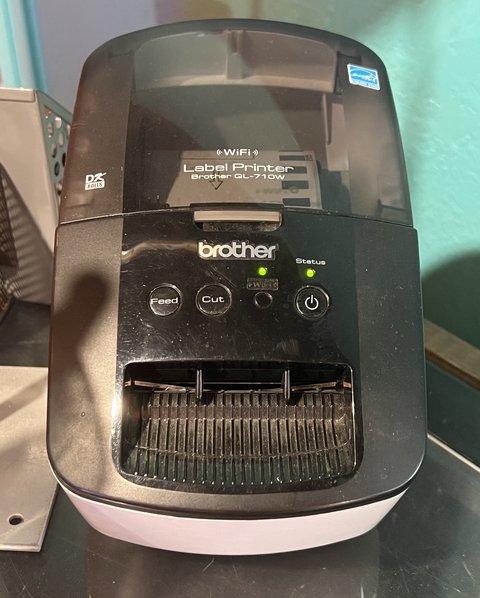
Downloading and Installing the Driver
Brother packages the QL-700 driver together with the P-touch Editor label design software rather than offering it as a standalone file. Go to the Brother Solutions Center, search for QL-700, and select “Full Driver & Software Package” for your version of Windows.
- Download the full package installer to your desktop.
- Close any label design software that is already running.
- Run the installer as administrator by right-clicking it and selecting “Run as administrator.”
- Follow the on-screen prompts, choosing “USB connection” when asked how the printer connects.
- Only plug in the printer when the installer specifically tells you to. Connecting too early can cause Windows to load a generic driver instead of Brother’s proper one.
Connecting the QL-700 Correctly
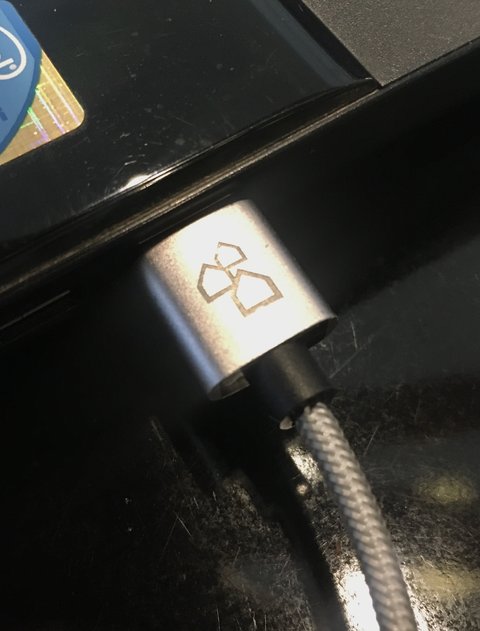
- Use the USB cable included in the box; third-party USB-B cables sometimes have wiring that causes intermittent disconnects.
- Plug directly into a rear USB port on a desktop PC rather than a front panel port or hub.
- Power on the printer before running the installer’s device detection step, not after.
- Wait for the Windows “device installed” chime before opening P-touch Editor for the first time.
On one setup I handled for a small warehouse, the QL-700 kept dropping its connection every few minutes until we swapped from a generic USB extension cable to a direct connection, which solved it instantly. Cheap or overly long USB cables are a more common culprit than people assume.
Troubleshooting a Failed Install
If the installer completes but the printer shows as offline or does not print test labels, work through these steps:
- Open Settings > Devices > Printers & scanners and check the QL-700 status.
- If it says “Offline,” right-click the printer and untick “Use Printer Offline.”
- Set the QL-700 as the default printer if P-touch Editor keeps selecting the wrong one.
- Uninstall the driver package through Control Panel, restart the PC, then reinstall from a freshly downloaded installer file.
- Try a different USB port, ideally USB 2.0, since some QL-700 units have shown quirks on certain USB 3.0/3.1 controllers.
Per Melissa Tran, who is an Operations Coordinator at a fulfillment center, “We run six QL-700 printers on the floor and the driver install almost never fails if you let the installer guide the USB connection step. It’s when staff plug the printer in before running the installer that we get support calls.”
Manual Install Through Device Manager
If the automatic installer will not detect the printer, you can force Windows to pick it up manually:
- Press Windows key + X and open Device Manager.
- Expand “Printers” or “Other devices” and look for “QL-700” or “Unknown Device.”
- Right-click it and select “Update driver.”
- Choose “Browse my computer for drivers” and point to the folder where you extracted the Brother installer files.
- Let Windows install the matching driver, then restart the PC.
This approach has rescued more than one install for me when the automated wizard silently failed partway through. For general USB device driver troubleshooting concepts, Microsoft Support has useful background reading.
Windows 10 vs Windows 11 Differences
The QL-700 driver installs and functions identically on both operating systems, but Windows 11’s redesigned Settings app organizes printer properties slightly differently than the Windows 10 Control Panel layout. If a tutorial online references “right-click the printer icon on the desktop,” note that Windows 11 pushes most of this into Settings > Bluetooth & devices > Printers & scanners instead.
Keeping Label Print Quality Consistent
- Always use genuine Brother DK label rolls, since the printer reads a small chip on the roll to set correct label dimensions automatically.
- Clean the print head roller periodically with a dry cloth to prevent faded or streaky labels.
- Update P-touch Editor whenever Brother releases a new version, since older versions sometimes lose compatibility with newer Windows feature updates.

Frequently Asked Questions
Where do I download the correct Brother QL-700 driver?
Get it directly from the Brother Solutions Center support site by searching for QL-700 and selecting the full driver and software package for your version of Windows, rather than relying on third-party download sites.
Can I use the QL-700 over Wi-Fi instead of USB?
No, the QL-700 is a USB-only model. If you need wireless printing, Brother’s QL-720NW or newer QL-800 series models add network and Wi-Fi support.
Why does P-touch Editor say the printer is not found?
This usually means the driver installed but Windows has not registered the USB connection correctly. Unplug the printer, restart the PC, then plug it back in before reopening P-touch Editor.
Do I need to reinstall the driver after a major Windows update?
Occasionally yes. Large Windows feature updates sometimes reset printer driver associations. If the QL-700 stops printing right after an update, reinstalling the driver package usually resolves it in a few minutes.
Is the QL-700 compatible with Mac as well as Windows?
Yes, Brother provides a separate macOS driver package on the same support page, but the installation steps and system requirements differ from the Windows version covered in this guide.
Conclusion
Getting the QL-700 working on Windows comes down to downloading the full Brother software package, letting the installer guide the USB connection timing, and using a solid USB cable. When something does go wrong, Device Manager and a clean driver reinstall solve nearly every case I have seen in the field.
Written by Ryan, a Computer Science graduate with over two decades of hands-on experience configuring printers, label makers, and PC peripherals for home and business users. More guides like this are available at SoftwareDriverDownload.com.