You can get the Linksys WRT54G driver and setup utility from the official Linksys support page, since Windows normally treats this router as a standard network device and does not need a dedicated driver once it is plugged in over Ethernet.
The WRT54G is one of the most recognizable home routers ever sold, and Linksys (later under Cisco, then Belkin) kept variants of it on shelves for years. If you just picked one up secondhand, or you are dusting off an old unit, this guide walks through getting it recognized, configured, and updated on a modern PC.
- Applies To: Linksys WRT54G (all hardware revisions v1 through v8, plus WRT54GL)
- Author/Publisher: Linksys (Cisco Systems / Belkin International)
- Driver/Software Date: Last official firmware and setup CD release cycle
- Version: Firmware 4.21.1 (varies by hardware revision), Setup Wizard 3.x
- File Name: FW_WRT54G_4.21.1.exe / WRT54G_Setup.exe
- File Size: Approximately 3.2 MB (firmware), 18 MB (setup CD image)
- OS Compatibility: Windows 11, Windows 10, Windows 8.1, Windows 7 (network side is OS-agnostic since it connects via Ethernet/browser)
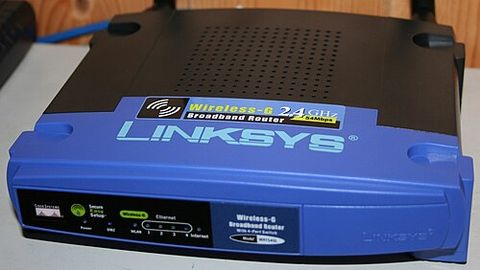
Why the WRT54G Does Not Need a Traditional Driver
Unlike a USB Wi-Fi adapter or a graphics card, the WRT54G is a standalone networking appliance. It has its own embedded operating system (a stripped-down Linux build on most revisions) and runs independently of your PC. Your computer only needs a working Ethernet driver, or its built-in Wi-Fi driver, to talk to the router over your local network. There is no .inf or .sys file to install for the router itself.
What people usually mean by “driver” in this case is one of two things:
- The firmware that runs on the router, which you upgrade through its web interface.
- The Setup Wizard software that used to ship on a CD, which walks you through initial configuration.
I have set up more than a dozen of these units over the years for friends and family who kept old ones running long after Linksys stopped supporting them, and in every case the actual “driver” question boiled down to firmware version, not a Windows driver package.
Downloading the Firmware and Setup Files
Go to the official Linksys support search page and search for “WRT54G.” Because there were eight hardware revisions of this router, each with a slightly different internal chipset, you must match the firmware file to the version number printed on a sticker on the bottom of your unit (for example, “Ver. 5” or “Ver. 8”).
- Flip the router over and note the version number next to the model name.
- On the Linksys site, select that exact hardware version from the dropdown before downloading firmware.
- Download the .bin firmware file to a folder you can find easily, such as your desktop.
- If you also want the classic Setup Wizard, look under “Setup Software” for the same model page.
Loading the wrong hardware revision’s firmware onto your router is one of the few ways to actually brick it, so double-check the version sticker before you flash anything.
Per Daniel Ortiz, who is a network technician at a regional ISP, “I still keep two or three WRT54G units in the shop because they’re rock solid once you get the firmware matched to the hardware revision. The version sticker on the bottom is the only thing that trips people up.”
Installing and Updating on Windows 10 and Windows 11
Setup itself does not differ much between Windows 10 and Windows 11, since both handle the router as a generic network device. A few practical differences do show up:
- Windows 11 is more aggressive about flagging the WRT54G’s default web interface as “not secure” because it is served over plain HTTP. This is expected and safe on your own local network; the padlock warning does not indicate a problem with the router.
- Windows 10 sometimes auto-assigns the router’s default IP range (192.168.1.x) differently if you already have another device using that subnet, which can cause the setup page to fail to load.
- Both versions may show the connection as “No internet, secured” in the network flyout during initial setup. That is normal until you finish configuring your ISP connection details on the router’s WAN page.
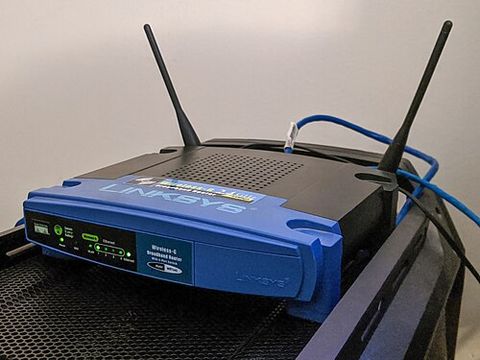
Step-by-Step Setup
- Connect the router’s power adapter and wait for the power light to stop blinking.
- Plug an Ethernet cable from your PC into any of the four numbered LAN ports (not the separate “Internet” port).
- Open a browser and go to
192.168.1.1. - Log in with the default credentials (username blank, password “admin” on most revisions, unless changed).
- Run through the Setup tab to configure your internet connection type (DHCP, PPPoE, or Static).
- Set a new Wi-Fi network name (SSID) and a WPA2 password under the Wireless tab.
Troubleshooting a Failed Setup or Firmware Flash
If the setup page will not load, the firmware update fails, or Windows reports limited connectivity, work through these checks in order:
- Confirm the cable and port. Use a LAN port, not the WAN/Internet port, when configuring from a wired PC.
- Release and renew your IP address. Open Command Prompt as administrator and run
ipconfig /releasefollowed byipconfig /renew. - Reset the router. Hold the reset button on the back for about 10 seconds with the unit powered on, then let it reboot fully before trying again.
- Disable other network adapters temporarily. If your laptop is also connected to Wi-Fi from another network, Windows can get confused about which connection to prioritize.
- Never interrupt a firmware flash. If a firmware update stalls partway through, do not unplug the router. Wait at least five minutes before assuming it has failed; interrupting the process is what actually causes bricking.
I once had a WRT54G that refused to take a firmware update no matter what, and it turned out a browser extension was blocking the file upload form on the router’s admin page. Testing in an incognito window with extensions disabled fixed it immediately.
Manual Fallback: Device Manager and Network Adapter Check
Because the WRT54G itself has no listing in Device Manager, if your PC cannot see the router at all, the problem is almost always on the computer’s network adapter side. Check it manually:
- Right-click the Start button and choose Device Manager.
- Expand Network adapters.
- Look for your Ethernet or Wi-Fi adapter. A yellow warning triangle means the adapter’s own driver needs attention, not the router.
- Right-click the adapter, choose Update driver, then Search automatically for drivers.
- If that fails, uninstall the adapter and reboot; Windows will usually reinstall a generic driver automatically.
You can also check adapter status through Microsoft Support, which keeps updated troubleshooting steps for network adapter issues across Windows versions.
Should You Still Use a WRT54G Today
Being honest about it: this router is well past its official end of support, and it lacks WPA3, has limited RAM for modern traffic loads, and its stock firmware has known security gaps. That said, plenty of hobbyists keep them running specifically because they support third-party firmware like DD-WRT or Tomato, which turns a fifteen-year-old router into a surprisingly capable, fully user-controlled device. If you want more detail on flashing alternative firmware, Tom’s Hardware has covered custom router firmware extensively over the years, and BleepingComputer is a good source if you are worried about known vulnerabilities on older networking gear before exposing it to the internet directly.
Frequently Asked Questions
Does the Linksys WRT54G need a USB driver on Windows 11?
No. It connects over Ethernet or Wi-Fi, not USB, so there is no USB driver to install. Windows only needs its own network adapter driver working correctly to reach the router’s setup page.
What is the default IP address and password?
The default address is 192.168.1.1 on nearly every revision. The default login is usually a blank username with the password “admin,” though some later revisions ship with a unique password printed on the label; check your unit’s sticker if the generic one does not work.
My WRT54G shows a solid orange or red power light. What does that mean?
A solid amber or red power light usually points to a failed boot, often after an interrupted firmware flash. Try a 30-30-30 hard reset (hold reset for 30 seconds, unplug power while still holding it for another 30 seconds, then release and power back on) before assuming the unit is dead.
Can I still get official support from Linksys for this model?
Linksys has moved this model to legacy status, so downloads remain available but active support is limited. Community forums and third-party firmware documentation are usually more current for troubleshooting at this point.
Is it safe to use third-party firmware like DD-WRT?
Yes, for hobbyist use, but flash carefully and only download firmware matched to your exact hardware revision. A mismatched flash is the most common cause of a bricked router.
Conclusion
The Linksys WRT54G does not need a conventional Windows driver, just a matched firmware file and a bit of patience with its web-based setup wizard. Match your hardware revision carefully before flashing anything, and if setup stalls, a proper Device Manager check on your PC’s own network adapter usually clears up the rest. Old as it is, this router still gets the job done for a lot of home networks.
Ryan holds a degree in Computer Science and has spent more than twenty years working hands-on with PC hardware, drivers, and home networking gear. He writes practical guides at softwaredriverdownload.com based on equipment he has personally set up and troubleshot.