The SiS 671 driver is the chipset driver package for motherboards built around the Silicon Integrated Systems (SiS) 671 north bridge, and installing it correctly fixes missing integrated graphics acceleration, display glitches, and unrecognized devices in Device Manager on older SiS-based desktops and laptops.
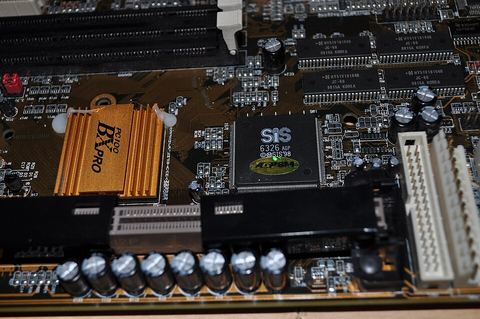
The SiS 671 was a budget integrated graphics chipset paired with the SiS 968 south bridge, common on entry-level boards from Foxconn, ECS, and Biostar. If you are still running one of these boards, or reviving an old machine, getting the full driver set installed properly makes a real difference in video smoothness and system stability.
| Applies To | Motherboards using the SiS 671/671FX north bridge with SiS 968 south bridge |
| Author/Publisher | Silicon Integrated Systems Corp (SiS) |
| Driver/Software Date | Final legacy release for Windows XP/Vista/7 era boards |
| Version | VGA/Chipset driver v2.x, AGP/INF utility v1.x |
| File Name | sis671_vga_driver.zip / sis_chipset_inf.exe |
| File Size | Approximately 10-25 MB |
| OS Compatibility | Windows 7, Windows XP, Windows Vista (32-bit primarily) |
Finding the Right SiS 671 Driver
SiS no longer actively maintains a modern download portal the way bigger chipset makers do, so most working links now live on your motherboard manufacturer’s legacy support page rather than SiS directly. Search your exact motherboard model, for example “Foxconn 671MX” or “ECS SiS671”, and look for the chipset, VGA, and AGP driver bundle in the support downloads section.
- Match the driver to your exact south bridge pairing (SiS 968 is most common with the 671).
- Download the “INF Update Utility” first, then the VGA driver.
- Avoid third-party driver aggregator sites, they often bundle unrelated software with old chipset drivers.
- If your board came with a driver CD, check the printed model number against SiS’s archived compatibility list before using it on a replacement board.
Step-by-Step Installation
1. Install the chipset INF utility first
- Extract the downloaded chipset driver package to a folder.
- Run the INF update utility as Administrator.
- Restart the computer when prompted, this registers the base chipset devices before the graphics driver installs.
2. Install the VGA/graphics driver
- After reboot, run the SiS VGA driver installer.
- Follow the prompts and accept the default display settings.
- Restart again so Windows applies the new display driver correctly.
3. Verify installation
Open Device Manager and expand “Display adapters.” You should see “SiS 671/671FX” or similar listed with no yellow warning icon. If it still shows as “Standard VGA Graphics Adapter,” the driver did not bind correctly and you need to reinstall.
I dealt with a SiS 671 board a while back while helping a friend revive an old office PC for a lightweight file server, and the trick that saved me time was always installing the chipset INF utility before the VGA driver. Skipping straight to the VGA installer on a fresh Windows install often causes it to silently fail because the AGP bridge device is not registered yet.
Manual Install via Device Manager
If the automatic installer fails or you only have loose driver files:
- Right-click Start and open Device Manager.
- Find the unknown device, usually listed under “Other devices” with a yellow warning triangle.
- Right-click and select Update driver, then “Browse my computer for drivers.”
- Point to the extracted SiS driver folder and let Windows search it recursively.
- Repeat for any remaining unknown devices, such as the AGP controller or SMBus.
Per Alan Teoh, who is an IT Support Technician at a small computer repair shop, “We still get the occasional SiS-based machine in for repair from customers who refuse to upgrade, and the INF utility before VGA driver order is the one thing that trips up most people trying to fix it themselves.”
Troubleshooting a Failed Installation
- Installer says “no supported hardware found”: confirm you actually have a SiS 671 board and not a similarly numbered SiS 650/661/760 chipset, they use different driver packages.
- Display driver installs but resolution is stuck low: reinstall the chipset INF utility again after the VGA driver, sometimes Windows Update overwrites part of the chipset registration.
- Blue screen after installing: boot into Safe Mode, roll back the driver through Device Manager, then try installing the chipset driver again from a clean extract.
- Driver package won’t run on Windows 7 64-bit: most SiS 671 drivers are 32-bit only, you may need to run Windows 7 32-bit or use compatibility mode.
Windows Version Notes
Windows XP handles SiS 671 drivers natively without complaint. Windows Vista and Windows 7 need the driver installed in compatibility mode sometimes, right-click the installer, choose Properties, then the Compatibility tab, and select Windows XP Service Pack 3 mode if the installer refuses to launch. These boards predate Windows 10 and 11 entirely, so do not expect official support on newer systems; a generic Microsoft Basic Display driver is the best you will get there. See Microsoft Support for generic display driver troubleshooting.
For background on the broader SiS chipset lineup and legacy compatibility notes, Tom’s Hardware has older chipset comparison articles worth checking if you are trying to identify your exact board revision.
Frequently Asked Questions
Is the SiS 671 chipset still supported by the manufacturer?
No, SiS has not actively updated drivers for this chipset in a long time. You are relying on archived driver packages from motherboard vendor support pages.
Can I use a generic VGA driver instead?
Windows will fall back to a generic Standard VGA Graphics Adapter which gets you a working display but no hardware acceleration, meaning video playback and games will be slow or choppy.
Why does my SiS 671 board show two unknown devices?
Typically that is the AGP/PCI bridge and SMBus controller, both resolved by installing the chipset INF utility rather than the VGA driver alone.
Does the SiS 671 driver work on 64-bit Windows?
Most official packages are 32-bit only. If you need 64-bit, check the motherboard vendor’s site specifically, some released limited 64-bit builds for Vista.
My board has no internet access, how do I get the driver onto it?
Download the driver on another PC, save it to a USB drive, and transfer it over. Just make sure you grab both the chipset INF utility and the VGA driver together.
Conclusion
The SiS 671 chipset is old hardware now, but with the correct driver order, chipset INF first, then VGA, it still runs reliably for basic desktop use. Keep a copy of the driver files saved locally once you find a working set, since manufacturer download pages for boards this old tend to disappear over time.
Ryan here, Computer Science graduate and long-time PC hardware troubleshooter with more than two decades fixing driver problems on everything from brand-new laptops to legacy office machines. More guides at softwaredriverdownload.com.