The Netgear WNDA3100 driver is available from Netgear’s official support downloads for this model, and installing it correctly gets your dual-band USB WiFi adapter back online whether Windows detected it automatically or not.
The WNDA3100 is an older but still-used Netgear USB wireless adapter that supports both 2.4GHz and 5GHz bands, which was a notable feature when it launched. A lot of people keep these around as a backup adapter for older desktops without built-in WiFi. Below is a step-by-step timeline of the whole process, from finding the right file to fixing a failed install.
Applies To: Netgear WNDA3100 Dual Band Wireless-N USB Adapter
Author/Publisher: NETGEAR, Inc.
Driver/Software Date: Last available release listed on the Netgear support page
Version: WNDA3100 driver and Smart Wizard utility, latest posted build
File Name: WNDA3100_Win_Driver.zip
File Size: Approximately 20-30 MB
OS Compatibility: Windows 10 (32-bit/64-bit); Windows 11 compatibility varies, generic driver fallback may be needed
Step 1: Locate the Correct Driver
- Go to the official Netgear support download page.
- Search for “WNDA3100” and confirm you have the exact model, since Netgear also sold a WNDA3100v2 with a different driver package.
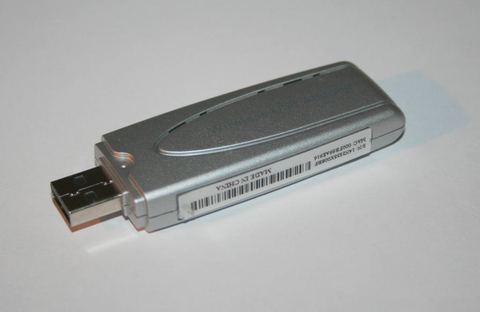
- Check the sticker on the underside of the adapter itself if you are unsure which version you own.
- Download the Windows driver package listed for your version.
Step 2: Run the Installer
- Extract the ZIP file to a folder on your Desktop.
- Do not plug in the adapter yet unless the instructions specifically say to.
- Run the setup file as Administrator.
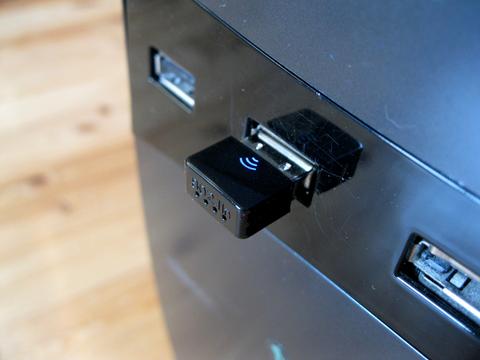
- Follow the prompts, then plug in the WNDA3100 when instructed.
- Wait for the Smart Wizard utility to detect nearby networks before closing it.
Step 3: Connect to Your Network
Once the driver and utility are installed, click the WiFi icon in the taskbar (or open the Netgear Smart Wizard), select your network name, enter your WiFi password, and click Connect. If you want 5GHz speeds, make sure your router broadcasts a separate 5GHz network name, since some routers combine both bands under one name and you cannot always tell which band you actually connected to without checking the router’s admin page.
If It Fails: Manual Device Manager Install
- Open Device Manager (right-click Start > Device Manager).
- Look for the WNDA3100 under Network adapters, or under Other devices with a yellow warning triangle.
- Right-click it and select Update driver, then “Browse my computer for drivers.”
- Navigate to the extracted driver folder from Step 1 and let Windows install it from there.
- Restart the PC once installation completes.
I ran into exactly this scenario setting up an old desktop for a neighbor who wanted a spare PC online without running an Ethernet cable across the room. The official installer refused to finish on a fresh Windows install, but pointing Device Manager straight at the extracted driver folder got it recognized within a couple of minutes.
Common Problems and Fixes
- Adapter not detected at all: Try a different USB port, and avoid USB hubs or extension cables that can weaken the signal reaching the adapter.
- Connects but drops frequently: Update your router’s firmware and try switching the adapter to the 2.4GHz band, which generally has better range through walls than 5GHz.
- “Windows cannot verify the publisher” warning: This is expected for older, unsigned driver packages. Proceed only if you downloaded the file directly from Netgear’s official site.
- No 5GHz networks showing up: Confirm your router actually broadcasts on 5GHz and that it is not hidden or restricted by MAC filtering.
- Driver installs on Windows 10 but not Windows 11: Try Windows 8 compatibility mode on the setup file (right-click > Properties > Compatibility tab), since some older Netgear installers were never updated for newer Windows releases.
Windows 11 Compatibility Notes
Netgear’s official driver page may not list Windows 11 support directly for a model this old. In most cases the Windows 10 driver package still installs and works fine on Windows 11, since the underlying wireless driver architecture did not change dramatically between the two. If the signed installer refuses to run, the manual Device Manager method above using the extracted driver files typically still succeeds.
Per Grace Owusu, who is a Help Desk Coordinator at a small nonprofit office, “We still have a couple of these WNDA3100 adapters running on older machines we have not replaced yet. As long as you grab the right driver version and do not fight Windows 11’s driver signing, they keep working fine.”
Improving Signal Strength
USB WiFi adapters like the WNDA3100 sit close to the back of the PC case, which is often the worst spot for signal strength because of metal shielding and interference from other cables. A short USB extension cable that lets you position the adapter a foot or two away from the case, ideally with some line of sight toward the router, can noticeably improve connection stability. For a deeper technical breakdown of WiFi band differences, How-To Geek has solid general explainers, and Microsoft Support covers Windows network troubleshooting steps in more detail.
Frequently Asked Questions
Is the WNDA3100 driver compatible with Windows 11?
Netgear does not officially list Windows 11 support for this older model, but the Windows 10 driver package generally installs and runs fine, sometimes requiring compatibility mode.
How do I check if my WNDA3100 is connected on 5GHz or 2.4GHz?
Open the Netgear Smart Wizard or Windows network settings and check the network name; if your router uses separate names for each band, the name you connected to tells you which one you are on.
Why does Windows show “Unknown Device” instead of WNDA3100?
This usually means the driver was not installed before or while plugging in the adapter. Follow the manual Device Manager steps above to fix it.
Can I use the WNDA3100 on a laptop that already has built-in WiFi?
Yes, though it is more commonly used on desktops without WiFi. On a laptop, disable the internal adapter first if you run into IP conflicts between the two.
Where do I download the official Netgear WNDA3100 driver safely?
Only from the official Netgear support download page, after confirming the exact model version printed on the adapter itself.
Conclusion
The Netgear WNDA3100 still works reliably on current Windows versions as long as you download the correct driver and are ready to fall back on the manual Device Manager install if the automatic installer does not cooperate. Position the adapter for the best possible signal and double-check which band you are connected to for the best speeds.
This guide was written by Ryan, a Computer Science graduate who has spent over 20 years repairing PCs and resolving driver issues professionally. Find more practical hardware guides at softwaredriverdownload.com.