The Epson Stylus C86 driver is best obtained from Epson’s official support archive, since this printer predates most current driver distribution methods and Windows Update coverage for it is inconsistent.
The Stylus C86 is an older single-function inkjet printer that Epson positioned as a budget photo printer. It has been out of production for a long time, but plenty of these units are still sitting in home offices and small businesses because they are mechanically simple and cheap to keep running. Getting the driver installed correctly on a modern Windows machine takes a slightly different approach than a current printer would.
Applies To: Epson Stylus C86 Inkjet Printer
Author/Publisher: Seiko Epson Corporation
Driver/Software Date: Final legacy maintenance release
Version: 6.61
File Name: epc86_ea661.exe
File Size: Approximately 30 MB
OS Compatibility: Windows 11, Windows 10 (32-bit and 64-bit)
Step 1: Find and Download the Correct Driver
Go to the Epson Stylus C86 support page and select your version of Windows from the operating system list. Epson still keeps legacy driver packages available even for printers this old, though you sometimes need to select “Windows 10” manually since the site does not always auto-detect Windows 11 correctly for older hardware.
- Choose the “Drivers” category on the support page, not “Utility” or “Manual.”
- Download the full driver package rather than a standalone .inf file if one is offered.
- Verify the file size roughly matches what is listed above before running it, as a much smaller file usually means the download was interrupted.
Step 2: Run the Installer
- Right-click the downloaded file and select “Run as administrator.”
- Follow the on-screen prompts, accepting the license agreement.
- When prompted, connect the USB cable to power on and detect the printer.
- Wait for Windows to finish recognizing the new hardware.
- Print a test page from the installer’s final screen to confirm everything works.
I have installed this driver on a Windows 10 laptop for a neighbor who still uses her C86 for printing school forms, and the process took under five minutes once the download finished. The installer itself has not changed in years, so it still looks quite dated compared to modern driver packages, but it works reliably.
Step 3: Manual Install via Device Manager
If the installer refuses to launch on Windows 11, which happens occasionally due to compatibility mode restrictions, install the driver manually instead:
- Extract the downloaded driver package to a folder using an archive tool if it does not extract automatically.
- Open Device Manager from the Start menu right-click options.
- Locate the Epson printer, usually under “Other devices” with a yellow warning triangle.
- Right-click it, choose “Update driver,” then “Browse my computer for drivers.”
- Select the extracted driver folder and let Windows install the matching files.

Step 4: Troubleshoot Common Failures
- Installer says “unsupported OS”: Right-click the .exe, go to Properties, Compatibility tab, and run it in Windows 8 compatibility mode.
- Printer detected but nothing prints: Check the ink cartridges are seated properly and run the nozzle check from the printer’s own control panel.
- Print jobs pile up in the queue: Restart the Print Spooler service through Windows Services, which usually clears a stuck queue.
- USB not recognized at all: Try a rear motherboard USB port instead of a front panel port or hub, since older printers are sensitive to power delivery through hubs.
- Colors print faded or streaky: Run the deep cleaning cycle twice, spaced a few hours apart, rather than back to back, to avoid wasting ink.
On Windows 11, Microsoft’s inbox driver sometimes takes over automatically the moment the printer is plugged in, before you get a chance to run Epson’s own installer. If that happens, uninstall the generic driver from Device Manager first, then run the Epson installer again so it is not blocked by the existing entry.
Per Suzanna Lim, who is an office administrator at a tuition center in Petaling Jaya, “Our old Epson C86 keeps going strong for printing worksheets, and the only real trick we learned was reinstalling the driver fresh every time we swap PCs, instead of trying to migrate the old printer settings over.”
Step 5: Long-Term Maintenance
- Print at least one page a week if possible, since long idle periods dry out the print head nozzles on this model.
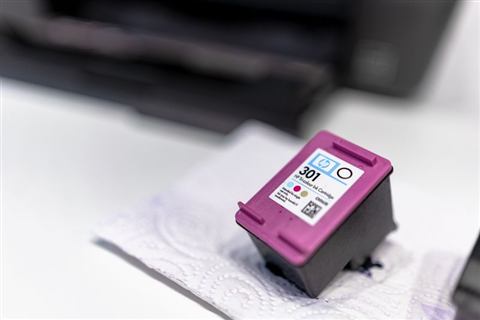
- Keep a spare set of compatible ink cartridges on hand, since genuine Epson cartridges for this model are getting harder to find.
- Store the printer away from direct sunlight and dust, which extends the life of the carriage mechanism.
- Check BleepingComputer if you run into a Windows-side print spooler error unrelated to the Epson driver itself.
Frequently Asked Questions
Does the Epson Stylus C86 work with Windows 11?
Yes, the legacy driver installs and runs on Windows 11, though you may need compatibility mode if the installer initially refuses to launch.
Why does my printer show as “offline” after installing the driver?
Go to Settings, Devices, Printers and scanners, click the C86 entry, and turn off “Use Printer Offline” if it is enabled, then set it as the default printer.
Can I use this printer over a network instead of USB?
The Stylus C86 is USB-only, so it cannot connect wirelessly or over Ethernet on its own. You can share it from a connected PC over your home network if needed.
What is the best way to buy ink for this printer now?
Compatible third-party cartridges are widely available and much cheaper than trying to find genuine Epson stock at this point, and quality has improved a lot over the years.
My installer download keeps failing partway through. What should I try?
Pause any other large downloads on your network, disable your browser’s download manager extensions if you use any, and try downloading again using a different browser.
Conclusion
The Epson Stylus C86 still holds up as a reliable home printer if you install the correct legacy driver and give it regular use. Grab the driver from Epson’s official page, fall back to the manual Device Manager method if needed, and keep the print head exercised so it does not clog.
Ryan has spent more than two decades working hands-on with PC hardware, drivers, and legacy peripherals, and holds a computer science degree. More printer and driver guides are available at softwaredriverdownload.com.