Get your Realtek RTL8188 based USB Wi-Fi adapter working by downloading the correct driver from Realtek’s official download center or your adapter manufacturer’s support page, matching it to your exact chip revision (RTL8188EU, RTL8188EUS, RTL8188FTV, or RTL8188CU), then installing it through Device Manager. This guide covers the download, install, and fixes for the most common connection failures.
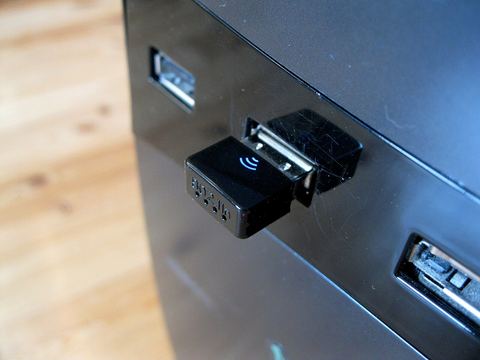
The RTL8188 is a chipset family used inside dozens of small “nano” USB Wi-Fi dongles sold under many different brand names — the actual chip and driver matter more than the brand printed on the plastic case. Because so many cheap adapters share this chipset, getting the right driver variant is the part most people get stuck on.
Applies To: Realtek RTL8188 series USB Wi-Fi adapters (RTL8188EU / EUS / FTV / CU)
Publisher: Realtek Semiconductor Corp.
Driver/Software Date: Latest available on Realtek’s download center
Version: Varies by chip revision, check the specific RTL8188 sub-model
File Name: RTL8188xU_WIN_x64.zip (approx., name varies)
File Size: Roughly 10-25 MB
OS Compatibility: Windows 10, Windows 11 (32-bit and 64-bit)
Step 1: Identify Your Exact RTL8188 Chip Revision
Before downloading anything, confirm which RTL8188 variant you actually have. This matters because Realtek publishes separate driver packages for each revision.
- Plug the adapter into a USB port even if it isn’t working correctly yet.
- Press Windows + X and open Device Manager.
- Look under “Network adapters” or “Other devices” for anything unrecognized.
- Right-click it, choose Properties, then open the Details tab and select “Hardware Ids” from the dropdown.
- Note the VID and PID numbers — these identify the exact chip revision when cross-referenced against Realtek’s product list.
If Device Manager shows nothing at all, check the sticker on the dongle itself or the packaging, since many manufacturers print the chipset name (RTL8188EUS, for example) directly on the adapter body.
Step 2: Download the Driver
- Go to the Realtek Wi-Fi driver download page and locate your exact chip model.
- Select the Windows driver package matching your chip revision and Windows version.
- Download the ZIP file and save it somewhere easy to find.
- Extract the ZIP fully before running anything — don’t try to install straight from inside the compressed folder.
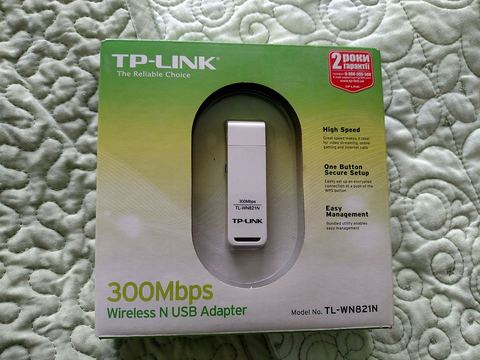
Some third-party adapter brands (TP-Link, Edimax, generic no-name dongles) host their own repackaged version of the same Realtek driver. If Realtek’s generic package doesn’t detect your device cleanly, checking the actual adapter brand’s support page is a reasonable second option.
Step 3: Install the Driver
- Open the extracted folder and run the setup.exe if one is included.
- If there’s no installer, open Device Manager, right-click the unrecognized adapter, choose “Update driver,” then “Browse my computer for drivers,” and point it at the extracted folder.
- Let Windows finish installing, then unplug and replug the adapter once the process completes.
- Open Wi-Fi settings and confirm the adapter now appears as a usable network connection.
Step 4: Manual Install via Device Manager (Fallback)
If the automatic installer fails or reports “this device cannot start,” a manual point-to-folder install is more reliable:
- Make sure the driver ZIP is fully extracted, not still compressed.
- In Device Manager, right-click the RTL8188 device (it may show under “Other devices” with a yellow warning triangle).
- Choose “Update driver” > “Browse my computer for drivers” > “Let me pick from a list of available drivers on my computer.”
- Click “Have Disk” and browse to the folder containing the .inf file.
- Select it and let Windows finish the install, then restart the PC.
I’ve had to use this exact manual route more than once with generic RTL8188EUS dongles bought off online marketplaces — the bundled driver CD (if it even came with one) was years out of date, and Windows Update wouldn’t grab a working driver on its own. Pointing Device Manager straight at a freshly downloaded Realtek package fixed it every time.
Step 5: Troubleshooting Common Problems
- Adapter not detected at all: Try a different USB port, preferably USB 2.0 rather than 3.0, since some cheap RTL8188 dongles have compatibility quirks with USB 3.0 controllers.
- “This device cannot start” (Code 10): Uninstall the device in Device Manager, tick “Delete the driver software,” unplug the adapter, reboot, then reinstall the driver fresh before plugging it back in.
- Connects but drops constantly: Open Device Manager, go to the adapter’s Properties > Power Management tab, and uncheck “Allow the computer to turn off this device to save power.”
- Slow speeds: The RTL8188 chipset is an older 802.11n single-band design, so speeds are capped well below newer AC or AX adapters — this is a hardware limit, not a driver problem.
- Driver installs but no Wi-Fi networks show up: Confirm Wi-Fi isn’t disabled in Airplane Mode, and check that no antivirus firewall module is blocking the network service.
Per Aisyah Rahman, who is a small business owner running a home-based tuition center in Klang, “I bought a cheap USB Wi-Fi stick to get an old office desktop online again. It showed up as an unknown device until I found the right RTL8188EUS driver from Realtek directly — the driver disc that came in the box was useless.”
Windows 10 vs Windows 11 Notes
Both Windows 10 and Windows 11 handle the RTL8188 similarly, but there are a few differences worth knowing:
- Windows 10 sometimes auto-installs a generic Realtek driver through Windows Update, though it may lack full feature support like WPA3.
- Windows 11 is stricter about unsigned drivers, so older repackaged installers from third-party dongle vendors occasionally fail to install without enabling “Test Mode” or using a more recent signed package from Realtek.
- On both versions, a clean uninstall-reinstall cycle through Device Manager resolves the vast majority of Code 10 and Code 43 errors tied to this chipset.
Keeping the Adapter Reliable Long Term
A few habits reduce future headaches with these dongles:
- Keep a copy of the correct driver ZIP saved locally, since many no-name adapter brands don’t maintain a stable download link.
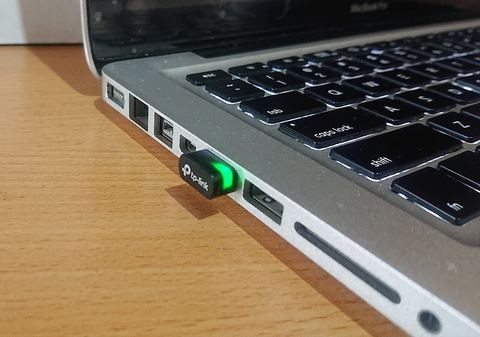
- Avoid using a USB extension cable or hub for the initial install — plug directly into the PC first.
- Check Tom’s Hardware forums if you’re unsure which exact RTL8188 sub-variant your dongle uses, since community threads often list VID/PID matches for obscure clone adapters.
- If problems persist after a clean driver install, test the adapter on a different PC to rule out a hardware fault before troubleshooting further.
Frequently Asked Questions
How do I know if my adapter uses the RTL8188 chipset?
Check Device Manager’s Hardware Ids under the Details tab, or look for a chip model printed on the adapter casing or retail packaging. Many unbranded dongles list “RTL8188” directly on a small label.
Why does Windows install a driver automatically but the adapter still doesn’t work well?
Windows Update sometimes installs a generic, older Realtek driver that lacks full functionality. Downloading the current version directly from Realtek’s site usually resolves stability and speed issues.
Can I use the same driver for RTL8188EU and RTL8188EUS?
Not always. These are closely related but distinct chip revisions, and Realtek publishes separate driver builds. Always match the exact sub-model listed in Device Manager’s hardware ID.
Does the RTL8188 support 5GHz Wi-Fi?
No. This is an older single-band 2.4GHz chipset built around the 802.11n standard, so it won’t connect to 5GHz networks regardless of driver version.
My antivirus flagged the driver installer — is that normal?
Some antivirus tools flag unsigned or generic driver installers as a precaution. Downloading directly from Realtek’s official site rather than a third-party mirror avoids most of these false positives.
Conclusion
Getting a Realtek RTL8188 based adapter running comes down to matching the exact chip revision to the correct driver package and installing it manually through Device Manager if the automatic route fails. Once installed correctly, these chipsets are reliable for basic browsing, even if speeds are modest by today’s standards.
Ryan here — I’ve spent the last two decades elbow-deep in PC hardware and driver troubleshooting, backed by a Computer Science degree and a lot of trial and error with cheap adapters just like this one. For more driver guides, visit Software Driver Download.