To get your HP Deskjet 1000 driver working on Windows, download the correct package from HP’s support site and install it using the steps in this guide, which also covers manual setup and common fixes.
The Deskjet 1000 was HP’s budget inkjet printer aimed at home users who just needed basic black-and-white and color printing without extra scanning or network features. It’s simple hardware, but Windows still needs the matching driver to talk to it properly, especially on Windows 11 machines that never shipped with legacy HP software preinstalled.
| Applies To | HP Deskjet 1000 (J110 series) |
| Publisher | HP (Hewlett-Packard) |
| Driver Type | Basic Print Driver |
| File Name | DjJ110_130-1_2.exe (typical naming) |
| File Size | Around 40-70 MB depending on the package |
| OS Compatibility | Windows 10 and Windows 11, 32-bit and 64-bit |
Getting the Right Driver File
Common Problem
Windows Update sometimes installs a generic driver automatically, which lets the printer work but disables ink level monitoring and some print quality settings.
The Fix
Download and install the full HP driver package directly from HP’s site instead of relying only on Windows Update, so you get every feature the printer actually supports.
Head to the official HP driver download page and search “Deskjet 1000.” HP will list drivers by exact sub-model, such as J110a or J110c, so check the label on the back of your printer if you’re not sure which one you have.
- Search for “HP Deskjet 1000” on the HP support site.
- Select the exact sub-model number printed on your printer’s rear label.
- Choose your Windows version from the operating system dropdown.
- Download the Basic Driver package listed under Driver-Product Installation Software.
- Save the file and note where it downloaded to.
Installing the Driver on Windows
Common Problem
The installer asks you to connect the printer at a specific step, and connecting too early or too late causes it to fail detection entirely.
The Fix
Keep the USB cable unplugged until the installer explicitly prompts you, then plug it in and wait for Windows to recognize the new hardware before clicking Next.
- Run the downloaded installer file and accept the User Account Control prompt.
- Choose USB connection when the setup wizard asks how the printer connects.
- Plug in the USB cable only when instructed on screen.
- Let Windows finish detecting the new hardware and installing the matching driver.
- Print a test page to confirm everything installed correctly.
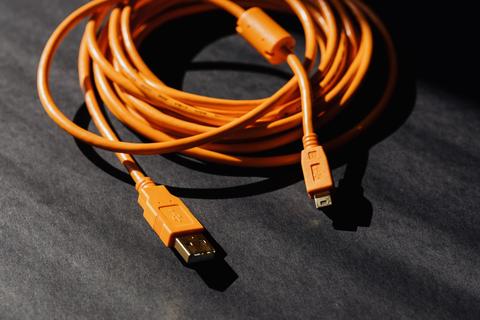
I helped set up a Deskjet 1000 for a relative’s home office last year running Windows 10, and the installer kept freezing at the detection stage. Turned out her USB port was a front-panel hub port with a weak connection. Moving the cable to a rear USB port on the motherboard fixed it instantly. That’s a simple thing to check before you assume the driver itself is broken.
Per Amara Okafor, who is an Office Administrator at Sunrise Bookkeeping Services, “We still use a couple of these little Deskjet printers for basic invoice printing, and once the driver is installed properly they just keep working for years without any fuss.”
Manual Install Through Device Manager
Common Problem
The printer shows up in Device Manager as “Unknown Device” or under “Other devices” with a warning triangle, and the setup wizard never launches.
The Fix
Extract the driver files manually and point Device Manager to the folder containing the INF file so Windows can install it without the graphical installer.
- Run the downloaded .exe once so it extracts its files, then cancel before the wizard finishes.
- Open Device Manager (right-click Start, then select Device Manager).
- Locate the printer entry, usually flagged with a yellow warning icon.
- Right-click it, choose “Update driver,” then “Browse my computer for drivers.”
- Browse to the extracted folder, such as C:\SWSetup, and check “Include subfolders.”
- Click Next and allow Windows to install the driver from the INF file it finds.
When the Installer Fails or Freezes
Common Problem
Setup crashes with a generic error, gets stuck at “Preparing installation,” or the printer simply never gets found even though it’s powered on and connected.
The Fix
Work through spooler resets, compatibility mode, and antivirus exceptions one at a time until the installer completes cleanly.
- Setup crashes on launch: Right-click the installer file, open Properties > Compatibility, and run it in Windows 8 compatibility mode.
- Stuck at “Preparing installation”: Restart the Print Spooler service through services.msc, then try the installer again.
- Printer never detected: Try a different USB cable and a rear USB port directly on the motherboard rather than a front panel hub.
- Antivirus blocking install: Temporarily pause real-time protection during installation, then re-enable it afterward.
- Driver installs but nothing prints: Check Settings > Printers & scanners, click the Deskjet 1000, and make sure it’s set as the default printer.

For deeper spooler troubleshooting, Microsoft has a dedicated printer troubleshooting article that covers spooler resets and port conflicts in more detail than I can fit here, and it’s a good next step if the basics above don’t resolve things.
Windows 10 vs Windows 11 Notes
Windows 11 handles USB printer detection slightly differently than Windows 10 in a few ways worth knowing:
- Windows 11 is more likely to auto-install a generic Microsoft driver the moment you plug in the printer, before you even run HP’s installer.
- If that happens, uninstall the generic driver from Device Manager first, then run the HP installer for a clean setup.
- Print quality settings and ink alert options are usually only available through the full HP driver, not the generic Windows one.
Frequently Asked Questions
Does the HP Deskjet 1000 support wireless printing?
No, this model only connects through USB. There is no wireless or network version of the Deskjet 1000 series.
Why is my print quality suddenly blurry or streaky?
This is usually a clogged print head or low ink rather than a driver problem. Run the built-in cleaning utility from the HP printer software before reinstalling anything.
Can I install this driver on an older Windows 7 machine?
Yes, HP still offers Windows 7 packages for this model, though you should use the archived driver version rather than the current one built for Windows 10 and 11.
My printer worked fine until a recent Windows update. What happened?
Feature updates in Windows occasionally replace third-party drivers with a generic class driver. Reinstalling the HP driver package usually restores full functionality.
Is there a way to check driver version before downloading?
Yes, open Device Manager, right-click the printer, select Properties, then check the Driver tab, which lists the current version and installation date.
Conclusion
Getting the HP Deskjet 1000 driver installed properly just takes downloading the correct package for your exact sub-model and Windows version, then following the setup prompts in order. If the automatic installer gives you trouble, the manual Device Manager method almost always works as a backup. One thing to watch for: never buy “driver update” software promising to fix this automatically, since most of those tools are unnecessary and some bundle unwanted extras.
Ryan is a Computer Science graduate who has spent over two decades troubleshooting PCs, drivers, and printers of every kind. He runs softwaredriverdownload.com, sharing practical setup guides based on hardware he has personally installed and repaired.