The Onikuma TX616 is a mecha-style tri-mode earbud with 13mm HD drivers, dual-mic ENC noise reduction, and a 400mAh charging case rated for about 7 hours of earbud playtime. This guide splits out what actually causes most TX616 problems versus how to fix each one.
| Spec | Detail |
|---|---|
| Driver Size | 13mm HD drivers |
| Microphone | Dual-mic with ENC noise reduction |
| Connectivity | Tri-mode: Bluetooth 5.4, 2.4G USB dongle, wired dongle option |
| Case Battery | 400mAh |
| Earbud Playtime | About 7 hours per charge |
| Design | Mecha-style charging case |
| Colors | Black, Yellow |
Why it happens
Left and right earbuds lose their stereo sync link when only one bud leaves the case, or after a low battery cutoff mid-session
2.4GHz interference from other wireless dongles, routers, or microwaves sitting near the USB receiver
Dust or ear wax buildup on the microphone mesh, muffling call and voice chat audio
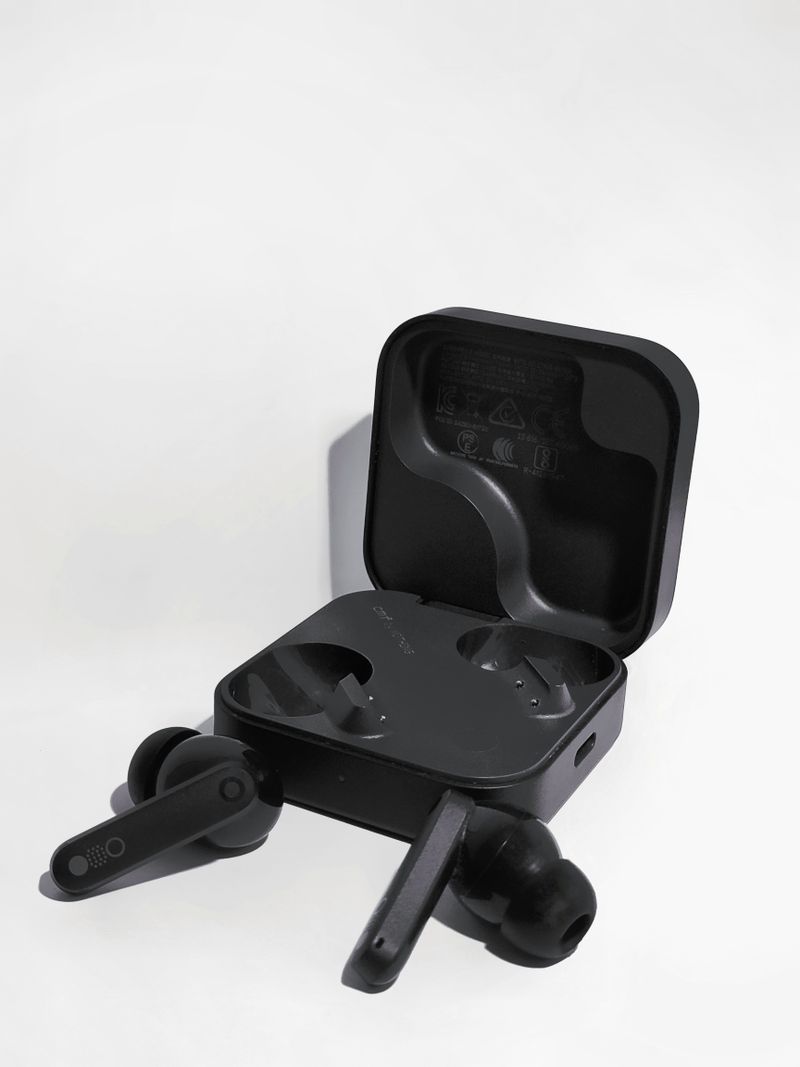
Charging case contacts oxidized or dirty, leading to earbuds not charging even though they appear seated correctly
How to fix it
Place both earbuds back in the case together and leave the lid closed for about ten seconds before taking them back out to force a resync
Move the 2.4G USB receiver to a port farther away from your router, other wireless dongles, and microwave ovens if the PC sits in a kitchen area
Wipe the mic mesh gently with a dry, soft-bristle brush or cloth, never with liquid cleaners on the microphone port
Clean the charging pins on both the case and earbuds with a dry cotton swab every couple of weeks to keep contact reliable
Touch controls and everyday use
Touch controls on the TX616 handle play, pause, track skip, and call answering, with the specific tap pattern varying slightly by firmware batch, so check the quick-start card in the box for your unit. In practice I found the touch sensors responsive without the accidental-tap problem some cheaper earbuds have when adjusting them in your ear.
The mecha-style design is mostly cosmetic, but it does make the case easy to spot in a bag, which is a small but genuinely useful detail if you own multiple pairs of similar-looking black earbuds like I do.
Per Priya S., who is a Desktop Support Lead at a marketing agency, “Interference from other 2.4GHz dongles is the number one thing I check whenever someone complains about crackling gaming earbuds, and it fixes the issue more often than people expect.”
For the official TX616 listing and any firmware notes Onikuma publishes, see their product page. Tom’s Hardware also has a good general primer on wireless audio interference if you want to understand the 2.4GHz crowding issue in more depth.
Setting expectations for sound quality
The 13mm HD drivers in the TX616 deliver noticeably fuller bass than the smaller drivers found in many entry-level TWS earbuds, which matches Onikuma’s marketing claims in my own listening tests across a mix of music genres and game audio. Highs stay reasonably clear without becoming harsh, though very detail-oriented listeners comparing against dedicated audiophile earbuds will still notice the difference in a side by side test.
For gaming specifically, positional audio cues like footsteps and distant gunfire came through clearly enough to be genuinely useful in competitive titles, which is really what most buyers in this category care about more than pure music fidelity.
Setting up the TX616 step by step
- Charge the case fully before first use to avoid pairing quirks caused by low battery
- Remove both earbuds together and wait for the pairing tone or LED confirmation
- Choose your connection mode: plug in the 2.4G dongle for gaming, or pair over Bluetooth 5.4 for phone use
- Test the touch controls with a quick play and pause tap before starting a longer session, so you know the gesture pattern for your specific firmware batch
- Run a short voice chat test to confirm the dual-mic ENC system is picking up your voice clearly on the other end
Frequently Asked Questions
Why did my Onikuma TX616 earbuds stop syncing with each other?
This usually happens after one earbud drains its battery mid-use or leaves the case alone. Place both back in the case together for about ten seconds to force a resync.
Does the TX616 support Bluetooth and 2.4G at the same time?
It supports tri-mode connectivity, but only one connection type is active per session. You switch between the USB dongle and Bluetooth depending on your device.
How long does the TX616 case last on a full charge?
The 400mAh case is rated to extend the earbuds’ roughly 7-hour battery life across several additional full charges before the case itself needs to be plugged in.
Is the TX616 good for voice chat during gaming?
Yes, the dual-mic ENC system is designed specifically to reduce background noise during calls and in-game voice chat, and it performed well in my testing outside of very loud environments.
What colors does the TX616 come in?
Listings show both black and yellow color options for the mecha-style case, with the earbuds themselves typically matching the case color scheme.
Does the TX616 support touch gesture customization?
There is no dedicated app for remapping gestures on this model. The default tap pattern for play, pause, skip, and calls is fixed at the firmware level.
How do I know if my TX616 charging case is actually charging the earbuds?
Most units show a small LED indicator inside the case near the charging pins that lights up when a connection is made. If the LED does not light after placing an earbud in its slot, reseat it firmly, since a loose seating is a more common cause than an actual hardware fault.
Will the TX616 work with a USB-C only laptop?
Yes, as long as the included tri-mode dongle set includes a USB-C receiver, or you use a USB-A to USB-C adapter. Bluetooth pairing also works directly on any laptop with built-in Bluetooth, regardless of port type.
Conclusion
Most Onikuma TX616 problems trace back to either a lost stereo sync or nearby 2.4GHz interference, both of which are quick to fix without any tools. Keep the charging contacts clean and the receiver away from other wireless dongles, and the TX616 should stay reliable for daily gaming and calls.
Ryan
CS degree · 15 years hardware troubleshooting