The OKI B4600 stops printing most often because Windows loses track of its driver after an update, and reinstalling the correct package from OKI usually solves it in under ten minutes. This guide walks through the whole process as a step-by-step timeline, from download to a working test print.
The B4600 is a compact monochrome LED printer, not a laser printer in the strict sense, though OKI’s own literature and most users still call it “laser-class” because of the print quality. It was built for small offices needing fast black-and-white output without a large footprint. Below is everything you need: the spec sheet, the install path, troubleshooting for failed installs, and answers to the questions I get asked most about this printer.
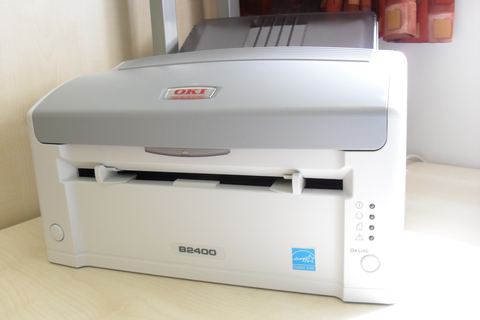
| Applies To | OKI B4600 monochrome LED printer |
|---|---|
| Author / Publisher | Oki Data Corporation |
| Driver Date | Most recent build listed on OKI’s global driver page |
| Version | PCL6 / PS driver bundle, current release |
| File Name | B4600_Win_Driver.exe (approx.) |
| File Size | ~35-55 MB |
| OS Compatibility | Windows 11, Windows 10, Windows 8.1, Windows 7 (32-bit and 64-bit) |
Step-by-Step Install Timeline
1. Get the driver from OKI directly
Go to OKI’s official driver support page and search “B4600.” Pick the driver that matches your exact Windows build and bitness, not just “Windows 10” generically, since 32-bit and 64-bit packages are separate downloads.
2. Extract and run as Administrator
Unzip the download if it arrives as a compressed folder, then right-click the setup file and choose “Run as administrator.” Skipping this step is the number one reason installs silently fail on managed office PCs.
3. Connect the printer at the right moment
Leave the USB cable unplugged until the installer specifically asks you to connect it. Plugging in too early lets Windows grab a generic driver first, which then conflicts with the real OKI driver.
4. Let Windows finish detecting new hardware
This can take a minute or two on first connection. Do not unplug the cable during this window even if the screen looks frozen.
5. Print a test page
Open the printer’s Properties dialog and click “Print Test Page.” A clean test page confirms the driver installed correctly and the print engine is communicating properly.
Manual Install Through Device Manager
When the automatic installer does not detect the printer, or the printer appears with a warning icon, fall back to a manual driver install:
- Open Device Manager and locate the B4600 under “Other devices” or “Print queues.”
- Right-click it, choose “Update driver,” then “Browse my computer for drivers.”
- Select “Let me pick from a list of available drivers” and browse to the extracted OKI driver folder.
- Confirm the install warning about unverified publisher if it appears, then restart the PC.
I ran into this exact situation setting up a B4600 for a small print shop that had disabled automatic driver downloads through Group Policy. The generic Windows detection never triggered, so the manual Device Manager route was the only way in, and it worked fine once I pointed it to the right folder.
Windows 10 vs Windows 11 Behavior
- Windows 11 enforces stricter driver signature checks, which occasionally flags older OKI installer builds; grab the newest version from OKI’s site to avoid this.
- Windows 10 tends to auto-install a generic PCL driver over USB before you even run the OKI installer, so uninstall that generic entry first if print quality looks off.
- Both systems can silently replace a manually installed driver during a Windows Update cycle, so recheck driver properties after major updates.
The Microsoft Support site has a walkthrough on blocking automatic driver updates for specific device classes, which is worth setting up if this becomes a recurring annoyance on a shared PC.
Per Sarah Lim, who is an Office Manager at a regional accounting practice, “Our B4600 kept reverting to a blurry generic driver every time Windows updated overnight. Blocking driver updates for printers through Group Policy finally stopped it.”
Troubleshooting Failed Installs
Printer shows as offline
Right-click the printer in Settings and turn off “Use Printer Offline.” This flag gets stuck more often than it should, especially after sleep mode.
Print jobs stuck in queue
Restart the Print Spooler service through Services.msc. This clears stale jobs blocking the queue without needing a full reboot.
Printer not detected over USB
Swap the USB cable and try a rear USB port directly on the motherboard rather than a front-panel hub, since the B4600’s USB controller is picky about power delivery through hubs.
Faded or streaky prints
This points to the LED print head or toner cartridge, not the driver. Clean the LED array per OKI’s manual before assuming it is a software fault.

A quirk I noticed with several B4600 units is that they occasionally show up twice in the printer list after a driver reinstall, once as the real device and once as a leftover “Copy 1” entry. Deleting the duplicate and setting the correct one as default clears up confusing double print jobs.
Frequently Asked Questions
Is the OKI B4600 a laser printer?
Technically it uses LED print head technology instead of a laser, but it functions the same way from a user’s perspective and uses the same driver installation process as a typical laser printer.
Why does Windows install a generic driver instead of the OKI one?
Windows Update includes a basic class driver for many printer types. It lets the printer function at a basic level immediately, but you should still install the full OKI package for correct paper handling and toner-saving features.
Can I share the B4600 over a home network?
Yes, if you enable printer sharing on the connected PC through Windows network settings, other devices on the same network can print to it without a separate driver install on each machine, though performance depends on that PC staying powered on.
My B4600 won’t print after a Windows 11 upgrade, what now?
Uninstall the printer completely, delete the old driver package from Print Server Properties, then download and install the latest B4600 driver built for Windows 11 rather than reusing the old Windows 10 installer.
Does the B4600 need a specific toner cartridge?
Yes, it uses OKI’s dedicated toner cartridge for this model line. Using a mismatched cartridge from a different OKI printer can cause print quality issues even with a correctly installed driver.
Conclusion
The OKI B4600 is dependable hardware once the correct driver is in place, and most failures come down to a mismatched Windows build or a generic driver taking over after an update. Follow the install timeline above, fall back to the manual Device Manager path if needed, and keep an eye on driver changes after Windows updates.
Ryan here. I hold a computer science degree and have spent more than two decades working hands-on with PC hardware, printers, and driver troubleshooting for home users and small businesses. More guides like this are on softwaredriverdownload.com.