The Onikuma K1 is one of those headsets that keeps showing up used and refurbished long after its release, which is exactly why I dug one out to test again. It is a simple wired stereo headset, no wireless modes, no RGB software, just a 3.5mm plug and a microphone. That simplicity turned out to be its biggest strength when I compared notes with some of Onikuma’s newer wireless models.
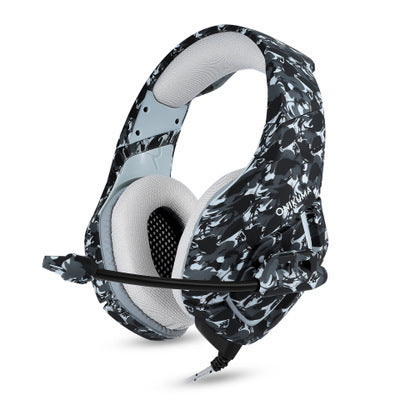
| Driver Size | 50mm |
| Connection | 3.5mm wired, single or dual jack with adapter |
| Microphone | Omnidirectional, flexible boom, noise-reducing |
| Controls | In-line volume and mic mute |
| Compatibility | PC, PS4, PS5, Xbox controllers with 3.5mm port, Switch, mobile |
| Weight | Under 350g |
What the Onikuma K1 Is
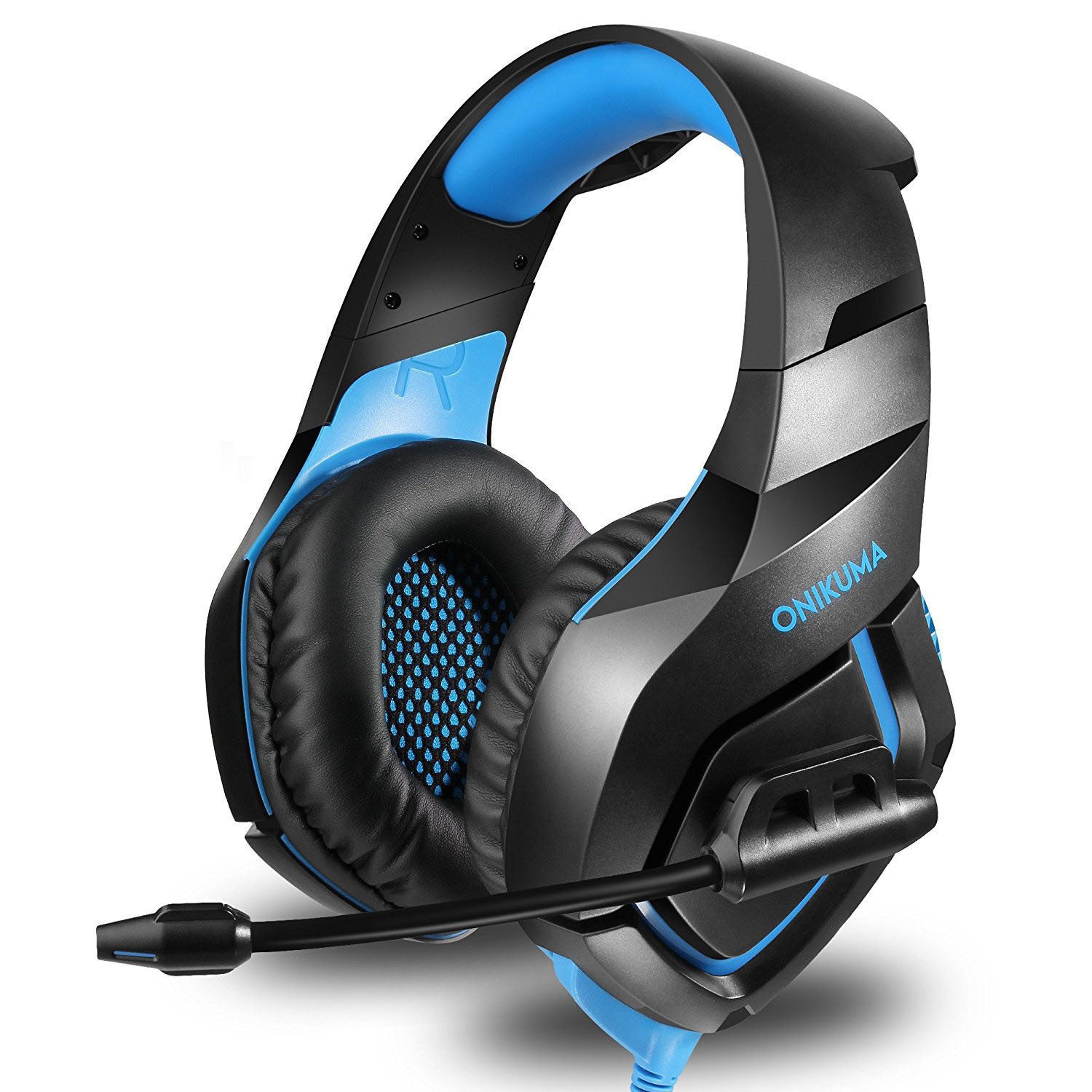
The K1 is a wired stereo gaming headset with a 50mm driver, an omnidirectional flexible boom microphone, and a standard 3.5mm connection. It is a straightforward, no-frills design aimed at console and PC players who want solid audio without dealing with batteries or Bluetooth pairing menus.
Like the CW929 mouse I tested separately, the K1 is not currently listed on Onikuma’s official storefront, where the K-series lineup has moved on to newer entries like the K8, K9, and K10. The K1 was succeeded, but it is still floating around on Amazon, Walmart, and eBay, often at a noticeable discount compared to Onikuma’s current headset range, which makes it worth covering here since plenty of people still own one or are considering a used unit.
Key Specs
- Driver: 50mm
- Connection: 3.5mm wired, single jack or dual jack depending on the included adapter
- Microphone: omnidirectional, flexible boom, noise-reducing
- Controls: in-line volume and mic mute
- Compatibility: PC, PS4, PS5 (via controller jack), Xbox controllers with a 3.5mm port, Switch, and mobile devices
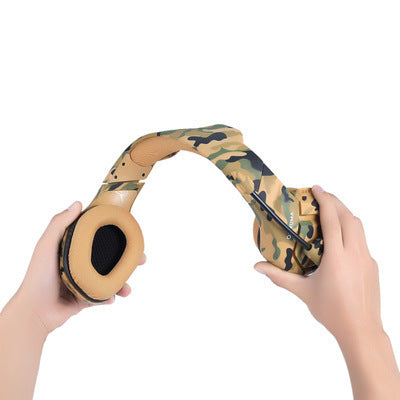
- Weight: lightweight, under 350g with the self-adjusting headband
Setup Guide
Because the K1 is entirely wired and analog, setup is about as simple as gaming gear gets:
- Plug the 3.5mm jack into your PC’s headphone/mic combo port, or into the appropriate port on a console controller.
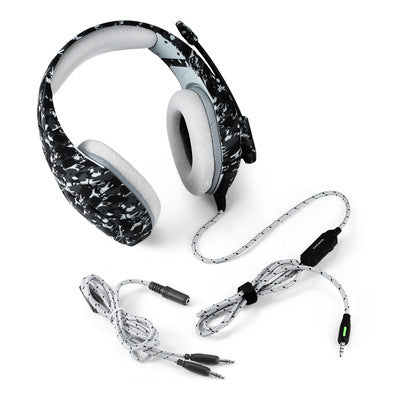
- If your PC has separate headphone and microphone ports rather than a combo jack, use the included splitter adapter.
- Open your operating system’s sound settings and confirm the K1 is selected as the default playback and recording device.
- Adjust the in-line volume wheel to a comfortable level, then fine-tune further inside your game or chat app.
No drivers, no companion software, and no firmware updates to worry about. That is genuinely one of the appeals of a simple wired headset like this one, especially for anyone who has been burned by a wireless headset losing pairing mid-match.
Comfort and Sound Quality
The earcups use a soft foam padding that stayed comfortable through a few multi-hour sessions, though the clamping force is a bit stronger than newer Onikuma models I’ve tried, which actually helps with passive noise isolation in a noisy room.
Audio-wise, the 50mm driver leans toward bass-forward sound, which suits most competitive and casual games well but can feel a little muddy for music that needs more treble clarity. For voice chat, the boom microphone picks up clearly at a normal speaking distance, with only minor background noise pickup in a quiet room.
Troubleshooting Common K1 Problems
No sound on one side
Check the 3.5mm jack for lint or debris, since a partially inserted plug is the most common cause. Try a different port if available, and inspect the cable near the jack for any fraying, as that is usually where wired headsets fail first.
Microphone not picked up on PC
Confirm your PC uses a combo audio jack, or that you are using the correct splitter cable if your motherboard has separate mic and headphone ports. Then check Settings > System > Sound > Input to make sure the K1 microphone is selected and not muted at the OS level.
Quiet volume even at max
Check the in-line volume wheel is not accidentally turned down, then verify volume levels in both your OS sound mixer and the specific game or app you’re using, since some apps have their own separate volume controls that override the system level.
Uncomfortable after long sessions
Loosen the self-adjusting headband slightly, or take a short break every hour or so. The clamping force, while good for isolation, can feel tight during marathon sessions for some head shapes.
K1 vs Newer Onikuma Headsets
If you are deciding between a used K1 and a current-generation Onikuma headset, it comes down to what you value more:
- Choose the K1 if: you want zero setup friction, do not need wireless freedom, and prioritize simplicity and reliability over RGB extras.
- Choose a newer model like the GT808 or GT806 if: you want wireless flexibility, RGB lighting, and multi-device Bluetooth pairing.
For more detail on Onikuma’s current lineup and support resources, the official downloads page is worth bookmarking even though the K1 itself predates it.
Frequently Asked Questions
Is the Onikuma K1 still worth buying used?
If the price is right and the cable and earcups are in good shape, yes. It is a simple, dependable wired headset that does not rely on any software or firmware that could become outdated.
Does the K1 work on PS5?
Yes, through the 3.5mm port on a DualSense controller. Just make sure output audio is routed to the controller headset jack in the PS5’s sound settings menu.
Why isn’t the K1 listed on Onikuma’s website anymore?
It has been succeeded by newer models in the K-series lineup, such as the K8, K9, and K10, which add features like RGB lighting and improved build materials. The K1 simply predates the current catalog.
Does the K1 need batteries or charging?
No. It is a fully passive wired headset with no onboard electronics beyond the microphone and volume control, so there is nothing to charge.
Buying a Used K1: What to Check
Since the K1 mostly turns up secondhand or through clearance listings now, it’s worth inspecting a few things before handing over money for one:
- Bend test the cable near the jack gently to feel for stiffness or cracking, since that is the most common failure point on any wired headset
- Squeeze the earcup padding to check the foam has not gone hard or started flaking, which happens with age and heat exposure
- Test the in-line volume wheel for smooth movement rather than grinding or sticking
- Ask the seller to confirm both channels work, since a bad solder joint on one driver is a fairly common used-headset issue
None of these checks take more than a minute, and they will save you from buying a headset that looks fine in photos but has a hidden fault.
Final Thoughts
The Onikuma K1 will not impress anyone looking for the latest wireless features, but as a backup headset or a budget-friendly first gaming headset, it still holds up. Reliable, simple, and easy to trust because there is nothing complicated that can go wrong with it. If you already own one, there is genuinely no rush to upgrade unless you specifically want wireless freedom or RGB lighting.
Written by Jordan Reyes, a gaming accessories reviewer based in Portland with a background in computer science, who focuses on affordable and legacy gaming peripherals that still see everyday use.