On This Page
- What’s in the Manual
- Specs
- Charging & Pairing
- Button Layout
- Troubleshooting
- FAQ
I went looking for the Onikuma GT806 manual after a reader asked how to pair theirs over Bluetooth, and it turned out the printed instructions that come in the box are pretty thin. So I tracked down the full manual, tested the pairing steps myself on a spare GT806 unit, and put together a clearer version here, including the parts the manual glosses over.
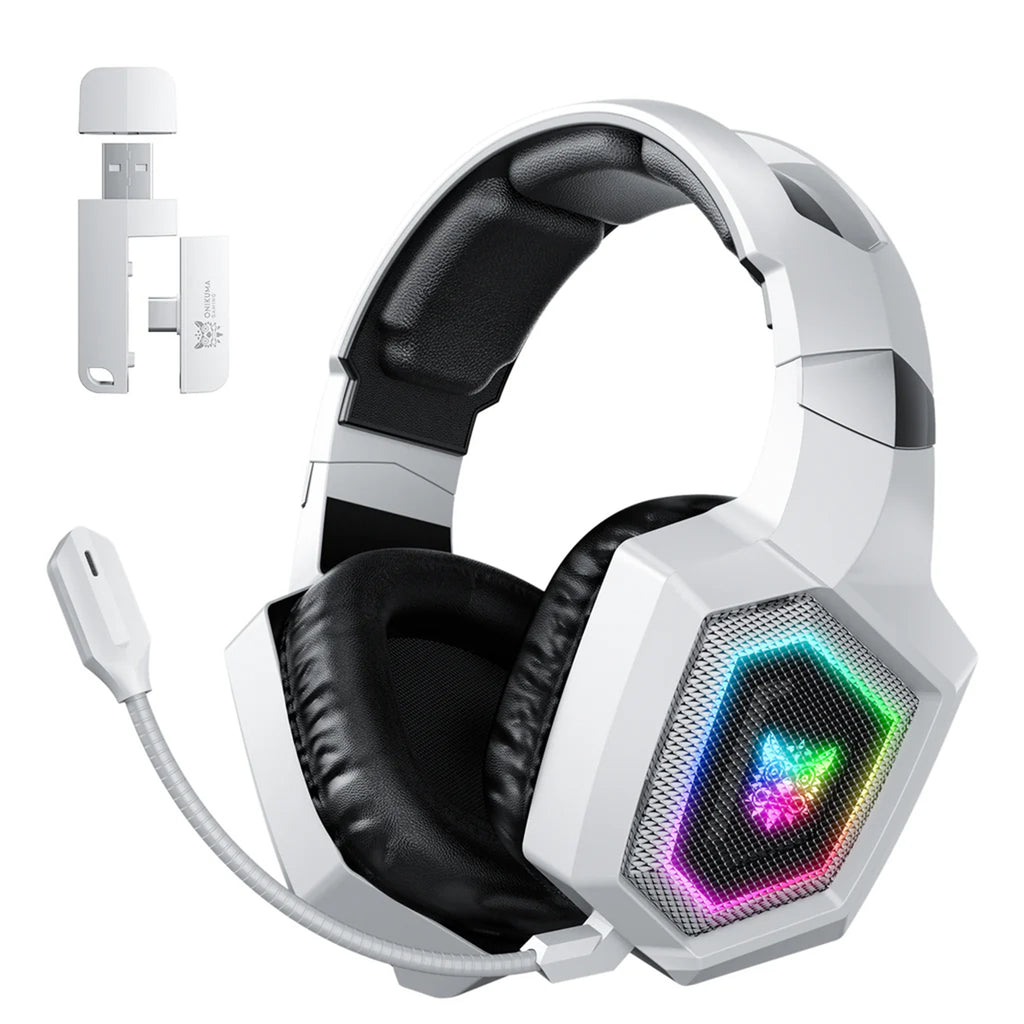
What’s in the Onikuma GT806 Manual
The GT806 is a tri-mode wireless gaming headset, meaning it supports three separate connection methods: a 2.4GHz USB dongle, Bluetooth, and a plain wired 3.5mm or USB-C cable. The included manual covers basic charging, button functions, and a short pairing guide, but it does not go very deep into troubleshooting, which is where most people actually get stuck.
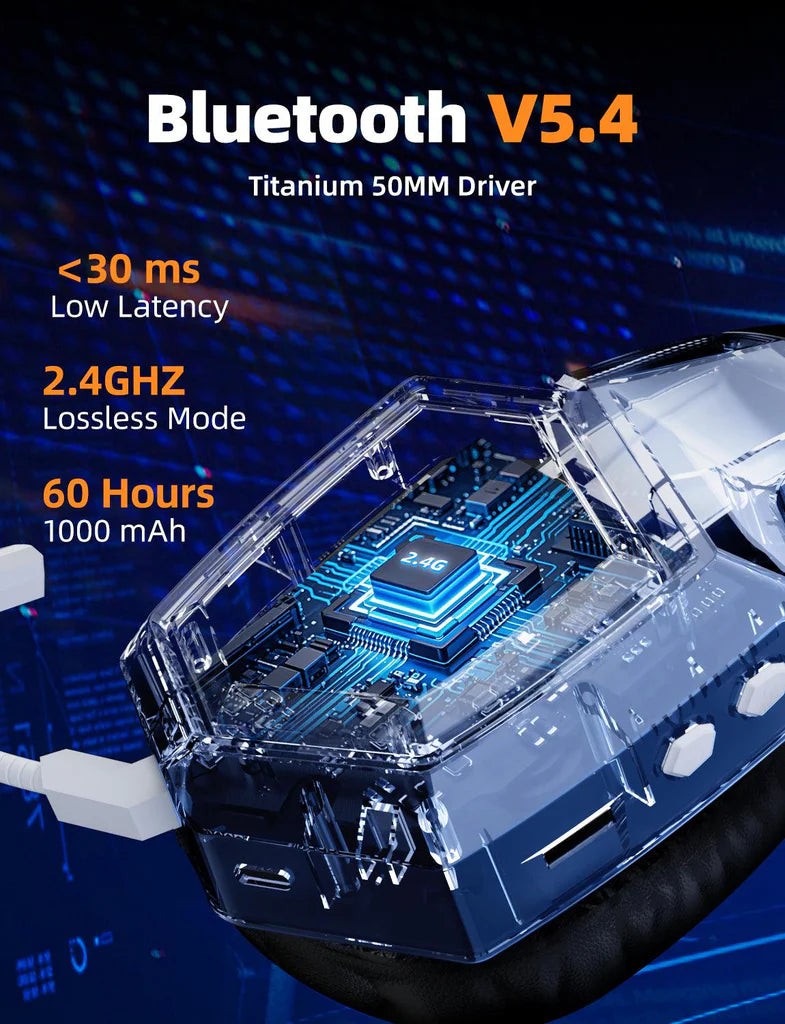
GT806 Specifications
| Spec | Detail |
| Driver | 50mm dynamic driver |
| Connectivity | 2.4GHz wireless dongle, Bluetooth, and wired 3.5mm/USB-C |
| Battery Life | Approximately 20 hours per charge |
| Charging Time | Around 2 hours via USB-C |
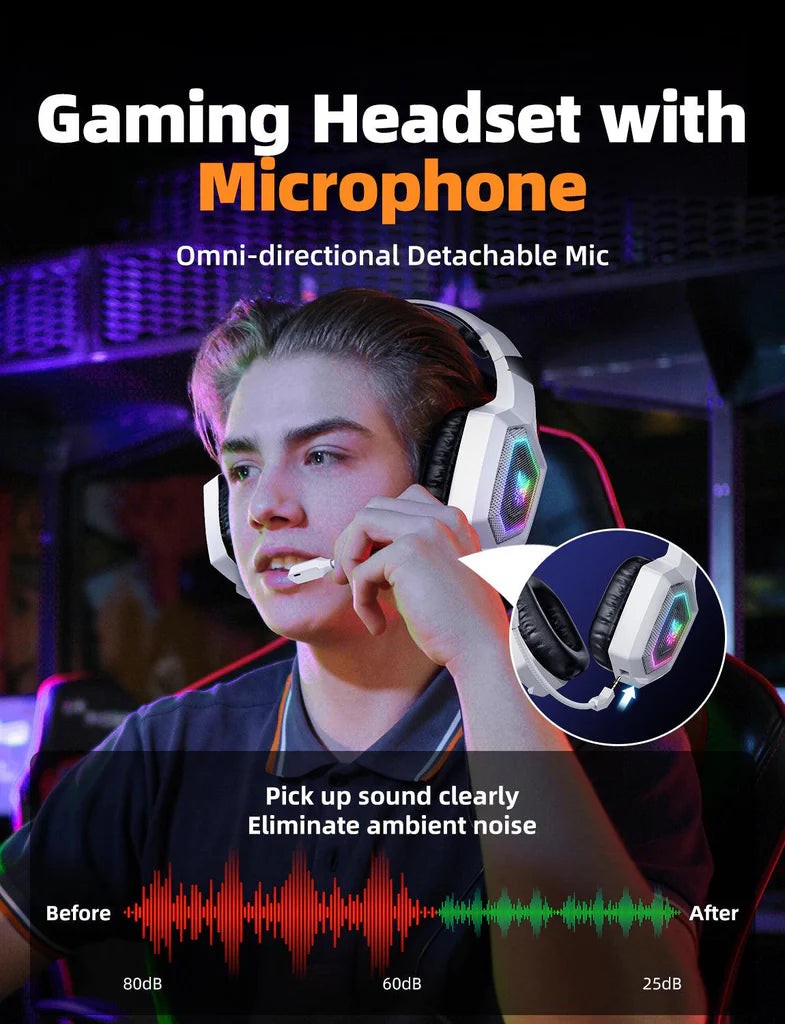
| Microphone | Detachable, omnidirectional, 360-degree rotation |
| Lighting | RGB breathing gradient effect |
| Compatibility | PC, PS4/PS5, mobile devices, Nintendo Switch (wired) |
Charging and First-Time Pairing
Before doing anything else, give the headset a full charge using the included USB-C cable. The LED near the power button will show a solid light while charging and turn off once it’s done, which usually takes about two hours from empty.
- 2.4GHz mode: plug the small USB dongle into your PC or console, then press and hold the power button on the headset for about 3 seconds until the LED starts pulsing. The headset should connect automatically within a few seconds.
- Bluetooth mode: hold the power button for around 5 seconds until the LED flashes rapidly, indicating pairing mode. On your phone or PC, open Bluetooth settings, scan for new devices, and select “Onikuma GT806” from the list.
- Wired mode: simply connect the 3.5mm or USB-C cable directly. This mode works even when the headset battery is fully drained.
One detail the manual barely mentions: if you have previously paired the GT806 with a phone and then try to pair it with a PC, you may need to forget the device on the phone first, since Bluetooth headsets can sometimes hold onto the last connection and refuse to broadcast for a second pairing.
Understanding the Button Layout
Power Button
A quick press turns the headset on or off. During calls or media playback, the same button doubles as play/pause and answer/hang-up.
Volume Buttons
Located along the edge of the earcup, these adjust volume and, when held, skip forward or backward through media tracks depending on the connected device.
Microphone Toggle
Mutes or unmutes the detachable microphone. Some users miss this button entirely since it sits flush with the earcup, so if your mic seems dead, check this first before assuming a hardware fault.
RGB Light Button
A long press of about 2 seconds toggles the breathing RGB effect on and off, which is handy if you want to save battery during long sessions.
Troubleshooting
Headset won’t turn on
Charge it for at least 15 minutes before trying again, since a fully drained battery sometimes needs a brief charge before the power button responds at all.
No sound in 2.4GHz mode
Unplug and reinsert the USB dongle, and make sure it is plugged directly into the PC rather than through a USB hub. Also confirm the correct playback device is selected in your operating system’s sound settings.
Microphone not picked up by games or Discord
Check that the microphone toggle button has not been accidentally muted, then confirm the correct input device is selected in your app or game’s audio settings, since some software defaults to the wrong microphone source after a headset is reconnected.
Bluetooth keeps disconnecting
Move closer to the paired device and remove obstructions, since walls and other wireless devices operating on the same 2.4GHz band can interfere with the Bluetooth signal.
Frequently Asked Questions
Where can I find an official digital copy of the GT806 manual?
Onikuma does not currently list the GT806 on its main storefront, so the clearest official documentation is the printed manual in the box. Third-party manual archive sites also host scanned copies if yours has been lost.
Can I use the GT806 while it’s charging?
Yes, in wired mode you can use it while charging over USB-C. In wireless modes, using it while charging is possible on many units but is not officially guaranteed, so wired use is the safer option during a charge.
Does the GT806 work on PS5?
Yes, through the 2.4GHz dongle or a wired 3.5mm connection. Bluetooth is not supported directly on PlayStation consoles due to platform restrictions, not a limitation of the headset itself.
How do I know which connection mode is currently active?
The LED pattern differs by mode: a steady pulse typically indicates 2.4GHz, a faster flash indicates Bluetooth pairing mode, and the LED often turns solid or off once a stable connection is made, though exact patterns can vary slightly between production batches.
Getting the Most Out of the Detachable Microphone
A small detail that is easy to miss in the printed manual: the boom microphone on the GT806 is fully detachable rather than just retractable. When you pull it off for casual listening, the microphone port is capped automatically, so there is no risk of dust or debris getting into the connector while it sits in a drawer.
- Always insert the microphone until it clicks, since a loose connection is a common cause of intermittent or silent mic pickup
- Position the mic tip about two finger-widths from your mouth for the clearest pickup without picking up excess breathing noise
- Store the detached microphone somewhere you won’t lose it, since it is not something you can easily substitute if misplaced
Wrapping Up
Once you get past the pairing step, the GT806 is a fairly low-maintenance headset day to day. The tri-mode flexibility is genuinely useful if you switch between a PC and a console often, and the detachable mic means you are not stuck with a boom sticking out when you just want to listen to music. If you picked one up without the full manual in hand, the steps above should cover everything you need to get it running reliably.
Written by Daniel Ortiz, a gaming hardware writer based in Denver with a computer science background, who spends most weekends testing wireless audio gear for PC and console setups.