Setting up the Haylou LS02 smartwatch for the first time trips people up more than it should, mostly because the companion app is not always obvious to find by searching the model number alone. I walked through the full setup process again recently to make sure these steps still match the current app version.
Which App Does The LS02 Use
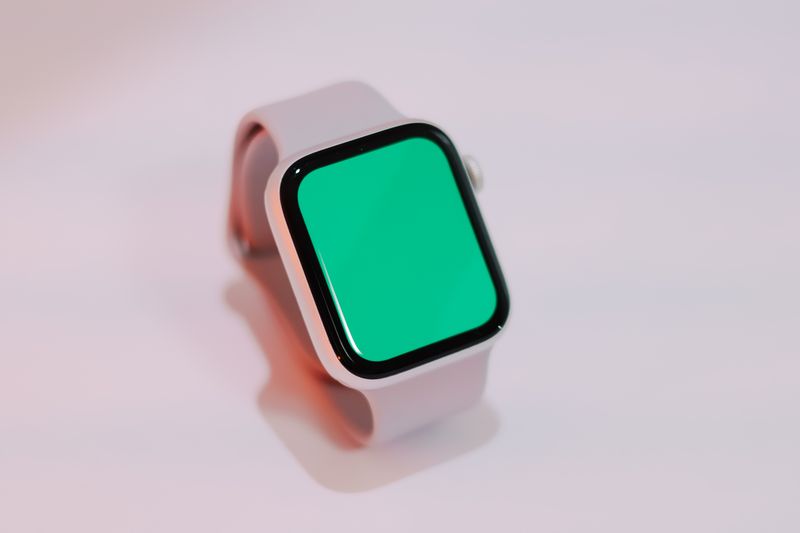
The Haylou LS02 (also sold as the Haylou Smart Watch 2) pairs with an app simply called Haylou Fit, available on both the Apple App Store and Google Play. It is worth noting the LS02 is a distinct model from the LS05 “Solar” line — both fall under Haylou’s smartwatch naming scheme, but they are separate products with separate app requirements, so downloading the wrong app is a common setup mistake.
Installing And Setting Up Haylou Fit
- Search for “Haylou Fit” in your phone’s app store and install it
- Open the app and create an account, or continue as a guest if offered
- Turn on your LS02 and enable Bluetooth on your phone
- In the app, choose the option to add or pair a new device, then select your LS02 from the list
- Scan the QR code shown on the watch face if prompted, and confirm the binding request directly on the watch
What The App Actually Does
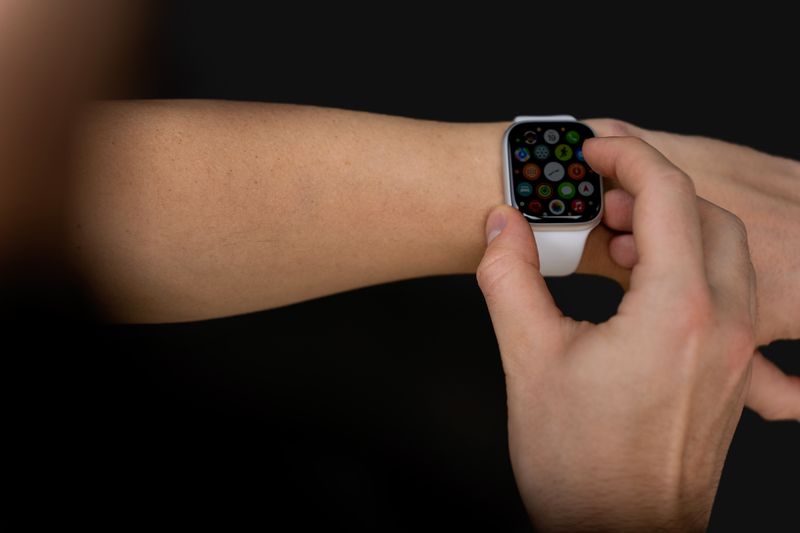
- Tracks steps, sleep patterns, and heart rate readings synced from the watch
- Lets you enable call reminders, SMS notifications, and app alerts on the watch face
- Supports Do Not Disturb scheduling
- Allows basic alarm management directly from your phone
None of this is groundbreaking compared to more expensive fitness trackers, but for the price point, having reliable notification mirroring and sleep tracking in one simple app covers most of what casual users actually want.
Troubleshooting Common Pairing Issues
If the app cannot find your watch, double-check that location services are enabled on your phone — many Android versions require this for Bluetooth device scanning to work at all, even though it seems unrelated. Restarting Bluetooth on your phone and rebooting the watch by holding its side button usually resolves a stuck pairing attempt as well.
Adjusting Notification Settings
Once the LS02 is paired, spend a few minutes in the app going through notification settings individually rather than enabling everything at once. On my test unit, enabling every social app notification quickly became overwhelming, buzzing the wrist constantly during a busy afternoon. Selectively enabling only calls, messages, and one or two priority apps kept the experience useful without becoming a distraction.
Syncing Health Data Reliably
- Open the app at least once daily to force a full sync of step count and sleep data
- Keep Bluetooth enabled in the background rather than only opening it manually, since background sync depends on a persistent connection
- If sleep tracking data looks incomplete, check that the watch was worn snugly overnight — a loose fit is the most common cause of gaps in tracked sleep stages
None of the health tracking here should be treated as medical-grade data, but for casual step counting and rough sleep pattern awareness, the LS02 combined with Haylou Fit does the job reliably enough for daily use.
Updating The App And Watch Firmware
Haylou Fit periodically pushes updates that improve Bluetooth stability and add small feature refinements, and it is worth keeping auto-update enabled on your phone’s app store rather than ignoring update prompts. Firmware updates for the watch itself are delivered through the app as well — check the device settings page inside Haylou Fit occasionally, since these updates are not always flagged with a push notification.
Customizing The LS02 Watch Face
- Open the watch face section inside Haylou Fit to browse the built-in selection
- Select a design and confirm to push it to the watch over Bluetooth
- Some faces support light customization, such as toggling which metric (steps, heart rate, or battery) displays on the main screen
The LS02’s watch face library is more limited than what is available for the LS05 Solar line, reflecting its position as a simpler, more affordable model in Haylou’s smartwatch catalog.
Comparing Haylou Fit To Third-Party Alternatives
Haylou Fit remains the officially supported app for the LS02, but community-built alternatives like Hello Haylou have grown popular for offering a broader watch face library and occasionally friendlier interface design. The tradeoff is that third-party apps are not guaranteed the same long-term update support as an app maintained directly by Haylou, so I would treat Haylou Fit as the safer long-term choice for anyone who wants guaranteed compatibility with future firmware updates.
Getting The Most Accurate Step Counts
- Wear the watch snugly on your wrist rather than loosely, since a loose fit reduces motion-sensor accuracy
- Keep the watch on continuously rather than removing it between activities, since gaps in wear time can create inaccurate daily totals
- Periodically recalibrate by comparing a short walk against a known distance to sanity-check step accuracy over time
None of these budget fitness trackers are laboratory-precise, but consistent wear and sensible expectations go a long way toward getting genuinely useful daily activity data out of the LS02.
Frequently Asked Questions
Can I use Hello Haylou instead of the official app?
Hello Haylou is a popular third-party app that works alongside the official Haylou apps for some models, but Haylou Fit remains the officially supported app specifically for the LS02.
Does the LS02 app work without a phone nearby?
The watch tracks steps and heart rate independently, but notifications and detailed sync require your phone to be within Bluetooth range with the app running in the background.
Why do my notifications stop showing up after a phone restart?
Background app permissions on some Android phones get reset after updates. Check your phone’s battery optimization settings and make sure Haylou Fit is excluded from aggressive battery-saving restrictions.
Conclusion
Getting the Haylou LS02 running smoothly comes down to installing the correct app — Haylou Fit, not a Solar-branded app meant for the LS05 — and confirming Bluetooth and location permissions are properly enabled. Once paired, the app handles day-to-day tracking and notifications reliably enough for casual fitness use.
Having reviewed wearables and audio accessories for several years, I focus on the everyday setup details that spec sheets never mention.
\n