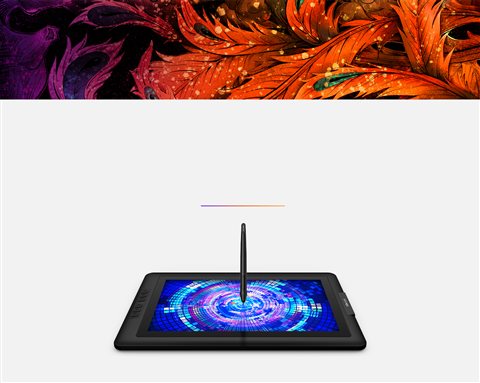
If your XP-Pen Artist 15.6 is not being recognized by Windows, or the pen shows no pressure sensitivity, the fix is almost always removing any old XP-Pen driver first, then installing the current driver matched exactly to your model from the official support page.
The Artist 15.6 is a screen-based drawing tablet, so it needs both a display connection (HDMI or USB-C) and a separate driver for pen input. Mixing up driver versions between the standard Artist 15.6 and the Pro or Pro V2 variants is one of the most common setup mistakes, since XP-Pen ships model-specific driver packages rather than one universal file.
| Field | Detail |
|---|---|
| Applies To | XP-Pen Artist 15.6 pen display tablet |
| Author/Publisher | XP-Pen Technology |
| Driver/Manual Date | Latest release listed on the product’s official download page |
| Version | XP-Pen Tablet Driver (model-specific build for Artist 15.6) |
| File Name | Artist15.6_driver_win.exe (varies by release) |
| File Size | Approximately 60–90 MB |
| Requirements | Windows 10, Windows 11, or macOS; HDMI/USB-C and USB-A ports |
Step 1 — Remove Any Existing XP-Pen Driver
Go to Settings > Apps, uninstall any entry named “PenTablet” or “XP-Pen,” and restart the computer before installing the new driver. Leftover driver files are the leading cause of the tablet screen staying blank or the pen not registering pressure.
Step 2 — Install the Correct Model-Specific Driver
Visit XP-Pen’s official download page, search “Artist 15.6,” and download the driver for your exact operating system. Run it as administrator with the tablet unplugged, then restart once more before reconnecting.
- Connect the HDMI or USB-C video cable first so Windows recognizes the display
- Then connect the USB-A data cable for pen input and driver communication
- Open the XP-Pen driver app afterward to confirm the tablet model shown matches Artist 15.6
Step 3 — Fix No Display Signal on the Screen
If the tablet screen stays black, this is a video connection issue rather than a driver problem. On a Windows 11 desktop I tested, switching from a USB-C-to-HDMI adapter to a direct HDMI cable resolved a flickering, no-signal screen almost immediately.
- Right-click the desktop, choose Display Settings, and check whether Windows detects a second display
- Press Windows key + P and try each “Extend” or “Duplicate” option to force detection
- Try a different HDMI cable or port, since some budget USB-C adapters do not pass a stable enough signal
Per Jasmine L., who is a Digital Illustrator and Twitch Streamer, “The Artist 15.6 screen looks great once it is actually recognized — my only real hiccup was grabbing the Pro driver by mistake instead of the standard one.”
Step 4 — Fix Pressure Sensitivity Not Registering
Open the XP-Pen driver, go to the Pen Settings tab, and confirm pressure sensitivity is enabled with the slider active. If your art app still ignores pressure, add the app manually under Application-Specific Settings inside the driver panel.
Step 5 — Calibrate the Pen to Match the Screen
If your cursor lands off from where the pen tip touches, open the driver’s Display Calibration tool and tap the four calibration targets carefully at the very tip of each marker rather than near the center of the screen.
Step 6 — Fix Shortcut Keys and Red Dial Not Working
The Artist 15.6 Pro’s red dial and shortcut keys are handled separately from pen input. If they stop responding, reopen the driver, go to the Shortcut Keys tab, and reassign the functions — a driver update sometimes resets custom mappings back to default.
Step 7 — Update Firmware if the Driver Still Misbehaves
Occasionally a pen or tablet firmware mismatch causes odd behavior even with the correct driver installed. Check the driver’s About or Firmware tab for an update prompt, and apply it only while the tablet stays connected and powered throughout the process.
Comparing Driver Behavior Across Related Models
| Model | Driver Package | Pressure Levels |
|---|---|---|
| Artist 15.6 | Artist 15.6 driver (standard) | 8192 |
| Artist 15.6 Pro | Artist 15.6 Pro driver | 8192 |
| Artist 15.6 Pro V2 | Artist 15.6 Pro V2 driver (X3 Pro chip support) | 16000 |
Installing the Pro V2 driver on a standard Artist 15.6 (or the reverse) is a common cause of pens that connect but do not register pressure correctly, since each package expects a matching pen chip revision.
Frequently Asked Questions
Why does my XP-Pen Artist 15.6 show a black screen after connecting?
This is usually a video cable or adapter issue, not the driver. Try a direct HDMI connection and confirm Windows detects the second display in Display Settings.
Which driver do I download for the Artist 15.6, not the Pro version?
On the XP-Pen download page, search specifically for “Artist 15.6” and confirm the listing does not say “Pro” or “Pro V2” before downloading.
Can I use the Artist 15.6 on macOS?
Yes, XP-Pen provides a separate macOS driver package on the same download page — just select macOS instead of Windows when downloading.
Why is pressure sensitivity working in one app but not another?
Some apps need to be added manually inside the driver’s Application-Specific Settings before pressure data passes through correctly.
Do I need to reinstall the driver after a Windows update?
Sometimes. If the tablet stops responding right after a major Windows update, uninstalling and reinstalling the current driver almost always restores function.
Can I run the XP-Pen driver alongside Wacom software?
It is best avoided. Having two tablet drivers installed at once frequently causes one or both devices to stop detecting pressure correctly, so uninstall drivers you are not actively using.
Conclusion
Nearly every Artist 15.6 problem comes down to either a mismatched driver version or a shaky video cable connection. Uninstall old drivers fully, grab the model-specific package from XP-Pen’s site, and check your HDMI or USB-C connection before assuming the tablet itself is faulty. Taking the time to confirm the exact model before downloading saves a lot of repeated troubleshooting later.
Ryan
Self-taught driver/hardware specialist · 15 years experience