The Sabrent USB audio adapter does not need a manual driver download for normal use on Windows 10 or 11, because it works with the built-in USB Audio Class driver. This guide covers when you actually need extra files, how to install correctly, and how to fix the common no-sound and static problems.
Sabrent sells several small external sound card dongles, the AU-MMSA and AU-EMCB being the most common, both built around simple USB audio chipsets. They are cheap, plug-and-play devices meant to add a headphone/mic jack or restore audio on a laptop with a dead onboard sound chip. I keep two of these in my repair kit because they solve “no audio device found” complaints faster than chasing a motherboard driver.
| Applies To | Sabrent USB External Stereo Sound Adapter (AU-MMSA, AU-EMCB, and similar CM108/CM119-based models) |
| Author / Publisher | Sabrent Inc. |
| Driver / Software Date | Uses native Windows USB Audio Class driver, updated with Windows itself |
| Version | Windows in-box USB Audio Class 2.0 driver |
| File Name | No separate installer required; optional utility from Sabrent support if provided for your specific model |
| File Size | Not applicable (driverless) / under 10 MB for optional utilities |
| OS Compatibility | Windows 10, Windows 11, macOS, Linux (kernel 3.x and later) |
Step 1: Plug It In and Let Windows Handle It
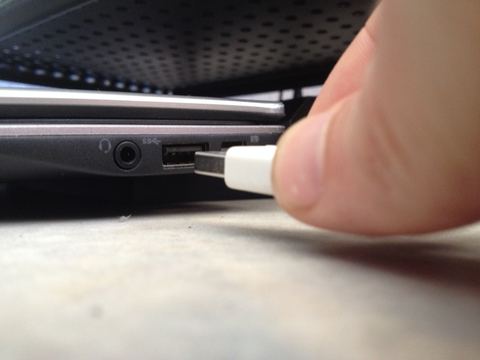
Insert the Sabrent adapter into a free USB-A port. Windows 10 and 11 both carry a generic USB Audio Class driver built into the OS, so the device should be recognized within a few seconds without any download.
- Watch the notification area for a “Setting up device” popup, then “Device is ready.”
- Right-click the speaker icon in the taskbar and open Sound settings.
- Confirm “USB Audio Device” or “USB PnP Sound Device” appears in the output list.
- Set it as default if you want it to be the primary playback/recording device.
Step 2: When You Actually Need a Driver Download
A separate driver is rarely required, but there are two situations where it helps:
- You are on an older Windows 10 build (before version 1803) where the in-box class driver is buggy with some CM108-based chips.
- You want the extra control panel utility some Sabrent bundles ship with, for switching between stereo and mono mic modes.
If either applies, check Sabrent’s official support page for your exact model number, since not every dongle has a downloadable extra utility. If nothing is listed for your model, that confirms it is fully plug-and-play and you do not need to look further.
Step 3: Fixing No Sound or Static Issues
Most complaints with these adapters are not driver problems at all. Work through this list before assuming the hardware is faulty.
- No sound at all: open Sound settings and manually select the Sabrent adapter as default output; Windows sometimes keeps the old onboard device selected even after you plug in the USB one.
- Static or crackling: try a different USB port, preferably directly on the motherboard rather than a front-panel header or an unpowered hub.
- Mic not detected: check Windows privacy settings under Settings > Privacy & security > Microphone, and make sure app access to the microphone is turned on.
- Device disappears randomly: open Device Manager, find the USB Audio Device under Sound controllers, go to Properties > Power Management, and untick “Allow the computer to turn off this device to save power.”
Per Melissa Tan, who is an IT support specialist at a call center in Petaling Jaya, “We hand these USB sound dongles out to agents whose headsets stopped working after a Windows update killed the onboard audio driver. Zero driver installs needed, and it just works the moment they plug it in.”
Step 4: Manual Reinstall Through Device Manager
If Windows stops recognizing the adapter properly after a system update, forcing a clean reinstall of the class driver usually clears it up.
- Open Device Manager and locate the device under Sound, video and game controllers.
- Right-click it and choose Uninstall device, ticking the box to remove the driver if offered.
- Unplug the adapter, wait about ten seconds, then plug it back in.
- Windows will detect it as new hardware and reinstall the class driver automatically.
I have used this exact sequence to fix a Sabrent dongle that a client’s laptop stopped detecting after a big Windows 11 feature update rewrote several USB controller entries. Took about two minutes and no download was involved.
Windows 10 vs Windows 11 Behavior
Both versions handle this device almost identically since it relies on the same in-box class driver. The one difference I have seen is in Windows 11’s newer Sound settings app, which sometimes lists the device under a slightly different generic name than the classic Control Panel Sound applet does. If you cannot find it by name, check both interfaces, or look at the physical port assignment (front vs rear panel) shown in the new app to confirm which entry is your adapter. For deeper diagnostics, Microsoft’s own Windows audio troubleshooting guide covers the built-in audio troubleshooter that can catch issues this article does not.
Frequently Asked Questions
Do I need to download anything to use a Sabrent USB sound adapter?
No, in almost all cases. Windows 10 and 11 include a native USB Audio Class driver that handles these devices automatically the moment you plug them in.
Why does my Sabrent adapter show up but produce no sound?
It is usually a default device selection issue rather than a driver fault. Go into Sound settings and manually pick the adapter as your default playback device.
Can I use two of these adapters at the same time?
Yes, Windows will list each one separately, though you will need to select which one is default for playback and which for recording if you use both simultaneously.
The adapter works on one PC but not another. Why?
This is often a power-saving setting on the second PC’s USB controller, or an outdated chipset driver for the motherboard’s USB ports rather than the audio adapter itself. Update the motherboard’s USB drivers through the manufacturer’s site first.
Is the Sabrent adapter compatible with Xbox or PlayStation?
Most models work as a basic USB audio device on current-generation consoles for headset audio, though features like in-line volume or mic monitoring depend on the console’s own USB audio support rather than the adapter.
Conclusion
The Sabrent USB audio adapter is about as close to zero-configuration as PC hardware gets, since Windows already ships the driver it needs. When something does go wrong, it is almost always a default-device setting or a power-management quirk rather than a missing download, so start with the simple fixes above before assuming the adapter itself is defective.
Ryan here, PC hardware troubleshooter with a computer science background and two decades of fixing driver headaches for friends, clients, and readers. Browse more guides at SoftwareDriverDownload.com.