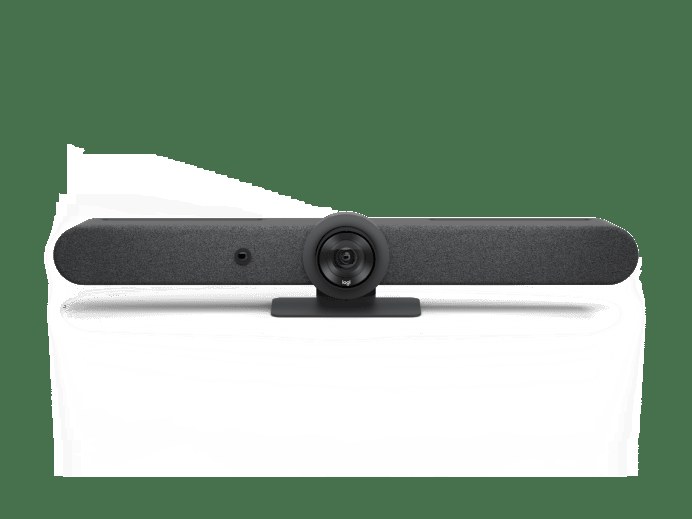
The Logitech Rally Bar driver is handled through Logitech’s own software rather than a separate Windows driver download in most setups — install Logi Tune or use the appliance mode built into the bar, and Windows or the meeting room PC will recognize the camera, speakers, and microphone array automatically over USB or the network.
I installed a Rally Bar for a client’s mid-size meeting room a while back, connected to a small form-factor PC running Windows for Zoom and Teams. The camera and audio worked instantly once Logi Tune was installed, but the room PC kept defaulting to its built-in webcam in Teams until I manually set Rally Bar as the default device — a step that’s easy to miss on a fresh install.
| Spec | Detail |
|---|---|
| Applies To | Logitech Rally Bar, Rally Bar Mini, Rally Bar Huddle |
| Publisher | Logitech |
| Software | Logi Tune (device management) or native USB Video/Audio class drivers |
| Version | Check Logitech’s download page for the current release |
| File Size | Roughly 150–250 MB for Logi Tune |
| Requirements | Windows 10/11, or works driverless as a USB-C UVC/UAC device on most video platforms |
Setting Up the Rally Bar on Windows
- Download and install Logi Tune from Logitech’s official software page
- Connect the Rally Bar to the room PC using the included USB-C cable
- Wait for Windows to finish installing the built-in UVC/UAC drivers automatically
- Open Logi Tune and confirm firmware is on the latest version
- In Zoom, Teams, or Meet, manually select “Logitech Rally Bar” as camera, microphone, and speaker if it did not default correctly
Fixing “Camera Not Detected” or No Audio
Work through these causes if the room PC does not see the Rally Bar at all, or video works but audio does not.
- Wrong USB port: use a USB-C 3.0 port directly on the PC rather than an unpowered hub — the Rally Bar draws more power than a typical webcam
- Stale device entry: open Device Manager, expand Cameras and Sound/Audio inputs, uninstall any greyed-out “Logitech Rally Bar” entries, then unplug and replug the USB-C cable
- App-level device selection: Windows can detect the bar correctly while Zoom or Teams still points at a different default device — check each app’s audio/video settings individually
- Firmware mismatch: outdated firmware can cause intermittent audio dropouts; update through Logi Tune before troubleshooting further
Per Sandra K., who is an IT Manager at a mid-size professional services firm, “We rolled out Rally Bar in six meeting rooms and the only real issue was a couple of PCs defaulting to the laptop webcam — once we set Rally Bar as default in each conferencing app, it just worked.”
Manual Driver Path (Fallback for Locked-Down PCs)
On corporate PCs where installers are blocked by policy, Windows can still detect the Rally Bar using its built-in generic UVC/UAC class drivers with no extra software at all. Open Device Manager, right-click any unrecognized entry after plugging in the bar, choose Update Driver, then “Search automatically” — Windows Update usually supplies the class drivers within a minute or two even without internet access to Logitech’s own servers.
Rally Bar vs Rally Bar Mini vs Rally Bar Huddle
| Model | Room Size | Zoom | Speaker Power |
|---|---|---|---|
| Rally Bar | Medium to large | 15x HD PTZ | Higher output, dual speakers |
| Rally Bar Mini | Small to medium | 5x HD PTZ | Compact single speaker |
| Rally Bar Huddle | Small huddle spaces | Fixed wide-angle | Compact, built-in |
Frequently Asked Questions
Does the Rally Bar need a separate driver on Windows?
No separate driver is required for basic function, since it is UVC/UAC compliant. Logi Tune is optional software for firmware updates and management, not a hard requirement to make it work.
Can I use Rally Bar with a Mac instead of Windows?
Yes, macOS also supports it natively through UVC/UAC, and Logi Tune has a Mac version as well.
Why is my Rally Bar camera image frozen or laggy?
This is usually a USB bandwidth issue — avoid running the Rally Bar through a hub shared with other high-bandwidth USB devices, and connect it to a dedicated USB-C 3.0 port.
Does Rally Bar work without a PC, in appliance mode?
Yes, with an optional Tap or Tap IP touch controller, Rally Bar can run Zoom Rooms or Teams Rooms directly without a separate room PC.
How do I update the Rally Bar firmware?
Open Logi Tune, select the Rally Bar, and check the firmware tab — updates download and install automatically once you approve them.
Windows Settings That Affect Rally Bar Performance
A few Windows-level settings can quietly interfere with the Rally Bar even after it is detected correctly.
- Open Settings > Privacy & Security > Camera and confirm desktop apps are allowed to access the camera
- Disable Windows’ automatic microphone volume adjustment under Sound settings, since it can fight with the Rally Bar’s own automatic gain control
- Turn off USB selective suspend in Power Options on the room PC — this setting can cause the bar to briefly disconnect during long idle periods between meetings
- Keep the room PC’s Windows updates current, since older builds sometimes ship outdated UVC/UAC class drivers
Conclusion
Most Rally Bar setup problems are not driver issues at all — they come down to the meeting app not defaulting to the right camera and speaker, or an underpowered USB hub. Install Logi Tune for firmware and diagnostics, connect directly to a USB-C 3.0 port, and manually confirm the device selection inside Zoom or Teams the first time you use it. Once it is set, it tends to stay reliable meeting after meeting.
Ryan is a self-taught driver and hardware specialist with over 15 years of hands-on experience solving PC and peripheral problems. He writes for softwaredriverdownload.com, where he personally tests most of the fixes he publishes.