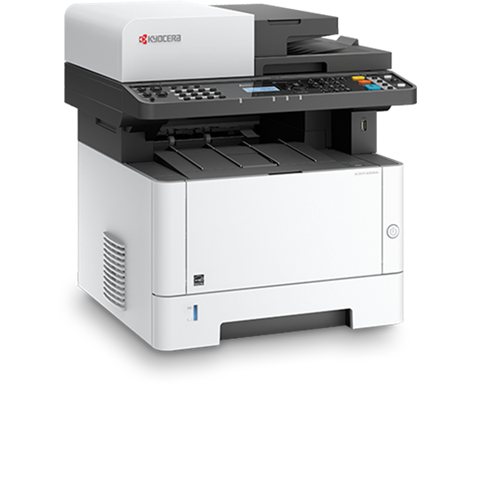
Download the Kyocera ECOSYS M2040dn driver from Kyocera Document Solutions’ official support pages, matched to your exact Windows version and print language (PCL6 or KPDL). This guide covers where to find the right file, how to avoid the most common install failure, and how to fix duplex printing and network scanning after setup.
| Detail | Value |
|---|---|
| Applies To | Kyocera ECOSYS M2040dn monochrome MFP |
| Publisher | Kyocera Document Solutions |
| Driver Type | KX Driver (PCL6) or KPDL driver |
| File Size | Roughly 40–70 MB depending on driver package |
| OS Compatibility | Windows 10 and Windows 11, 32-bit and 64-bit |
Where to Download the Driver
Go to the official Kyocera ECOSYS M2040dn product and support page, open the Drivers & Downloads tab, and select your Windows version. Kyocera lists both a full driver package and an individual KX driver — the KX driver is smaller and installs faster if you only need basic printing.
Removing Old Kyocera Drivers First
- Open Settings > Apps and search for any existing “Kyocera” software or driver package.
- Uninstall it completely, then restart the PC before installing the new M2040dn driver.
- Check Device Manager for leftover printer entries under “Print queues” and remove any greyed-out or duplicate Kyocera devices.
Installing Over a Network Connection
Since the M2040dn is a network-capable printer with a built-in Ethernet port, most offices install it over the network rather than USB. During setup, the installer scans the local network for available Kyocera devices — if it does not appear, print a status page from the printer’s panel to confirm it has a valid IP address, then enter that IP manually in the installer’s “Specify address” option instead of relying on auto-discovery.
Manual Install via Device Manager
When the automatic installer will not detect the printer at all, install manually instead:
- Extract the downloaded driver package rather than double-clicking the setup executable.
- In Device Manager, right-click the printer entry (or use “Add a printer” from Windows Settings and choose “The printer that I want isn’t listed”).
- Browse to the extracted folder and select the matching INF file for your Windows build.
- Confirm the driver name in Printer Properties reads “Kyocera ECOSYS M2040dn KX,” not a generic driver.
Fixing Duplex Printing Errors
Automatic double-sided printing is a headline feature of this model, but it only works if duplex is enabled in two places: the printer’s own configuration menu, and the driver’s Device Settings tab in Windows. If duplex is greyed out in Word or Adobe Reader’s print dialog, open Printer Properties > Device Settings and manually set “Duplexer” to Installed — Windows does not always detect this automatically over a network connection.
Scan-to-Email and Scan-to-Folder Setup
I set this exact printer up for a small law office, and scan-to-email was the one feature that needed configuration on the printer itself, not through Windows. You will need to log into the printer’s built-in web page (enter its IP address into a browser) and configure the SMTP server details under the Network Scan settings before scan-to-email will function.
Per Kevin S., who is an IT Administrator at a healthcare clinic, “Kyocera’s ECOSYS line has been the most reliable printer fleet we’ve run — low toner costs and drivers that just keep working across Windows updates.”
Frequently Asked Questions
Does the M2040dn need a separate scan driver? No, scanning uses the TWAIN driver included in the full software package, not a separate download.
Why does the printer show as offline after a Windows update? Windows updates occasionally reset the default printer port. Reinstalling or re-selecting the correct IP-based port in Printer Properties fixes this.
Is duplex printing automatic or manual on this model? The M2040dn has a built-in automatic duplexer, so no manual page-flipping is required once enabled in the driver.
Can I install this on a Mac? Yes, Kyocera provides a separate macOS driver package on the same support page.
How do I know if I need the PCL6 or KPDL driver? PCL6 covers general office printing and is the safer default; KPDL (PostScript-compatible) is worth choosing only if you print heavily from design or publishing software that expects PostScript output.
How do I check firmware version before troubleshooting further? Print a status page from the panel (Utility > Report > Status Page) — it lists the current firmware version, which is worth checking against Kyocera’s support page before assuming a bug is driver-related rather than firmware-related.
Toner and Drum Unit Maintenance
Kyocera’s ECOSYS line is built around a long-life drum unit rather than an all-in-one cartridge, which is where most of the cost savings on this model come from. A few things worth knowing before you run into them:
- The toner container and drum unit are separate parts — a “replace toner” message does not mean the drum needs replacing too.
- Streaky or faded prints usually mean low toner, while spots or smears at regular intervals down the page point to a drum issue instead.
- Genuine Kyocera toner is worth the extra cost here specifically because the drum is rated for a very long print life, and poor-quality third-party toner can damage it early.
Print Quality and Paper Jam Troubleshooting
If prints come out with vertical white lines, clean the internal scanning window with a soft, dry cloth — the M2040dn uses a laser scanning unit that can develop dust buildup over time in dusty office environments. For recurring paper jams, check that the paper stack in the tray is not exceeding the fill line and that the paper guides are snug against the paper edges rather than loose.
Conclusion
The ECOSYS M2040dn is a dependable workhorse once the driver is matched to your exact Windows build and any old Kyocera software is removed beforehand. Set the duplexer manually in Device Settings if double-sided printing does not appear automatically, and configure SMTP details directly on the printer’s web page if you need scan-to-email working. Most long-term issues with this model come from network port changes after Windows updates, not the driver itself.
Ryan
Computer Science grad · long-time hands-on troubleshooter