The HP DesignJet T120 uses the HP DesignJet T120/T520 driver package from HP’s support site, and since this large-format plotter has been discontinued from HP’s newer software rollouts, you often need to grab the older standalone driver rather than the current HP Smart app. This 24-inch printer is common in small architecture and engineering offices for printing blueprints, site plans, and posters.
I helped a small design studio get a used T120 running again after a network switch replacement knocked it offline, and the fix ended up being a static IP reservation rather than anything wrong with the driver itself — worth checking before you assume the software is broken.
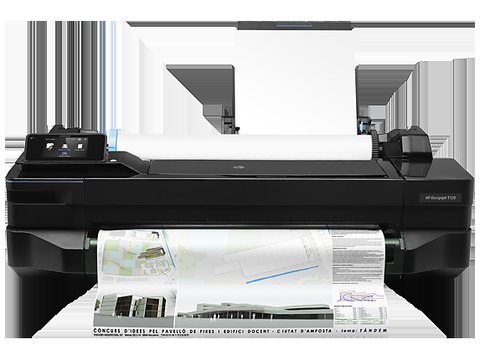
Follow the steps below in order until the printer is working correctly.
Download the T120/T520 driver package (most common starting point)
Visit the HP DesignJet T120/T520 driver download page and select your Windows version. HP lists a combined driver for both models since they share the same print engine.
Connect over Ethernet before running the installer
This model supports Ethernet, USB, and Wi-Fi, but a wired network connection gives the most reliable discovery during setup, especially in an office with several printers on the same subnet.
Note the printer’s IP address from its front panel
Tap the network icon on the touchscreen to view the current IP address. Write this down — if the installer cannot auto-discover the printer, you can add it manually using this address as a standard TCP/IP port.

Fix “printer not found” during network install
If the T120 keeps losing its IP address, set a DHCP reservation on your router tied to the printer’s MAC address, printed on a label near the network port. This stops the printer from getting a new address after every reboot, which otherwise breaks the saved connection in Windows.
Check paper size and margin settings before your first plot
Large-format prints often come out cropped because the print dialog defaults to a Letter-size page instead of the roll width. Set the correct paper size (e.g., ARCH D or a custom width) in both the application and the driver’s printer preferences.
Per Wei Ling C., who is a CAD Technician at a civil engineering firm, “The T120 has been reliable for years, but every time we move it to a new network segment, we have to re-add the driver with the new IP manually.”
Manual Install When the Automatic Installer Fails
- Extract the downloaded driver package using the installer’s built-in extraction option or 7-Zip.
- Open Devices and Printers, choose “Add a printer,” then “The printer that I want isn’t listed.”
- Select “Add a printer using a TCP/IP address,” enter the T120’s IP address, and point Windows to the extracted INF file when prompted for a driver.
This manual TCP/IP method is also the fix when the printer connects but jobs sit in the queue without printing — it usually means the port was configured with the old IP address after a network change.

Author/Publisher: HP Inc.
Driver/Software Date: Latest available on HP’s support site
Version: DesignJet T120/T520 Driver
File Name: DesignJetT120_T520.exe (varies by build)
File Size: Approximately 100-180 MB
OS Compatibility: Windows 11, Windows 10, Windows 8.1, Windows 7 (32-bit and 64-bit)
Frequently Asked Questions
Is the HP DesignJet T120 still officially supported?
HP still hosts the driver on its support site, but the model is discontinued from active sale. Driver updates are infrequent, so the current version is usually the final one you will find.
Why do my prints come out with the wrong scale?
Check that “Actual Size” or the correct scale percentage is selected in your application’s print dialog rather than “Fit to Page,” which can distort architectural drawings.
Can I print from a Mac to the T120?
Yes, HP provides a macOS driver on the same download page, and the printer also supports AirPrint for basic jobs from Apple devices.
Why does the printer show a paper mismatch error?
The loaded roll width does not match what the driver expects. Check the roll size in the printer’s front panel menu and update the paper settings in the print dialog to match.
Conclusion
Most T120 setup problems come down to network addressing rather than the driver itself, so a DHCP reservation solves more issues than reinstalling software. Once the connection is stable and paper sizes are set correctly in both the app and driver, this plotter is dependable for everyday blueprint and poster printing. Keep the printer’s MAC address noted somewhere handy for the next time it needs to be re-added after a network change.
Ryan
CS degree · 15 years hardware troubleshooting