The safest way to get the HP LaserJet Pro M404n driver is through HP Easy Start or HP’s own driver page for this exact model, since installing the wrong package for the M404 family (there are also dn and dw variants with different connectivity) is one of the most common causes of setup failures. This guide covers downloading the right package, installing it over Ethernet, and fixing the print and detection issues reported most on this business laser printer.
The M404n is a monochrome laser printer built for network printing over Ethernet, without built-in WiFi or duplex printing — those features belong to the dw and dn variants respectively. Confusing the exact suffix with a sibling model is itself a common source of driver mismatches, so always confirm the model printed on the front panel before downloading anything.
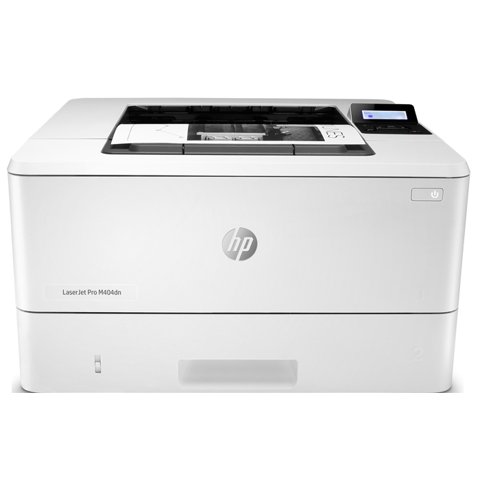
| Spec | Detail |
|---|---|
| Applies To | HP LaserJet Pro M404n Monochrome Laser Printer (W1A52A) |
| Publisher | HP Inc. |
| Driver Date | Varies by OS build — check HP’s driver page for the current release date |
| Version | HP Easy Start / Full Feature Software and Driver package (latest for your OS) |
| File Name | LaserJetProM404_405-Series-Full.exe (typical package name) |
| File Size | Approximately 250–400 MB |
| OS Requirements | Windows 11, Windows 10 (32-bit and 64-bit) |
Downloading the Correct Package
Visit the HP Support page and search specifically for M404n, not just ‘M404 series’ — HP’s driver finder lists several very similar packages, and picking the wrong one can install unavailable features like duplexing that this specific model does not physically have.
- HP Easy Start — a small bootstrap app that detects your exact model and downloads the matching full package automatically. This is the option HP recommends for most users.
- Full Software and Driver Package — manual download if you already know your model and want the complete driver plus HP utilities.
- Basic Driver (PCLmS or PCL 6) — a lightweight print-only option for network administrators who do not need the full utility suite.
Installing Over Ethernet
- Connect the M404n to your router or switch with an Ethernet cable before starting installation — this model has no WiFi hardware.
- Print a configuration page from the printer’s own menu to find its assigned IP address.
- Run HP Easy Start or the full installer and choose Network when prompted for connection type.
- Let the installer auto-detect the printer’s IP, or enter it manually if auto-detection fails.
- Print a test page from the installer’s final confirmation screen.
On a recent install for a small office, the installer’s auto-detect step failed the first time because the printer and PC were on different VLANs; entering the IP address manually during setup got it working immediately once that was confirmed.
Fixing Common M404n Problems
Printer not found during install
- Confirm the Ethernet cable is fully seated and the link light on the printer’s network port is lit.
- Ping the printer’s IP address from Command Prompt to confirm basic network connectivity before blaming the driver.
- Temporarily disable third-party firewall software, which can block HP’s local network discovery broadcast.
Printer shows Offline in Windows
Open Devices and Printers, right-click the M404n, and untick Use Printer Offline if checked. If the printer’s IP address changed since install (common on networks without a reserved DHCP lease), update the printer port’s IP in Printer Properties > Ports rather than reinstalling from scratch.
Print jobs stuck in queue with no error
This is almost always a spooler issue. Open Command Prompt as administrator, run net stop spooler, delete the contents of C:\Windows\System32\spool\PRINTERS, then run net start spooler and resend the print job.
Per Sandra K., who is a Office Manager at a legal services firm, “This printer has been rock solid for us for years, but every time our network team changes the DHCP range, it drops offline until someone remembers to update the printer port’s IP address in Windows instead of trying to reinstall the whole driver.”
Manual Driver Install Through Device Manager
- Extract the downloaded driver package to a folder instead of running it directly.
- Open Device Manager, locate the printer entry (or add a new local port pointing to its IP first), right-click and choose Update Driver.
- Select Browse my computer for drivers, then Let me pick from a list, and choose the extracted INF-based driver.
- Confirm the port is set to a Standard TCP/IP Port matching the printer’s IP address.
Compatibility and Asset Notes
Confirmed working on current Windows 11 and Windows 10 22H2 builds. HP periodically updates the driver package for new print subsystem changes in Windows, so avoid reusing an installer older than a year — grab a fresh copy from HP’s support page instead.
Frequently Asked Questions
What is the difference between the M404n, M404dn, and M404dw?
The M404n has Ethernet only and no automatic duplex printing. The M404dn adds automatic duplexing, and the M404dw adds both duplexing and WiFi.
Does the M404n support WiFi?
No, this model only connects over Ethernet or USB. WiFi is exclusive to the M404dw variant.
Why does my printer’s IP address keep changing?
Your router is likely assigning a dynamic DHCP address. Reserve a static IP for the printer’s MAC address in your router settings to stop this from breaking the print queue repeatedly.
Can I install this driver without HP’s utility software?
Yes, choose the Basic Driver option on HP’s download page if you only need print functionality without HP Smart or status monitoring tools.
Conclusion
Most HP LaserJet Pro M404n problems trace back to picking the wrong sibling model’s driver, or a printer IP address that changed after a router reboot. Download the package specifically for the M404n from HP’s support page, connect over Ethernet with a reserved IP if possible, and use the manual Device Manager install when the automatic network detection cannot find the printer.
Ryan T. is a PC hardware enthusiast with 15+ years of experience fixing drivers, printers, and peripherals for friends, family, and readers of softwaredriverdownload.com. He enjoys taking new printer models apart in software (and sometimes in hardware) to figure out exactly why Windows keeps rejecting a driver.