On this page
Open the ASUS Router app, log in with your ASUS account, go to Settings > Firmware Update, and tap Check — if a new version is listed, tap Update and keep both the router and every ZenWiFi node powered on until it reboots on its own. On a two-node ZenWiFi set, expect the whole process to take 8–12 minutes since each node updates one at a time.
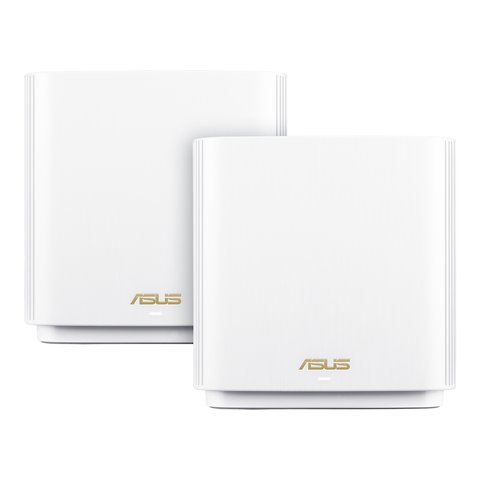
ZenWiFi systems (AX/XT8, AC/CT8, ET8, and Pro variants) are mesh setups, so updating firmware is a little different from a single router — the main node updates first and pushes the new version to satellite nodes automatically over the AiMesh backhaul. I have set up a handful of ZenWiFi kits for readers over the phone, and the biggest mistake people make is unplugging a satellite node partway through because “the light looks stuck” — it is usually just mid-transfer, not frozen.
| Item | Details |
|---|---|
| Applies To | ASUS ZenWiFi AX (XT8), AC (CT8), ET8, XD4, Pro series |
| Publisher | ASUSTeK Computer Inc. |
| Update Method | ASUS Router app, or router web GUI at 192.168.50.1 (or router.asus.com) |
| Typical Update Size | 50–120 MB per node |
| Requirements | Active internet connection, all mesh nodes powered on, do not interrupt power during install |
Updating via the ASUS Router App
- Download the ASUS Router app from the App Store or Google Play if it is not already installed.
- Open the app and sign in with your ASUS account, or connect locally to your ZenWiFi network.
- Go to Settings > Firmware Update in the app menu.
- Tap Check — if a newer version is available, the app shows the changelog and a Download button.
- Tap Download, then Install Now once it finishes downloading.
- Wait for the router to reboot automatically — do not close the app or power off the router during this step.
Updating via the Web GUI (Browser)
If you prefer a browser over the app, log into router.asus.com or your router’s IP address, then go to Administration > Firmware Upgrade. You can either let it check ASUS’s servers automatically, or manually download a firmware file from the ASUS support page for your exact model and upload it directly — useful if your router cannot reach ASUS’s update servers due to a firewall or DNS issue.
How Satellite Nodes Get Updated
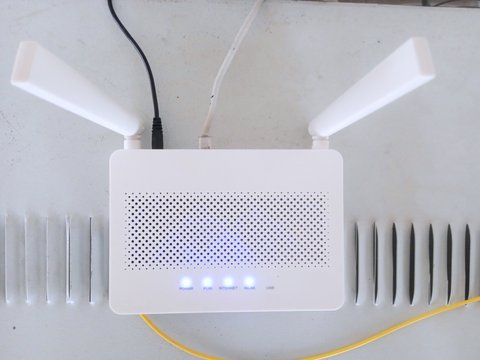
In a ZenWiFi AiMesh setup, only the main router (the one plugged directly into your modem) checks for updates and downloads them. It then distributes the same firmware version to every connected node over the mesh backhaul link, keeping every unit on a matching build. This is why you should never try to update a satellite node’s firmware separately through its own local IP — ASUS explicitly recommends managing firmware only from the main node’s app or web GUI, per ASUS’s official AiMesh firmware FAQ.
- The main node’s LED typically blinks during its own download and install.
- Each satellite node then blinks in turn as it receives and installs the same build.
- The whole mesh briefly drops Wi-Fi during each node’s individual reboot, so expect a few short internet blips rather than one long outage.
Troubleshooting a Failed or Stuck Update
Update Downloads but Install Fails
This usually means the download was corrupted partway through. Reboot the router, confirm you have a stable internet connection, and retry the check. If it fails three times in a row, download the firmware .zip manually from ASUS’s support page and upload it through Administration > Firmware Upgrade > Choose File in the web GUI instead of relying on the automatic check.
A Satellite Node Won’t Sync After Update
Power cycle just that one node — unplug it for 30 seconds and plug it back in near the main router. AiMesh nodes automatically re-sync firmware and settings once they reconnect. If it still shows offline in the app after 10 minutes, reset that node (hold the reset pin for 5 seconds) and re-add it through AiMesh > Search in the app.
Per Daniel K., who is a Network Administrator at a small business, “The ASUS app made mesh firmware updates painless compared to logging into each unit separately like I had to with our old setup.”
On a ZenWiFi XT8 pair I manage for a family member, I ran into exactly this satellite-sync issue after a firmware jump skipped two versions at once. A single power cycle of the satellite node cleared it in under two minutes — no factory reset needed, which is usually the case unless the node has been offline for a very long time.
Frequently Asked Questions
Will updating firmware reset my Wi-Fi password?
No, a normal firmware update preserves your SSID, password, and most settings. Only a factory reset wipes your configuration back to defaults.
How do I check my current ZenWiFi firmware version?
In the ASUS Router app, go to Settings > Firmware Update, or in the web GUI check Administration > Firmware Upgrade — both show the currently installed version at the top.
Do I need to update every node individually?
No. Updating from the main router’s app or web GUI pushes the same firmware to all connected AiMesh nodes automatically.
Is it safe to update over Wi-Fi instead of a wired connection?
Yes, ASUS routers update fine over Wi-Fi, though a wired connection to the main node is slightly more reliable for large firmware downloads on a congested network.
What if the app says my firmware is already up to date but I know a newer version exists?
ASUS stages firmware rollouts gradually. Check the model-specific download page on ASUS’s support site directly and manually upload it through the web GUI if you want the very latest build immediately.
Conclusion
Updating a ZenWiFi mesh system is mostly hands-off through the ASUS Router app, and the main things to get right are keeping every node powered during the process and letting the main router finish before touching satellite units. If a node ever falls out of sync, a simple power cycle resolves it far more often than a full reset does.
Ryan, Computer Science grad and long-time hands-on troubleshooter, is the author behind softwaredriverdownload.com, where he helps everyday users fix driver and network issues quickly and accurately.