Download the Canon SELPHY CP1500 printer driver from Canon’s official regional support site, matched to your Windows version, then install it before connecting the printer over USB or Wi-Fi. Most people only need the driver for USB printing from a PC, since phone-to-printer printing uses the free Canon Mini Print app instead. This guide covers both paths and the fixes for common setup problems.
The SELPHY CP1500 is Canon’s current compact dye-sublimation photo printer, popular for producing lab-quality 4×6 prints at home without ink cartridges. It replaced the CP1300, and while the hardware is nearly identical in size, Canon rewrote parts of the software stack, which is why some old CP1300 workarounds no longer apply.
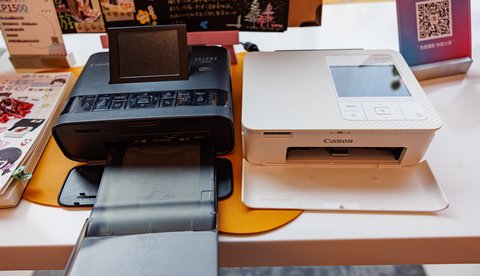
| Field | Detail |
|---|---|
| Applies To | Canon SELPHY CP1500 compact photo printer |
| Publisher | Canon Inc. |
| Driver Type | Printer driver plus Canon Mini Print mobile app (optional) |
| File Size | Windows driver roughly 30-50 MB |
| OS Compatibility | Windows 11, Windows 10 (32-bit and 64-bit); iOS and Android via Mini Print app |
Downloading the Correct Driver
Visit Canon USA’s official SELPHY CP1500 support page (or your regional Canon support site) and search for the model directly rather than trusting a generic driver bundle. Canon offers two main download paths:
- Windows/Mac printer driver — needed for printing directly from a computer over USB
- Canon Mini Print app — free mobile app for printing from a phone over Bluetooth or Wi-Fi, no driver install needed
- Canon PosterArtist or Easy-PhotoPrint Editor — optional layout software some users add for collage-style prints
I set one of these up for a family member who wanted to print event photos straight from her phone, and the biggest confusion was thinking she needed the Windows driver at all — for phone printing, only the Mini Print app and a Bluetooth pairing are required.
Setting Up USB Printing from a PC
- Download and run the Windows driver installer from Canon’s support page.
- Do not connect the printer via USB until the installer specifically asks for it.
- Follow the wizard, plugging in the USB cable when prompted.
- Load photo paper into the cassette and insert the ink cassette that matches your paper size.
- Print a test photo from any image viewer to confirm the setup works.
Setting Up Wireless Printing from a Phone
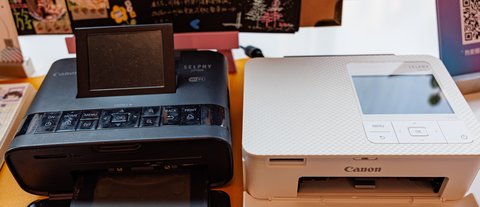
For phone printing, skip the Windows driver entirely. Install the Canon Mini Print app from the App Store or Google Play, turn on the printer, and pair it via Bluetooth through the app’s device setup screen. Once paired, the app can also handle Wi-Fi Direct printing without needing your home router.
Fixing Common Setup Problems
Windows Does Not Detect the Printer
- Confirm the ink cassette and matching paper size are both loaded correctly before printing
- Try a different USB cable, since some thin charging-only cables lack the data lines needed
- Reinstall the driver after fully unplugging the printer first, then plug back in only when asked
Mini Print App Cannot Find the Printer
Make sure Bluetooth is enabled on your phone and the printer is within a few feet during pairing. If pairing still fails, power cycle the printer and remove any previously saved Bluetooth pairing on your phone before trying again.
Manual Driver Install via Device Manager
If the Windows installer will not run at all:
- Extract the driver package to access the raw installation files.
- Open Control Panel > Devices and Printers > Add a Printer, and choose the manual/local option.
- Select “Have Disk” and browse to the extracted driver folder.
- Choose the SELPHY CP1500 entry from the list and finish the wizard.
Print Quality and Cassette Tips
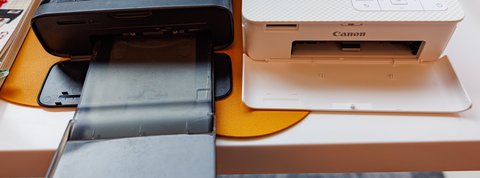
Most “bad print quality” complaints with dye-sublimation printers like the CP1500 trace back to using the wrong ink cassette for the loaded paper size, not a driver fault.
- Match the ink cassette exactly to the paper size loaded — postcard, card, or credit-card size each need their own cassette
- Store unused paper and cassettes away from direct sunlight and humidity to avoid color shifts
- Clean the paper feed rollers occasionally with a dry lint-free cloth if prints start showing streaks
Per Renata G., who is a hobbyist photographer, “The CP1500’s prints look almost identical to what I get from a photo lab, and switching to the Mini Print app made printing from my phone at family events completely painless.”
Battery and Portable Printing Tips
Canon sells an optional rechargeable battery pack for the CP1500, which turns it into a genuinely portable printer for weddings, markets, and travel. It is not required for normal use, but it changes how you plan a print session away from a wall outlet.
- Fully charge the battery pack before an event, since a dye-sublimation printer draws more power per print than an inkjet
- Keep spare ink cassettes and paper in a sealed bag to avoid dust affecting print quality on the go
- Print a test photo before the event starts to confirm the battery, paper, and cassette are all matched correctly
Using the battery pack at an outdoor market stall, I found a full charge comfortably printed close to fifty photos before needing a recharge, which was more than enough for a single afternoon session.
Frequently Asked Questions
Does the CP1500 need ink cartridges?
No, it uses dye-sublimation ink cassettes paired with matching photo paper, not liquid ink cartridges.
Can I print directly from a USB flash drive?
Yes, the CP1500 has a USB port for direct printing from a flash drive without needing a computer or phone connected.
Why do my prints have a color cast?
This usually means an old or improperly stored ink cassette. Try a fresh cassette from a sealed package to rule out degraded ink film.
Is the CP1500 compatible with Windows 11?
Yes, Canon provides a signed driver tested for Windows 11 on its official support site.
Conclusion
The SELPHY CP1500 is straightforward once you pick the right setup path — Windows driver for USB printing from a PC, or just the Mini Print app for phone printing. If print quality ever looks off, check the ink cassette and paper match before assuming it is a driver or hardware fault.
Ryan
Computer Science grad · long-time hands-on troubleshooter
Ryan has spent years testing drivers and hardware setups on real machines, and writes for softwaredriverdownload.com, helping everyday users get their devices working correctly.