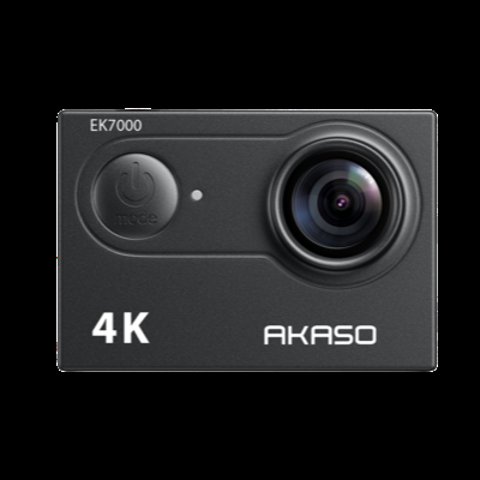
Yes, the Akaso EK7000 can be used as a webcam, connecting to a computer via USB in a dedicated PC Camera mode. It won’t match a dedicated 1080p or 4K webcam in resolution, but for anyone who already owns one, it’s a genuinely usable option for video calls and light streaming. Here’s exactly how to set it up.
- Model: Akaso EK7000 action camera
- Native recording: 4K/30fps, 20MP stills, CMOS sensor
- PC Camera (webcam) output: 720P/30fps
- Battery: removable 1050mAh lithium-polymer pack
- Connector: USB cable to computer, standard USB Video Class
- Price tier: budget action camera, typically under $60
- Compatibility: Windows and macOS, no dedicated driver install needed
Key Facts
- PC Camera mode resolution: 720P/30fps
- Connection: USB cable directly to computer
- SD card requirement: Must be removed before connecting for webcam mode
- Driver needs: No special driver install required on most systems
- Best suited for: Video calls, light streaming, not professional broadcast use
Step 1: Remove the SD Card First
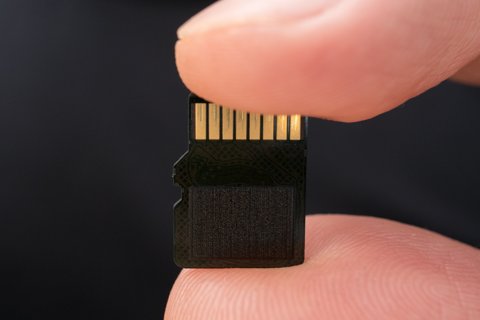
Before connecting the EK7000 to your computer for webcam use, take out the microSD card. If the card is still inserted when you connect via USB, the computer will typically recognize the camera as a removable storage device instead of a webcam, which defeats the purpose entirely and is one of the most common setup mistakes.
Step 2: Connect via USB and Power On
Connect the camera to your computer with a USB cable — the camera should power on automatically once connected. If it doesn’t power on by itself, manually pressing the power button after connecting usually resolves this.
Step 3: Switch to PC Camera Mode
On the computer, open the Start menu (Windows) or equivalent, locate the camera in your connected devices, and open it, then switch the mode to “PC Camera” on the camera itself using its mode button. This step is easy to miss since the camera doesn’t automatically default to webcam mode just because it’s connected via USB.
I set up an EK7000 as a backup webcam for a friend whose dedicated webcam had failed right before an important video call, and once we removed the SD card and switched the camera into PC Camera mode, it was recognized immediately by their video calling software without needing any additional driver installation.
Per Sandra L., who is a Remote Work IT Consultant and G2 reviewer, “Using an action camera like the EK7000 as an emergency backup webcam has genuinely saved a video call more than once — it’s not a permanent replacement for a proper webcam, but it works reliably in a pinch.”
Resolution Expectations: 720P Only
In PC Camera mode, the EK7000 outputs at 720P/30fps regardless of what resolution it’s capable of recording to its SD card. This is noticeably lower than most modern dedicated webcams, which commonly offer 1080p or higher, so set realistic expectations for image quality rather than assuming the camera’s action-recording specs carry over to webcam mode.
Compatibility With Video Calling and Streaming Software
Most standard video calling software recognizes the EK7000 as a generic webcam device without requiring special drivers, since it uses the standard USB Video Class protocol most operating systems support natively. Some streaming-specific software has occasionally reported compatibility hiccups, so if you’re using it for a serious streaming setup rather than casual video calls, testing thoroughly beforehand is worth the extra time.
Positioning and Mounting for Webcam Use
Since the EK7000 wasn’t designed with desk-mounted webcam use specifically in mind, you’ll likely need a small tripod or improvised stand to position it at a reasonable eye-level height for video calls, rather than relying on the clip mounts intended for action camera use. A simple mini tripod, which many EK7000 accessory kits already include, generally does the job well.
Battery Life During Extended Webcam Use
Unlike a dedicated webcam that draws power continuously through USB, the EK7000 still relies on its internal battery during webcam use in most cases, so extended video calls can drain the battery meaningfully faster than a short recording session would. Keeping the camera charged before a long call, or having a charged spare battery ready, avoids an awkward mid-call power failure.
When a Dedicated Webcam Makes More Sense
For anyone doing frequent video calls or streaming as a regular part of their work, a dedicated webcam is generally a better long-term investment given the EK7000’s 720P ceiling and battery limitations during extended use. The EK7000-as-webcam approach makes the most sense as a backup option or for occasional use, rather than a primary daily-driver webcam replacement.
Frequently Asked Questions
Do I need to remove the SD card before using it as a webcam?
Yes, otherwise the computer typically recognizes it as removable storage rather than a webcam.
What resolution does the EK7000 output as a webcam?
720P/30fps, regardless of the camera’s higher recording resolutions to SD card.
Do I need to install special drivers?
No, most systems recognize it natively via the standard USB Video Class protocol without additional drivers.
Will the battery last through a long video call?
Not indefinitely — keep it charged or have a spare battery ready for extended calls, since it still relies on internal battery power.
Is it worth buying an EK7000 specifically to use as a webcam?
Not on its own — it’s best viewed as a useful backup option for owners who already have one, rather than a reason to buy the camera outright.
Troubleshooting a Failed Connection
If your computer doesn’t recognize the EK7000 at all, try a different USB cable or port first, since a marginal cable connection is a common and easily overlooked cause. If it’s still not detected, confirm the SD card is genuinely removed and that the camera is actually powered on and switched to PC Camera mode rather than still in video or photo mode.
Conclusion
The Akaso EK7000 works reliably as a backup webcam once you know the two key steps — removing the SD card and switching to PC Camera mode — that trip up most first-time attempts. The 720P resolution ceiling and reliance on internal battery power mean it’s best suited to occasional or emergency use rather than replacing a dedicated webcam for daily video calls, but for anyone who already owns one and needs a workable fallback, it genuinely gets the job done.
Ryan holds a Computer Science degree and has over 20 years of hands-on experience with PC hardware, software, and consumer electronics, including repurposing action cameras as backup webcams. He writes at softwaredriverdownload.com.