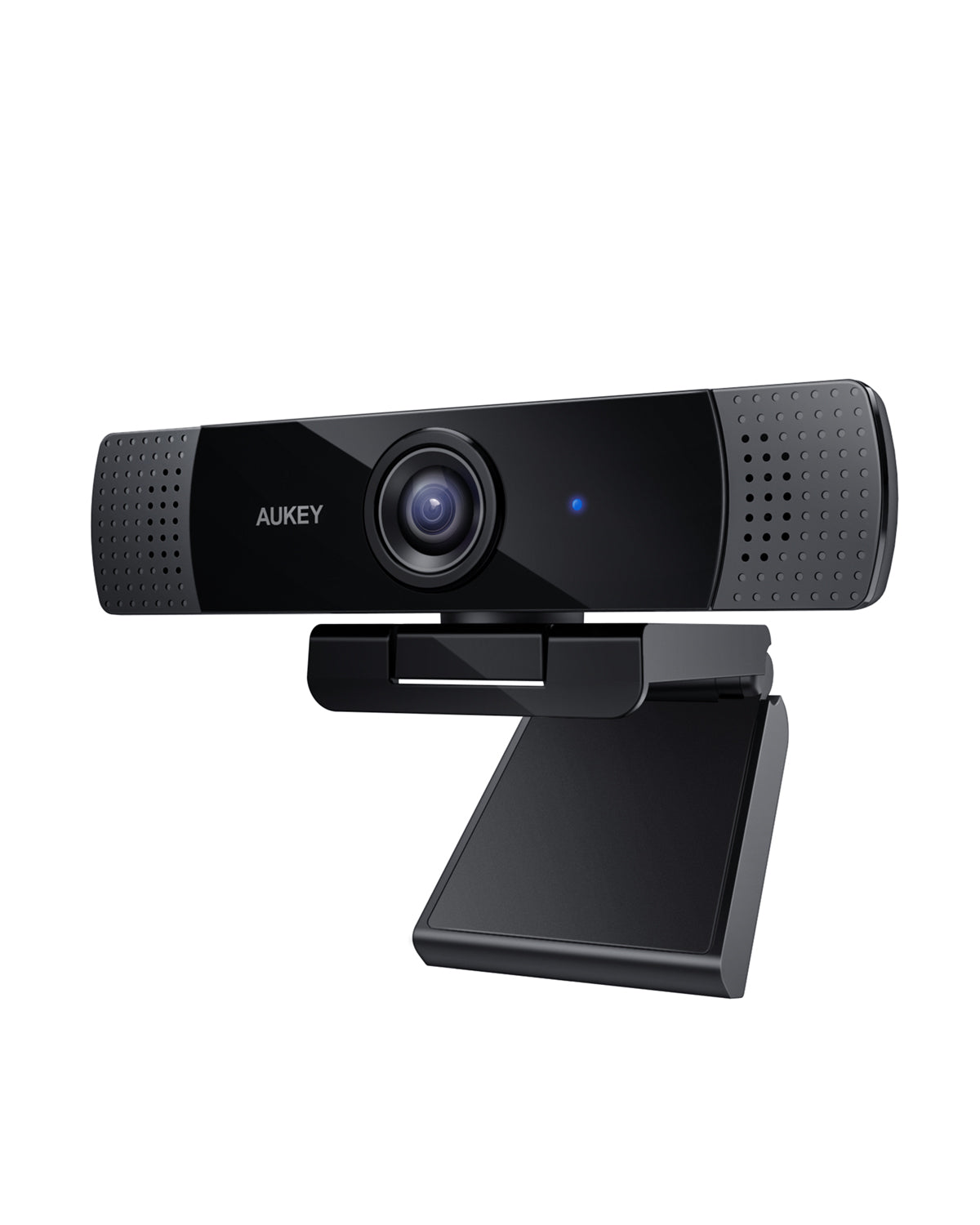
My old webcam died mid-call last winter, and I grabbed an AUKEY PC-LM1E as a same-day replacement because it was the cheapest 1080p option at the local shop that still had stock. I expected a throwaway webcam. Instead, it has stayed clipped to my monitor for over a year, mostly because it needs almost no setup and just works across every app I use. Here is what it is, how to install it properly, and how to fix the handful of problems it can run into.
| Spec | AUKEY PC-LM1E |
| Sensor | 1/2.9-inch CMOS, 2-megapixel |
| Video resolution | 1080p / 720p / 480p / 240p at 30fps |
| Field of view | Approximately 65 degrees |
| Focus | Fixed, sharp from about 40cm to 5 meters |
| Microphones | Dual, noise-reduction stereo, built-in |
| Connection | USB-A, plug and play, driverless (UVC) |
| Mounting | Universal monitor/laptop clip plus standard tripod thread |
| OS support | Windows, macOS, Chrome OS, most Linux distributions |
What the PC-LM1E Offers
The PC-LM1E is a plug-and-play USB webcam built around a 1/2.9-inch CMOS sensor. It records at 1080p 30fps, with a fixed focus range that stays sharp up to roughly five meters back, and it carries dual noise-reduction stereo microphones built into the housing. There is a universal clip on the back that fastens to a laptop lid or monitor bezel, plus a standard tripod mount underneath if you would rather set it on a desk stand.
- Sensor: 1/2.9-inch, 2-megapixel
- Video: 1080p/720p/480p/240p, 30fps
- Field of view: approximately 65 degrees
- Microphones: dual, noise-reduction stereo
- Connection: USB-A, plug and play, no driver required

Installing the PC-LM1E
This is genuinely one of the simplest webcams I have set up. There is no companion software to download for basic use, since it registers as a standard UVC (USB Video Class) device.
- Clip the webcam onto your monitor or laptop lid, centered above the screen
- Plug the USB-A connector into a free USB port on your PC or Mac
- Windows, macOS, and most Chromebooks will detect it automatically within a few seconds
- Open your video app (Zoom, Teams, Google Meet, OBS, etc.) and select “AUKEY PC-LM1E” or similar from the camera dropdown
- Adjust the microphone input in the same app if the built-in mic did not get selected automatically
Fixing Common Problems
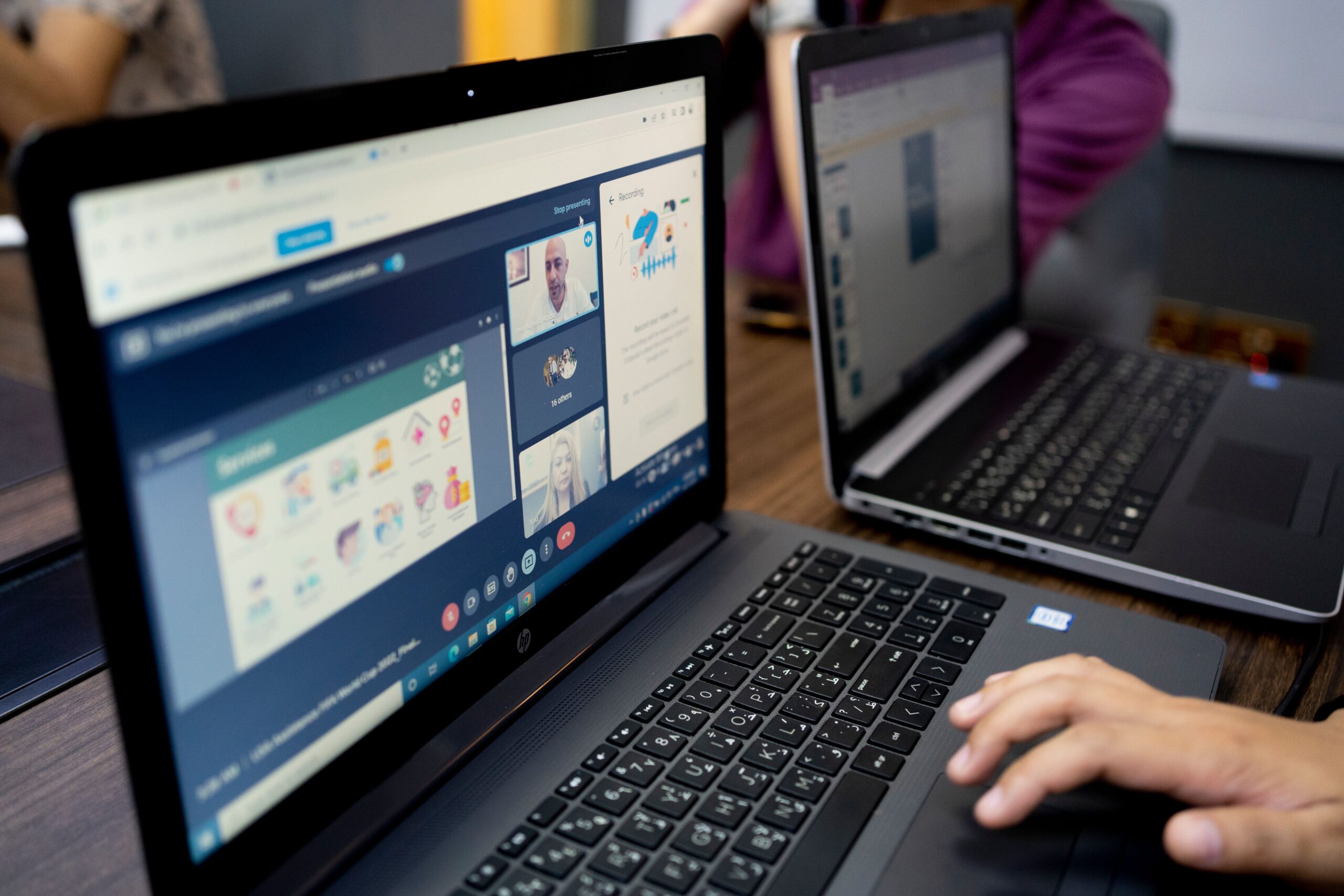
Most complaints about this webcam online come down to a small number of fixable issues rather than hardware failure.
- Green or off-color tint: a handful of users have reported a slight green cast on first use. Unplugging the camera, waiting ten seconds, and reconnecting it usually resets the sensor’s auto white balance. If it persists, try a different USB port, ideally one wired directly to the motherboard rather than a front-panel hub.
- Camera not detected: confirm it is plugged into a USB 2.0 or 3.0 port and not a USB-C port through a passive adapter, which can sometimes drop the video class handshake.
- Blurry image: since focus is fixed, sitting too close (under about 40cm) will look soft. Back up slightly for a sharper frame.
- No sound in calls: some apps default to your laptop’s internal mic even with an external webcam connected. Check the app’s audio settings and manually pick the AUKEY microphone.
Getting the Most Out of the Image Quality
A webcam this size and price lives or dies on lighting more than on sensor specs, and that held true here. In a dim room with only overhead lighting, the image looked noticeably grainy and the auto-exposure hunted for a few seconds every time I moved. Adding a cheap desk lamp angled at my face, rather than behind me, made a bigger visible difference than any software setting I could find. A few adjustments that consistently helped:
- Position the light source in front of you, not behind, to avoid silhouette effects
- Keep the camera roughly at eye level rather than looking down from above a monitor
- Avoid backlighting from a window directly behind your seat, which confuses the auto-exposure the most
- Sit within the 40cm to five-meter focus range mentioned earlier for the sharpest image
None of this is unique to this particular webcam, but it matters more here than on cameras with more advanced auto-adjustment processing, since the PC-LM1E keeps things simple rather than trying to compensate aggressively in software.
Should You Buy It
For the price this webcam typically sells at, it is hard to complain. It is not going to compete with a dedicated 4K streaming camera, and the fixed focus is a real limitation if you move around a lot on camera, but for standard video calls and casual recording it holds up well over daily use. The plug-and-play driverless design is the biggest practical win: nothing to install, nothing to update, and it survives being unplugged and moved between machines without complaint.
Frequently Asked Questions
On this page
- What it offers
- Installing it
- Fixing problems
- FAQ
- Do I need to install a driver for the PC-LM1E?
- No. It uses the standard UVC driver already built into Windows, macOS, and most Linux distributions, so it works the moment you plug it in.
- Does it work on Chromebooks?
- Yes, since Chrome OS also supports UVC webcams natively.
- Can I use the microphone without the camera?
- The mic and camera are on the same USB connection, so the camera stays active as long as the device is plugged in, but you can mute the video feed in your call app while keeping the mic on.
- Is there a privacy cover included?
- No physical shutter is built in, so if you want one, a small adhesive webcam cover is a cheap add-on.
AUKEY’s support and downloads page lists the current user manuals for its webcam lineup, and Microsoft documents standard UVC camera behavior in its Windows hardware driver documentation if you want to dig into how driverless detection works under the hood.
Conclusion
The PC-LM1E is not flashy, but it does exactly what a budget webcam should: it installs itself, it sounds decent, and it looks fine on a call. If your main use case is video meetings rather than professional streaming, it is a sensible pick, and the lack of any software to maintain is honestly a relief compared to webcams that insist on their own companion app.