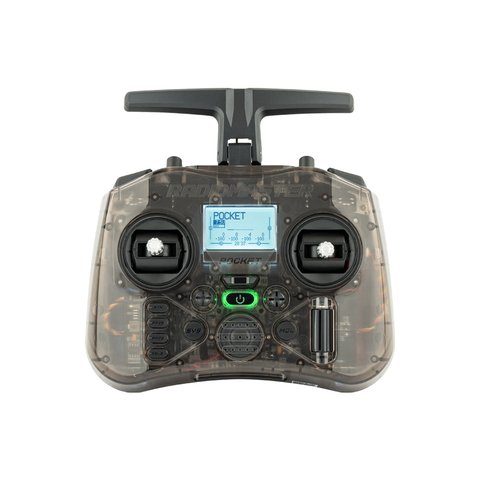
The RadioMaster Pocket ELRS is one of the most popular budget-friendly handheld transmitters for FPV, and part of what keeps it relevant years after release is that both the EdgeTX firmware and the internal ExpressLRS module can be updated independently. If you are chasing a new ELRS feature, fixing a bug, or just keeping your radio current, updating the Pocket is a quick job once you know which tool to use. I have updated mine several times across ELRS release cycles, and this walkthrough covers the process end to end.
Key Specs
- Preinstalled EdgeTX firmware on both the ELRS and CC2500 hardware variants
- Internal ExpressLRS 2.4GHz module on the ELRS version, updatable independently of EdgeTX
- X5 Hall-effect nano gimbals, quad ball-bearing construction
- 128×64 monochrome LCD display
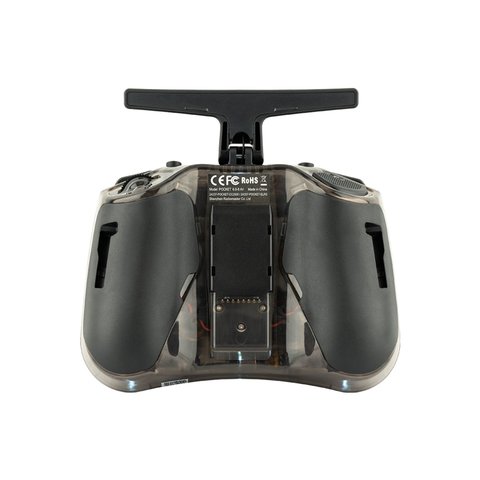
- Weight 288g, runs on two 18650 cells
- USB-C port for charging and firmware flashing
Two Separate Things You Can Update
It helps to separate these two firmware layers in your head before starting, since they use different tools and serve different purposes.
- EdgeTX: the radio’s operating system, covering menus, mixing, model storage, and the display. The factory version rarely needs updating unless you want a specific new feature.
- Internal ELRS module: the RF firmware that actually talks to your receivers. This is the one people update most often to pick up new ExpressLRS features, bug fixes, or better range performance.
Updating the Internal ELRS Module
The most common and easiest method is EdgeTX Passthrough, which flashes the internal module directly from the radio’s own menu system without needing a computer.
- On the Pocket, go to the Model menu and open the Internal RF settings page.
- Choose the option to update or flash the internal module firmware.
- Select the correct target file matching “RadioMaster Pocket” and the 2.4GHz frequency band.
- Confirm the flash and wait for it to finish; the radio will show a progress bar during the process.
- Once complete, rebind your receivers if the new firmware bumped the ELRS binding phrase or protocol version.
If passthrough isn’t cooperating, the ExpressLRS Configurator can flash the same internal module over a direct USB-C connection to your computer, which is a good fallback when the in-radio method fails.
Updating EdgeTX Itself
For the EdgeTX operating system, most pilots use EdgeTX Buddy, a browser-based flashing tool that works over WebUSB without installing any software locally.
- Back up your model list and settings first, either by copying internal storage over USB or exporting individual models.
- Open EdgeTX Buddy in Chrome or Edge, select “RadioMaster Pocket” as the target radio.
- Choose the firmware release, then put the radio into bootloader mode using the button combination described in your manual.
- Connect via USB-C, let the tool detect the radio, and start the flash. Do not disconnect until it finishes.
- Restore your model backups afterward if the update cleared internal storage.
Where to Get the Files
Stick to official sources: RadioMaster’s own firmware updates page lists current builds specific to the Pocket, and the ExpressLRS project’s own site documents module firmware releases in detail. Random forum-hosted firmware files are a common source of bricked radios because the target name doesn’t always match exactly what you think it does.
A Lesson From My Own Update Mishap
The first time I updated my Pocket’s ELRS firmware, I skipped checking the binding phrase change in the release notes and spent ten confused minutes wondering why my quad wouldn’t connect. Turned out the new firmware had reset the binding phrase to default, so all I needed to do was rebind. Now I always read the release notes for binding-related changes before flashing, since it saves that exact scramble at the field.
Checking Your Current Firmware Version First
Before flashing anything, check what you are actually running. On the Pocket, the EdgeTX version shows up on the About page under the SYS menu, while the internal ELRS module’s version appears on the Internal RF settings screen alongside the binding phrase. Comparing these against the changelog on the ExpressLRS or EdgeTX release pages tells you whether an update is worth doing at all, rather than flashing blind just because a new version exists.
- Note your current EdgeTX version and internal ELRS version before starting any update.
- Read the changelog for the target release, specifically looking for “breaking change” or “binding phrase” notes.
- If nothing in the changelog affects your setup, it is often fine to skip the update and wait for a release that does.
Troubleshooting Common Issues
- Passthrough flash fails partway: try a shorter, known-good USB-C cable, since some cables are charge-only and lack data lines.
- Radio won’t enter EdgeTX bootloader mode: double check the button combination in the manual, which can differ slightly between EdgeTX versions.
- Receiver won’t bind after ELRS update: confirm both transmitter and receiver are on matching ELRS firmware versions, and rebind using the current binding phrase.
- Radio screen freezes after EdgeTX flash: hold the power button for ten seconds to force a restart, then try reflashing the same version before assuming hardware failure.
Frequently Asked Questions
How often should I update my Pocket’s ELRS firmware?
Only when a release adds something you actually want, such as a range improvement or new feature. There is no need to chase every point release if your current setup is working reliably.
Do I need to update my receivers too?
Generally yes. ExpressLRS works best when transmitter and receiver firmware versions are reasonably close, and major version mismatches can prevent binding entirely.
Can I update the CC2500 version of the Pocket the same way?
The EdgeTX update process is the same, but the CC2500 hardware variant does not have an ExpressLRS module to update, since it uses multi-protocol CC2500 firmware instead.
Is it risky to update firmware right before a flying event?
It’s generally safer to update a few days ahead so you have time to catch and fix any binding or configuration surprises before you actually need the radio to work.
Conclusion
Updating the RadioMaster Pocket ELRS is a straightforward two-part job: the internal ExpressLRS module through passthrough or the ExpressLRS Configurator, and EdgeTX itself through EdgeTX Buddy. Back up your models before either update, read the release notes for binding phrase changes, and budget about fifteen minutes total even if it is your first time flashing this particular radio.
Ryan
CS degree · long-time FPV radio tinkerer