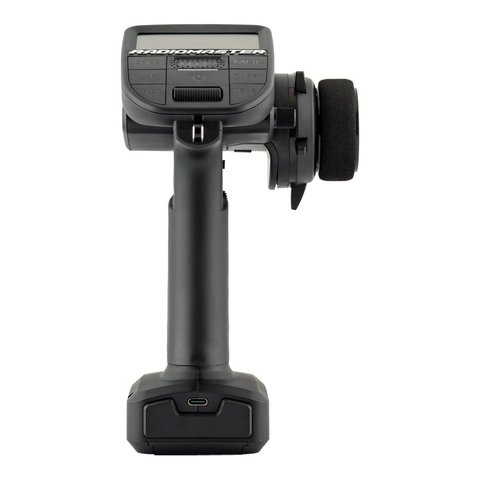
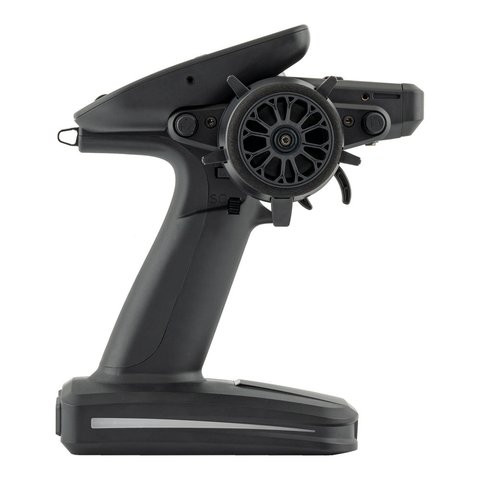
The RadioMaster MT12 is a wheel-style surface radio built for RC cars, trucks, and boats, and it happens to be the first surface transmitter with official support from EdgeTX, ExpressLRS, and the Multi-protocol Module project. That open ecosystem is a huge selling point, but it also means the MT12 has more moving firmware parts than a typical stick radio, and updating it correctly takes a bit more care than tapping “update” on a phone app. I have walked several readers through this process after they got stuck partway, so here is the full breakdown.
Key Specs
- 10 physical inputs, supports 16 or 32 channels depending on module
- Preinstalled with EdgeTX firmware out of the box
- Hall-effect wheel and trigger, no mechanical potentiometers to wear out
- Runs internal ELRS module, ELRS backpack, or external RM 4-in-1 multi-protocol module
- 128×64 monochrome LCD, oversized battery bay for 2x 18650 or a 2S 7.4V pack
- Weight 480g, dimensions 177.8 x 118.4 x 207.8mm
The Four Firmware Components You May Need to Update
Unlike most single-purpose radios, the MT12 can have multiple firmware layers depending on how it is configured, and it helps to know which one you actually need to touch before you start flashing anything.
- EdgeTX operating system: the main radio firmware that controls the menus, mixing, and model storage.
- Internal ELRS module firmware: if you run the built-in ExpressLRS RF module rather than an external one.
- ELRS backpack firmware: a secondary companion chip used for Bluetooth telemetry and Wi-Fi passthrough on some builds.
- RM 4-in-1 external module firmware: only relevant if you have the external multi-protocol module installed for FrSky, Flysky, or other legacy protocols.
Most owners only ever need to touch the EdgeTX firmware and, if running internal ELRS, the ELRS module firmware. Leave the other two alone unless you specifically know you need them.
Updating EdgeTX on the MT12
The easiest and most reliable way to update EdgeTX is through EdgeTX Buddy, a browser-based tool that flashes firmware directly over USB without requiring you to install anything locally.
- Back up your current model list and settings first, either by copying the internal storage over USB or exporting individual model files.
- Open EdgeTX Buddy in a Chromium-based browser, since it relies on WebUSB.
- Select “RadioMaster MT12” from the radio model dropdown and choose the firmware release you want to install.
- Power on the MT12 while holding the bind or boot button combination noted in the manual to enter bootloader mode.
- Connect the radio via USB-C and let EdgeTX Buddy detect it, then click Flash and wait for the process to complete without disconnecting.
- Once flashed, the radio reboots into the new EdgeTX version; restore your model files from backup if the update wiped internal storage.
Updating the Internal ELRS Module
If your MT12 uses the internal ExpressLRS module, that firmware is separate from EdgeTX and is normally updated using EdgeTX Passthrough directly from inside the radio’s menus, without needing a computer at all.
- Go to the Model menu, then the internal RF module settings page.
- Select the option to flash the internal module and choose the correct target firmware file, matching your MT12’s frequency (2.4GHz).
- Confirm and wait for the passthrough flash to finish; do not power off the radio mid-update.
- Alternatively, the ExpressLRS Configurator can flash the internal module over USB if passthrough isn’t working.
Where to Get Official Files
Always pull firmware from official sources rather than random forum links. RadioMaster’s own firmware updates page lists current EdgeTX builds specific to the MT12, and the Multi-module firmware downloads page covers the external 4-in-1 module if you have one installed. Mixing firmware built for a different radio model into the MT12 can leave it unresponsive, so double-check the target name before flashing anything.
A Mistake I Made on My First Update
The first time I updated my MT12, I skipped backing up my model list because I assumed the EdgeTX flash would leave internal storage untouched. It didn’t, at least not on that particular firmware jump, and I lost a few custom mixes I had tuned for a drift chassis. Since then I always export my model files before touching firmware, even for what looks like a minor point release, and it takes less than two minutes to do properly.
Troubleshooting a Failed Update
- Radio won’t enter bootloader mode: double check the exact button combination for the MT12 in the manual, since it differs slightly from other RadioMaster models.
- EdgeTX Buddy doesn’t detect the radio: try a different USB cable and port, and confirm you are using a WebUSB-compatible browser like Chrome or Edge.
- Radio boots to a blank or garbled screen after flashing: reflash the same firmware file again; this is usually an interrupted write rather than hardware damage.
- ELRS module firmware mismatch warnings: confirm you selected the 2.4GHz internal target and not a 900MHz or external module build.
Frequently Asked Questions
Do I need to update the MT12’s firmware right out of the box?
Not necessarily. The factory-installed EdgeTX build is stable for normal use. Update only if you want new features, bug fixes, or ExpressLRS improvements listed in a specific release.
Can I brick the MT12 by flashing the wrong firmware?
Flashing a firmware file built for a different radio can leave it unresponsive, but the bootloader itself is generally recoverable by re-entering flash mode and loading the correct file again.
Does updating EdgeTX erase my model list?
It depends on the version jump. Some updates preserve internal storage, others do not, so always back up your models before flashing regardless of what the release notes claim.
Is EdgeTX Buddy the only way to flash the MT12?
No, you can also flash via a direct USB connection using the EdgeTX Companion desktop app, though EdgeTX Buddy is simpler for most users since it requires no installation.
Conclusion
Updating the MT12’s firmware is not difficult once you understand there are separate pieces for EdgeTX, the internal ELRS module, the backpack, and any external multi-protocol module, and that most owners only need to touch the first two. Back up your models before every update, pull firmware only from official RadioMaster and ExpressLRS sources, and the whole process takes under twenty minutes even the first time through.
Ryan tests and documents RC radio firmware updates as part of his ongoing coverage of surface and FPV gear. He writes at softwaredriverdownload.com.