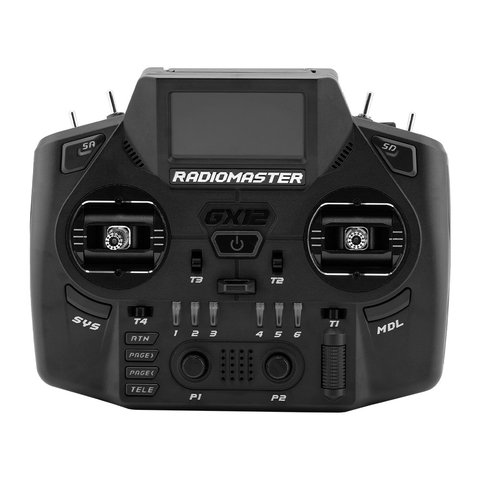
If you have looked up the RadioMaster GX12 and are wondering where its SD card slot is, the short answer is that there isn’t one. That surprises a lot of pilots coming from other RadioMaster radios like the Zorro, Boxer, or TX16S, all of which rely on a microSD card for model storage, sound files, and Lua scripts. The GX12 does things differently, and understanding why can save you an afternoon of confused searching through the manual. I dug through the actual storage setup after getting a few questions from readers who assumed they had a defective unit.
Key Specs
- 512MB integrated high-speed flash storage, built into the mainboard
- No microSD card slot on the GX12, unlike most other RadioMaster transmitters
- Single USB-C port handles charging, firmware updates, and file transfer
- GX01 Hall effect gimbals with folding sticks, 16 channels max
- ExpressLRS and mLRS protocol support
- 128×64 monochrome OLED display
- Weight: 573g with batteries installed
Why the GX12 Has No SD Card Slot
RadioMaster made a deliberate design change with the GX12: instead of a removable microSD card, the radio ships with 512MB of soldered-on flash memory. This is faster to read and write than most consumer microSD cards, and it removes a common point of failure — corrupted cards, bad contacts, or cards that were formatted incorrectly and silently failed to save model changes. The tradeoff is that you cannot simply pop a card out to move your models to another radio or back them up onto a shelf spare card the way you could with a Boxer or Zorro.
- 512MB is plenty for EdgeTX model files, which are small text-based configuration files, not media.
- Sound packs and Lua telemetry scripts fit comfortably within that space for the vast majority of users.
- You interact with the built-in storage exactly like an SD card once connected over USB-C — it mounts as a drive on your PC.
Accessing the Built-In Storage
To browse or transfer files on the GX12’s internal storage, connect it to a computer with a USB-C cable and power the radio on. Depending on the mode, the radio will either mount as a USB mass storage device (showing folders like MODELS, SCRIPTS, and SOUNDS) or as a USB joystick for simulator use. You choose the mode from the SYS menu before plugging in, the same way you would on any other EdgeTX radio.
- Power on the GX12 and navigate to the SYS page, then find the USB mode setting.
- Select Storage (USB Mass Storage) mode rather than Joystick or Serial.
- Connect the USB-C cable to your computer; the internal 512MB flash appears as a removable drive.
- Copy, back up, or edit files in the MODELS, SCRIPTS, SOUNDS, and THEMES folders as needed.
- Safely eject the drive before disconnecting to avoid corrupting the file table.
Backing Up Your GX12 Without an SD Card
Just because there is no removable card does not mean you should skip backups. In fact, since the storage is soldered in, a backup routine matters even more — if the flash ever fails, you cannot simply buy a new SD card and reformat, you would need to send the radio in for service.
- Connect over USB-C in Storage mode and copy the entire internal drive to a folder on your computer periodically.
- Keep a dated copy each time you make major model changes, not just one running backup that gets overwritten.
- EdgeTX also supports exporting individual model files (.yml or .bin depending on version) which is faster than a full drive copy for small changes.
- Store a spare copy of your radio’s full firmware and settings folder somewhere outside the radio, such as cloud storage, in case you ever need a factory-style restore.
Comparing Storage to Other RadioMaster Radios
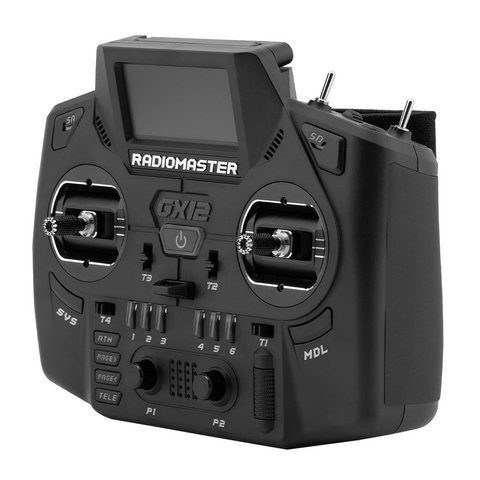
For general reference, most other current RadioMaster radios that do use a microSD card want a 4GB-32GB card formatted as FAT32; cards larger than 32GB often need special formatting utilities and can cause boot issues if not prepared correctly. The GX12 sidesteps all of that by shipping ready to go with its internal flash already formatted at the factory, so there is genuinely nothing to configure out of the box beyond selecting your preferred USB mode.
My Experience Setting Up a GX12
When my GX12 arrived, I made the same mistake as a lot of new owners and spent a few minutes flipping the radio over looking for a card tray before checking the manual. Once I plugged it into my laptop over USB-C and switched the mode to Storage, the internal drive showed up exactly like any USB stick, and copying my model files over from an old Zorro backup took about a minute. The one habit I had to build was remembering to actually back the internal drive up regularly, since I had gotten lazy about it on radios where popping a spare SD card in felt like an obvious safety net.
Frequently Asked Questions
Can I add a microSD card to the GX12 for extra storage?
No, the GX12 does not have a card slot at all. The 512MB of soldered flash is the only storage available, and it is not user-expandable.
Is 512MB actually enough for a large model fleet?
Yes for nearly everyone. EdgeTX model files, Lua scripts, and typical sound packs are small; 512MB comfortably holds hundreds of models plus scripts and audio without running close to the limit.
What happens if the internal flash fails on the GX12?
Since the storage is not removable, a failure would require a repair or replacement through RadioMaster’s support channel rather than a simple card swap, which is exactly why regular external backups matter more on this radio than on card-based models.
Do I need special drivers to access the GX12’s storage on Windows?
No. In Storage mode the GX12 mounts as a standard USB mass storage device, which Windows recognizes natively without any additional driver installation.
Conclusion
The RadioMaster GX12 trades a familiar microSD card for 512MB of built-in flash, and once you understand that it mounts the exact same way over USB-C, the workflow is honestly simpler, not harder. The only real adjustment is building a habit of backing up that internal drive to your computer periodically, since there is no spare card to fall back on if something goes wrong. For most pilots running a normal-sized model list, the built-in storage is plenty and one less thing to fuss over before a flying session. You can find full setup documentation on the official RadioMaster GX12 product page.
Ryan
CS degree · 20+ years hands-on hardware testing