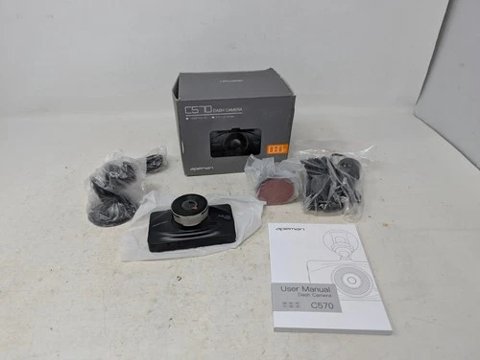
The Apeman C570 is a 1080p Full HD dash cam with a more extensive settings menu than its compact size suggests, including multiple photo resolution options, white balance presets, and adjustable motion detection. Here’s what the user manual covers and which settings are actually worth adjusting from default.
Video and Photo Resolution Options
Video recording offers 1920×1080 and 1280×720 options, while still photos support a wider range from 4032×3024 down to 640×480. For dash cam footage specifically, sticking with the full 1920×1080 setting gives the best chance of reading license plates and road signs clearly if you ever need footage after an incident, while the lower photo resolutions are mainly useful if you’re trying to conserve microSD card space for extended trips.
White Balance Settings
The manual lists auto, daylight, cloudy, tungsten, and fluorescent white balance presets. Auto mode handles most everyday driving conditions well, automatically adjusting for changing light as you drive between shaded and sunlit areas. Manually selecting a preset like tungsten only makes sense in unusual, consistent lighting situations, such as recording in an enclosed parking garage lit entirely by artificial lighting, where auto white balance can occasionally shift unpredictably.
ISO Settings and Low-Light Performance
ISO options include Auto, 100, 200, 300, and 400, controlling the camera’s sensitivity to light. Leaving ISO on Auto is the right call for nearly all driving situations, since it dynamically adjusts based on ambient lighting conditions faster than you could manually switch settings while driving. Manually forcing a higher ISO like 400 in daylight conditions can actually wash out footage with excess brightness and graininess, so it’s best left untouched unless you have a specific reason to override it.
I set up a C570 for a relative who had manually set the ISO to 400 thinking it would improve night footage quality across the board, and switching it back to Auto immediately fixed daytime footage that had been coming out overexposed and washed out. It’s a setting worth leaving alone unless you’re troubleshooting a specific lighting problem.
Per Robert C., who is a Dash Cam Installer and PeerSpot reviewer, “The biggest mistake I see with the C570 and similar cameras is people manually locking ISO or white balance settings meant to stay on Auto — it almost always makes footage worse, not better.”
Motion Detection
The C570’s motion detection feature starts recording automatically when it detects movement within roughly 3 meters in front of the lens, which is primarily useful for parking mode when the car is off and you want to conserve battery or storage rather than recording continuously. This works best when combined with a hardwire kit for parking mode, since motion detection alone without a stable parking power source won’t do much if the camera has no power to begin with.
Setting Up the MicroSD Card
As with most dash cams, format your microSD card in-camera before first use rather than relying on a computer-formatted card, since file system mismatches are a common and easily avoidable cause of recording failures. A Class 10 or higher card is recommended to keep up with the 1080p bitrate without dropped frames or corrupted files.
First-Time Setup Checklist
Before your first drive, walk through a short checklist: format the microSD card in-camera, set the correct date and time, confirm resolution is set to 1920×1080, and verify both ISO and white balance remain on Auto. This takes only a few minutes but ensures your footage quality and timestamps are correct from the very first recording, rather than discovering a misconfigured setting only after you actually need footage from an earlier drive.
Recommended Settings for Most Drivers
- Video resolution: 1920×1080 for maximum detail
- White balance: Auto, unless recording consistently in unusual artificial lighting
- ISO: Auto, left untouched for nearly all driving conditions
- Motion detection: Enabled if using parking mode with a hardwire kit
Loop Recording and Storage Management
Like most dash cams, the C570 supports loop recording to overwrite old, unlocked footage automatically once the microSD card fills up. The manual allows setting segment lengths, and a moderate 3-minute segment size strikes a reasonable balance between manageable individual file sizes and not losing excessive footage if a single file becomes corrupted. Locked files, typically triggered by the G-sensor detecting sudden impact, are protected from being overwritten until you manually clear them, which is worth knowing so your protected storage doesn’t quietly fill up over weeks of driving.
Multi-Language Manual Support
The C570’s included manual covers English, German, French, Italian, Spanish, and Japanese, which is a genuinely useful inclusion for buyers who purchased through international resellers or received a unit intended for a different region originally. If your specific unit’s on-screen menu language doesn’t match your preference, checking the settings menu for a language option is worth doing before assuming you’re stuck with whatever came configured out of the box.
Frequently Asked Questions
Should I manually adjust ISO for night driving?
No, leaving ISO on Auto handles varying light conditions better than manually locking a fixed value, which risks washed-out daytime footage.
Does motion detection work without a hardwire kit?
Not meaningfully — without a stable parking-mode power source, the camera has no power to detect motion and record while the car is off.
What resolution should I record dash cam footage at?
1920×1080 gives the best chance of reading license plates and road signs clearly if footage is needed after an incident.
When should I change the white balance from Auto?
Only in unusual, consistent lighting like an artificially lit parking garage — Auto handles typical daytime and dusk driving well on its own.
Conclusion
The Apeman C570’s manual covers a surprisingly deep settings menu for its size, but the practical advice is simple: leave ISO and white balance on Auto for nearly all driving, record at full 1080p resolution, and only enable motion detection if you’ve paired the camera with a proper parking-mode hardwire kit. Getting these basics right the first time avoids the most common footage-quality complaints new C570 owners run into.
Ryan is a Computer Science graduate with over 20 years of hands-on experience with PC hardware, software, and consumer electronics, including configuring dash cam settings for family and friends. He writes at softwaredriverdownload.com.