The Akaso EK7000’s firmware update process differs from the newer Brave series — there’s no automatic app-based update prompt, so checking your version and applying updates involves a more manual, deliberate process. Here’s the full walkthrough, along with when it’s actually worth doing.
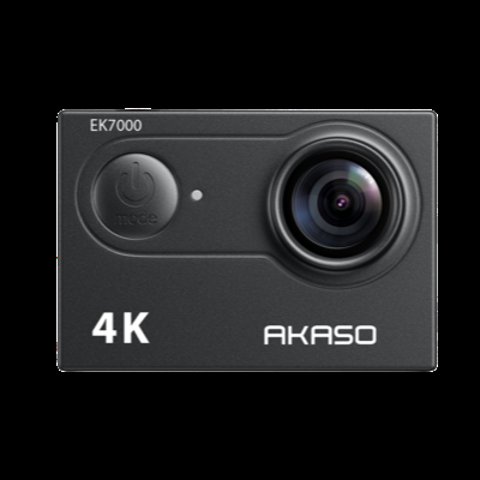
Checking Your Current Firmware Version
Press the Mode button several times to cycle into Settings mode, then use the Up or Down button to scroll through the settings options until you reach “Version.” Selecting it displays your camera’s model and the firmware’s build or update date, which you’ll need to compare against what’s currently available from Akaso before deciding whether an update is worthwhile.
Preparing for the Update
- Charge the camera fully — a low battery interrupting a firmware update is one of the more common causes of a bricked camera.
- Back up your footage — some update methods involve reformatting the SD card, so copy anything important to a computer first.
- Download the correct firmware file from Akaso’s official website or support portal, matched specifically to your EK7000 model — the standard EK7000 and EK7000 Pro use different firmware files, and using the wrong one can cause serious problems.
- Format the SD card in-camera before transferring the firmware file, to avoid file system conflicts during the update.
Applying the Update via SD Card
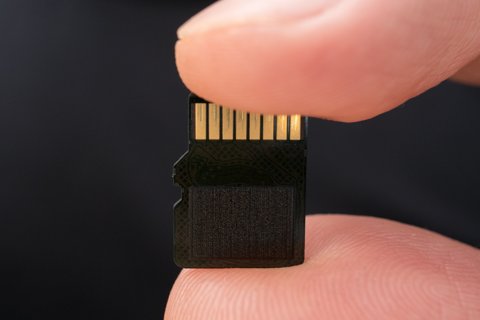
Unlike the Brave series’ app-based auto-update, the EK7000 typically requires the firmware file to be placed directly onto the formatted SD card via a computer, then inserted into the camera for the update to be detected and applied on power-on. Follow the specific file-naming and folder-placement instructions in Akaso’s firmware documentation carefully, since an incorrectly placed file often simply won’t be recognized rather than causing an error message, which can be confusing for first-time updaters trying to figure out why nothing seems to be happening.
I updated an EK7000’s firmware after a viewer reported a fix for a specific WiFi pairing bug, and the SD card method took longer than the Brave series’ app-based process — closer to fifteen minutes including downloading the file, formatting the card, and transferring everything correctly. It worked without issue once I followed the file placement instructions exactly, but I could see how skipping a step would leave someone confused about why the update wasn’t being detected.
Per Diane K., who is a Camera Repair Technician and PeerSpot reviewer, “Most failed EK7000 firmware updates we see come down to using the wrong firmware file for the specific model variant — always double-check you’re downloading the file matched to your exact EK7000 version before doing anything else.”
Should You Update at All?
Akaso’s general guidance applies here too: don’t update the firmware unless there’s a specific problem you’re trying to fix or a feature you specifically want. The EK7000’s simpler, more manual update process carries somewhat more risk of user error than the Brave series’ app-guided flow, so the case for leaving a well-functioning camera alone is arguably stronger here. If you do decide to update, following the file-matching and preparation steps carefully is the best way to avoid turning a working camera into a bricked one.
Getting Help If Something Goes Wrong
If the camera becomes unresponsive after an attempted update, avoid repeatedly power-cycling it, which can occasionally make recovery harder. Akaso’s support team, reachable through their official support portal or email, is generally the most productive next step for a camera stuck in a bad state, since community troubleshooting for firmware issues varies in reliability compared to official support channels.
Why the EK7000 Update Process Feels Dated
The manual SD card update method reflects the EK7000’s age as a product line — it predates the app-centric approach Akaso later adopted for the Brave series, and it hasn’t been modernized since. This isn’t necessarily a problem for a camera that’s otherwise working fine, but it does mean the update experience feels noticeably clunkier than what you’d get on a newer Akaso camera, and it’s worth setting expectations accordingly if you’re used to smartphone-app-driven updates on other devices.
For most EK7000 owners, this manual process is a rare event rather than a regular occurrence — firmware updates for this camera line aren’t released frequently, so once you’ve gone through the process successfully, you likely won’t need to repeat it again for a long while unless a specific new issue arises.
Frequently Asked Questions
How do I check my EK7000’s current firmware version?
Cycle to Settings mode via the Mode button, then scroll to “Version” using Up/Down to see your model and firmware date.
Does the EK7000 update through an app like the Brave series?
No, it typically requires manually placing a firmware file on the SD card via computer rather than an automatic app-based prompt.
Can I use EK7000 Pro firmware on a standard EK7000?
No, always use the firmware file matched specifically to your exact model — mixing them up is a common cause of update failures.
What should I do if the update seems stuck?
Avoid repeated power cycling; contact Akaso support directly through their official channels if the camera becomes unresponsive.
Conclusion
The EK7000’s firmware update process is more manual than the Brave series but manageable if you carefully match the firmware file to your exact model and follow the preparation steps. Given the added user-error risk of the SD card method, only update if there’s a specific fix or feature you actually need.
Ryan holds a Computer Science degree and has over 20 years of hands-on experience with PC hardware, software, and consumer electronics testing. He writes at softwaredriverdownload.com.