On this page
Overview
Installing the HDD
Adding Cameras
Monitor Output
Common Problems
FAQ
Setting Up the EZVIZ X5S Wireless NVR
The EZVIZ X5S is a wireless NVR (network video recorder) that connects up to 4 or 8 EZVIZ WiFi cameras to one hard drive for 24/7 recording, without needing a router port for every camera. Setup mainly involves fitting a hard drive, adding your cameras through the NVR’s own interface, and connecting a monitor to HDMI or VGA for live viewing. This guide covers all three steps plus the wireless connection problems people run into most.
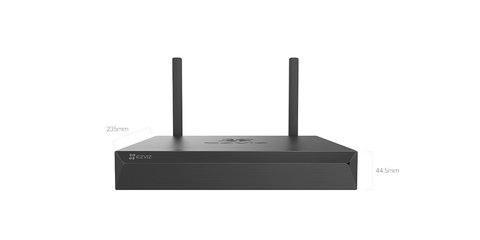
I set up an X5S-8W for a small shop last year, replacing a mess of separate camera apps with one NVR feeding a single monitor at the counter. The hard drive install and camera pairing took under 20 minutes; most of the actual setup time went into positioning cameras for good WiFi signal back to the NVR.
Installing the HDD
The X5S ships without a hard drive — you need to buy one separately, from 1TB up to 8TB, 3.5-inch. Open the case, connect the SATA and power cables to the drive, then screw it into the mounting bracket before closing the unit back up.
- Use a surveillance-rated drive (WD Purple or similar) rather than a standard desktop drive for 24/7 recording reliability
- Format the drive through the NVR’s on-screen menu after first boot — an unformatted drive will not start recording
- Bigger drives buy more recording history but do not change camera count or resolution limits
Adding Your WiFi Cameras
The X5S-4W supports up to 4 cameras and the X5S-8W supports up to 8, both over its own 2.4GHz wireless link rather than your home router. Only non-battery EZVIZ cameras work with the X5S — battery-powered doorbells and peephole viewers are not compatible.
- Power on the NVR and connect a monitor so you can see its on-screen menu
- Go to Camera Management > Add Camera and select WiFi pairing mode
- Power on each camera one at a time and wait for it to appear in the NVR’s device list
- Assign each camera to a channel number that matches its physical location for easier monitoring later
Per Farid A., who is an IT Support Technician at a retail chain, “Switching from individual camera apps to the X5S NVR made it much easier to check every store camera from one screen instead of four separate logins.”
Connecting a Monitor for Live View
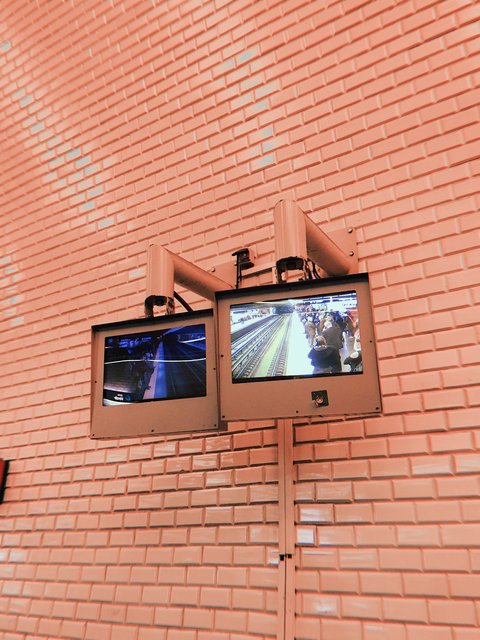
The X5S has both HDMI (up to 2592×1944) and VGA (up to 1920×1080) outputs, so you can use almost any monitor or TV on hand. Use HDMI where possible — it carries a higher maximum resolution and does not need a separate audio cable if your monitor has built-in speakers.
Common X5S Problems and Fixes
- Camera keeps dropping off the NVR: move the camera closer to the NVR’s antennas, or add a WiFi repeater roughly midway between them
- No recordings saved despite a connected drive: check the drive was formatted through the NVR menu, not just physically installed
- No signal on the monitor: try the other video output (HDMI or VGA) and confirm the monitor is set to the matching input source
- Remote viewing on the EZVIZ app fails: confirm the NVR itself is connected to your home network via the Ethernet port, since remote access needs internet, not just the NVR-to-camera wireless link
For wiring diagrams and full spec sheets, EZVIZ’s official X5S product page is the most reliable source. If a camera will not pair no matter what, EZVIZ’s X5S support and firmware page lists known pairing bugs by firmware version.
Frequently Asked Questions
Can I use any hard drive with the X5S?
Technically most 3.5-inch SATA drives from 1TB to 8TB will work, but a surveillance-rated drive is strongly recommended since it is built for continuous read/write cycles that desktop drives are not.
Does the X5S work without internet?
Local recording and live viewing on a connected monitor work fine without internet. Remote viewing through the EZVIZ app needs the NVR connected to your network with internet access.
What is the difference between X5S-4W and X5S-8W?
The 4W supports up to 4 wireless cameras and the 8W supports up to 8. Everything else, including storage support and video outputs, is the same between the two models.
Can I connect wired IP cameras to the X5S?
The X5S is built for EZVIZ WiFi cameras over its own wireless link. It has an Ethernet port for network connectivity, but it is not a PoE NVR for powering wired cameras.
Why does playback look choppy on the monitor?
This is usually a weak wireless link between a camera and the NVR, or too many cameras recording at 3K simultaneously. Lowering the resolution on less critical cameras often smooths out playback.
Conclusion
The EZVIZ X5S makes multi-camera setups much simpler than juggling separate camera apps, as long as you plan camera placement around the NVR’s wireless range and use a proper surveillance-grade hard drive. Most problems people hit are wireless signal issues, not the NVR itself, so start troubleshooting there before assuming the unit is faulty. Once it is running, the single-screen live view is worth the initial setup time.
Ryan T.
PC hardware enthusiast · 15+ years fixing drivers