Tenvis · IP391W · Wi-Fi Camera
Tenvis IP391W Camera Setup and Software Guide
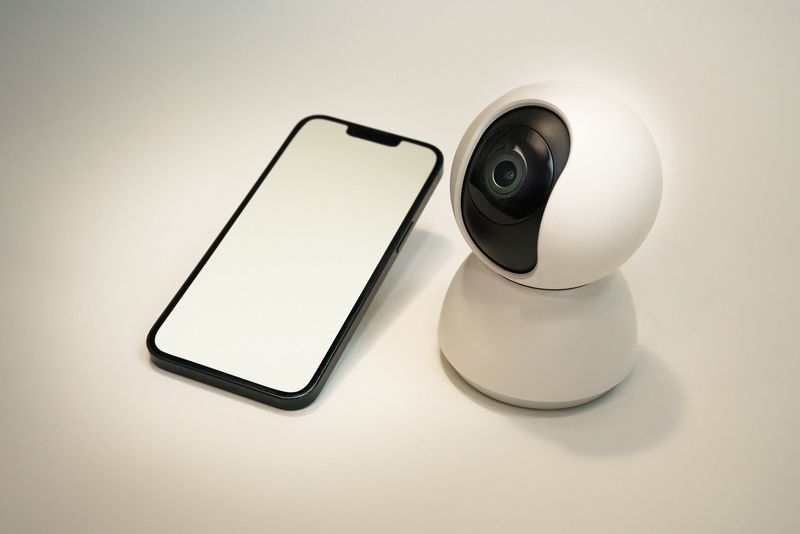
The Tenvis IP391W is a Wi-Fi network camera built for home monitoring, and it does not rely on a Windows driver the way a printer or scanner would. Instead, it connects to your network directly and is managed through Tenvis’s viewer software on PC or its companion app on mobile. Here is the setup process that has worked reliably for me on similar Tenvis models, plus fixes for the most common connection issues.
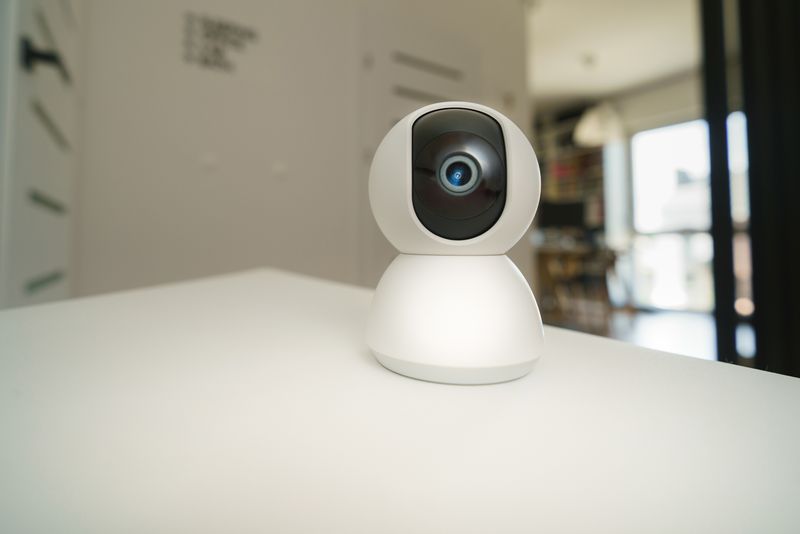
Setting Up the Camera
- Download the Tenvis IPCamClient viewer software from the official Tenvis support site, or install the Tenvis mobile app if you prefer to set it up from your phone.
- Plug the IP391W into your router with an Ethernet cable and power it on.
- Open the viewer or app and let it scan the network for the camera; it should appear listed by its local IP address.
- Open the camera’s wireless settings, choose your Wi-Fi network, and enter the password.
- Once the camera reconnects over Wi-Fi, unplug the Ethernet cable and confirm the video feed still loads.

Common Problems and Fixes
- Camera not detected by the viewer software — check that your PC and the camera are on the same network, and temporarily turn off any third-party firewall that might block discovery traffic.
- Video will not load in a web browser — use the dedicated Tenvis viewer app instead of a browser, since the camera’s web page often needs an outdated ActiveX plugin most browsers no longer support.
- Camera keeps disconnecting from Wi-Fi — move it closer to the router, or assign it a static IP in your router settings so it reconnects to the same address reliably.
- Forgot the admin password — press and hold the reset button on the back of the camera for around 10 seconds to restore factory defaults, then repeat setup.
Frequently Asked Questions
Does the IP391W need a Windows driver?
No, it works through Tenvis’s viewer software or mobile app rather than a traditional driver.
Can I view the camera remotely?
Yes, by enabling the camera’s cloud/P2P ID feature or setting up port forwarding on your router.
Is the setup software compatible with Windows 11?
Yes, the Tenvis viewer runs on Windows 11, though you may need to allow it through Windows Defender Firewall on first launch.
Conclusion
Getting the Tenvis IP391W online is straightforward once you connect it by Ethernet first and use the official viewer software or app to move it onto Wi-Fi. Almost every setup issue traces back to a network mismatch or blocked discovery traffic, both covered above.
Ryan
CS degree · 15 years hardware troubleshooting