Tenveo · USB Webcam · Windows 11
Tenveo Camera Setup Guide for Windows
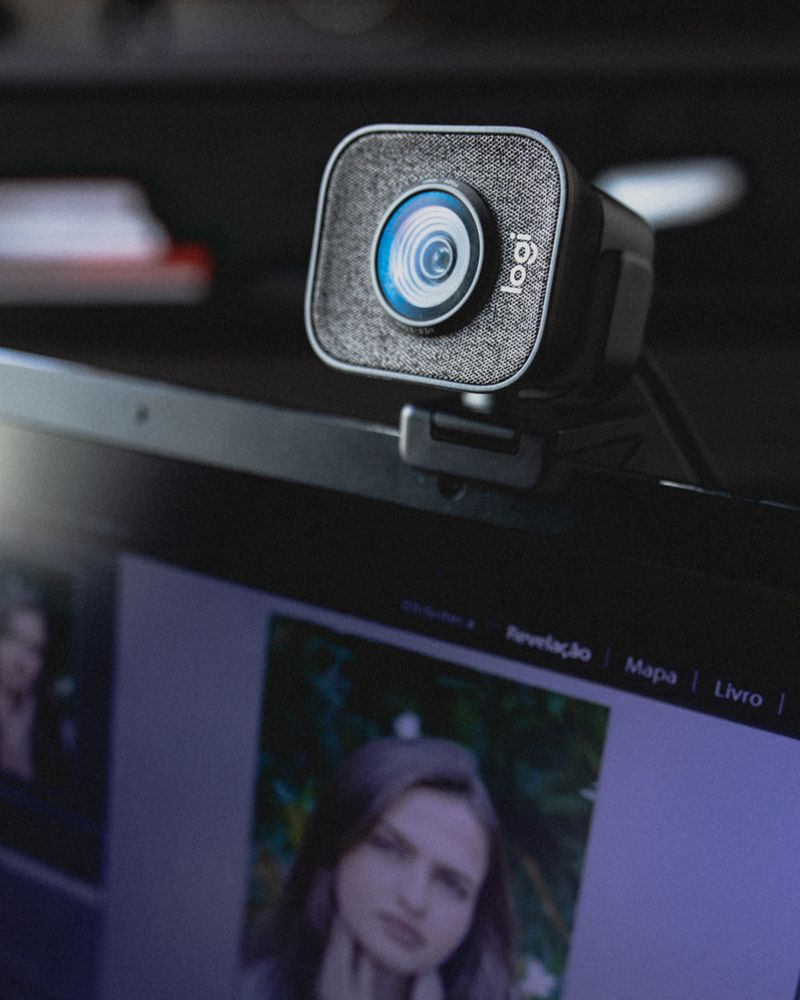
Tenveo makes a range of USB webcams and PTZ conferencing cameras used for video calls, streaming, and classroom or meeting-room setups. Most Tenveo cameras are UVC (USB Video Class) devices, which means Windows can usually recognize them without a separate driver install — but getting the picture quality, focus, and zoom controls working properly still takes a few extra steps. I have set up a couple of these units for video conferencing rooms, and this guide covers the setup process along with the fixes for common problems.
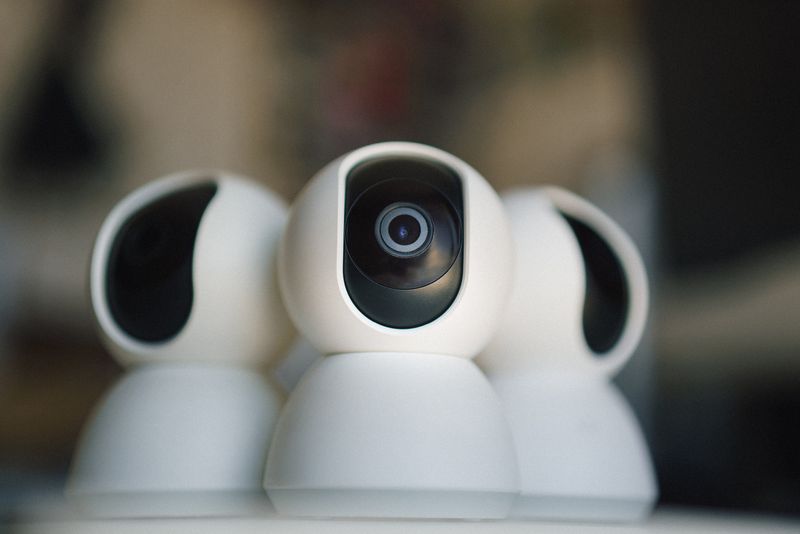
Connecting the Camera
- Plug the Tenveo camera into a free USB port on your PC.
- Wait for Windows to detect it — you will see a notification once it is ready to use.
- Open the Camera app or your video call software (Zoom, Teams, etc.) and select the Tenveo camera from the device list.
- If your model includes pan, tilt, or zoom controls, download the Tenveo control software from the official Tenveo site to access those extra settings.
Installing the Optional Control Software
For basic video calls, you usually do not need to install anything extra. But if your Tenveo model supports PTZ (pan-tilt-zoom) presets or remote control, download the matching control app from Tenveo’s support page, run the installer, and connect the camera before opening the app so it can detect the device automatically.
Common Problems and Fixes
- Camera not showing up in Windows — try a different USB port, preferably directly on the PC rather than through a hub, and check Device Manager for any “Unknown Device” entries under Cameras or Imaging Devices.
- Video call apps cannot find the camera — go to Settings > Privacy & security > Camera and make sure “Camera access” and app-level camera permissions are turned on.
- Picture is blurry or out of focus — most Tenveo cameras have a manual focus ring on the lens; rotate it slowly while watching the preview until the image sharpens.
- PTZ controls unresponsive — confirm the control software is running and the camera is selected as the active device; reconnecting the USB cable often resolves this.
- Windows installs a generic driver that limits resolution — check Microsoft’s Device Manager documentation for updating the driver manually, or install Tenveo’s software which can override the generic driver with full feature support.
Frequently Asked Questions
Do Tenveo cameras need a driver on Windows 11?
Most models work as plug-and-play UVC devices with no driver needed; only PTZ control features require separate software.
Can I use a Tenveo camera with Zoom or Teams?
Yes, once Windows detects it, it will appear as a selectable camera in any video call app.
Why is the image quality lower than expected?
Check the resolution setting inside your video call app or the Tenveo control software, since some apps default to a lower resolution than the camera supports.
Conclusion
Setting up a Tenveo camera is usually quick since most models work as standard UVC webcams out of the box. If you need pan-tilt-zoom control or run into detection issues, installing Tenveo’s own software and checking Windows camera permissions clears up nearly every problem.
Ryan
CS degree · 15 years hardware troubleshooting