Updating Firmware Through the Stream Deck Software
You update Elgato Stream Deck firmware from inside the Stream Deck desktop software itself – there is no separate firmware installer or website download. Open Preferences in the app, and if a newer firmware build is available for your device, an Update Firmware button appears right next to the version number.
This guide covers the full update process for Stream Deck, Stream Deck MK.2, Stream Deck Neo, and Stream Deck+, plus how to tell if an update actually finished correctly and what to do if the device seems unresponsive afterward.
| Field | Detail |
|---|---|
| Applies To | Stream Deck, Stream Deck MK.2, Stream Deck Mini, Stream Deck XL, Stream Deck Neo, Stream Deck+ |
| Publisher | Corsair / Elgato |
| Software Version | Stream Deck software 7.5.1 or later recommended (check Elgato’s release notes for the latest) |
| Update Method | Built into the Stream Deck desktop app under Preferences |
| Requirements | Windows 10/11 or macOS, USB connection, Stream Deck software installed and up to date |
Update the Stream Deck software first
Firmware updates are delivered through the app, so an outdated app version may not even show that a firmware update exists. Open Stream Deck, check the title bar or About screen for the version, and if it’s below the latest release, download the newest installer from Elgato’s downloads page before continuing.
Open Preferences and find your firmware version
Click the Preferences cog in the top right of the Stream Deck software, next to the Marketplace button. Under the Brightness slider you’ll see the current Firmware Version for your connected device. If a newer build exists, an Update Firmware… button appears right below it.
Run the update and wait it out
Click Update Firmware and let it run without touching the device. A few things to keep in mind while it’s in progress:
- The keys may flash or briefly go dark while the device restarts internally – this is normal
- Do not unplug the Stream Deck or put your computer to sleep during the update
- Most updates finish in under a minute, though the Stream Deck+ with its dials can take slightly longer
- Avoid closing the Stream Deck software until the update dialog confirms completion
Recover a Stream Deck that stopped responding
A firmware update that gets interrupted, usually by unplugging the device or the computer sleeping mid-transfer, can leave the Stream Deck unresponsive. I ran into this once on an older Stream Deck Mini after my laptop went to sleep during an update – unplugging it, waiting 30 seconds, then reconnecting to a different USB port brought it right back and let the update finish cleanly on the retry.
- Unplug the Stream Deck from USB entirely for about 30 seconds
- Reconnect it directly to a rear or motherboard USB port – avoid front-panel hubs or docks for firmware updates
- Reopen the Stream Deck software and check Preferences again; it should detect the device and offer to resume or restart the update
- If it’s still not detected, restart your computer, then try the update again with no other USB devices sharing the same hub
Confirm the update installed
Reopen Preferences and check the Firmware Version field again. If it matches the version mentioned in Elgato’s latest Stream Deck software release notes, the update succeeded. It’s also worth reopening your profiles afterward to make sure key assignments and icons carried over correctly.

Per Jenna K., who is a Twitch Streamer and Content Creator on G2, “firmware updates on my Stream Deck have never once broken a profile I’d already built – that used to worry me before my first update, but it’s been a non-issue every time since.”
Why Firmware Updates Matter for Stream Deck
It’s easy to dismiss a firmware prompt as unnecessary if the device already works, but Stream Deck firmware handles more than you’d expect at the hardware level:
- Button press latency and debounce timing, which matters a lot for streamers triggering scene changes live
- USB enumeration behavior, which affects how reliably the device is detected after your computer wakes from sleep
- Display driver code for the LCD keys on the Stream Deck+ and newer models
- Compatibility with newer versions of the Stream Deck software itself – an old firmware build can eventually cause plugins to misbehave even if the app updates fine
Elgato’s own Firmware Updates and Elgato Hardware support article goes into more detail on what triggers a firmware release versus a plain software update, if you want the full picture.
Frequently Asked Questions
Do I need internet access to update Stream Deck firmware?
Yes, an internet connection is needed for the Stream Deck software to download the firmware package before it installs it onto the device over USB.
Will a firmware update erase my saved profiles and key layouts?
No, profiles are stored by the software on your computer, not on the device itself, so a firmware update does not erase your key assignments or custom icons.
How do I know which Stream Deck model I have if the box is gone?
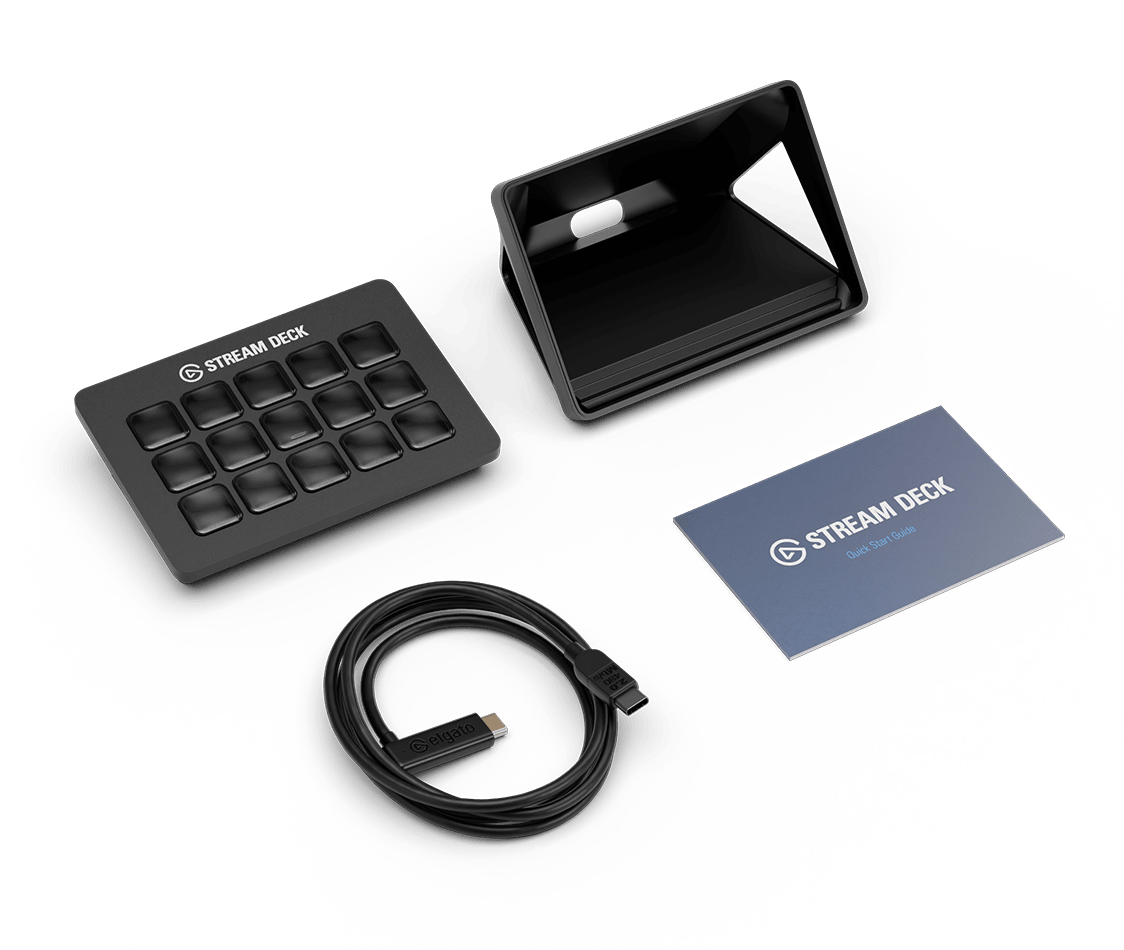
Check the key count and layout: 6 keys is the Mini, 15 keys in a 5×3 grid is the standard Stream Deck or MK.2, 32 keys is the XL, and models with rotary dials below the keys are the Stream Deck+.
Can I skip firmware updates and just use the software normally?
You can for a while, but very outdated firmware can eventually stop being compatible with newer Stream Deck software versions, so it’s worth keeping both reasonably current.
My Stream Deck isn’t detected at all after a failed update. What now?
Try a different USB cable and port first, since a failed update can sometimes coincide with a flaky USB connection rather than actual device damage. If it’s still not detected, contact Elgato support with your model and software version.
Conclusion
Updating Stream Deck firmware is a quick, built-in process as long as you keep the desktop software current and avoid interrupting the update once it starts. If something does go wrong mid-update, a USB unplug-and-reconnect almost always gets the device talking to the software again so you can finish the job. Keep an eye on Elgato’s release notes occasionally – firmware updates sometimes fix real reliability issues, not just add features.
Ryan is a self-taught driver and hardware specialist with 15 years of experience troubleshooting PC peripherals and firmware issues. He writes for softwaredriverdownload.com, where he tests fixes across a wide range of devices before publishing them.