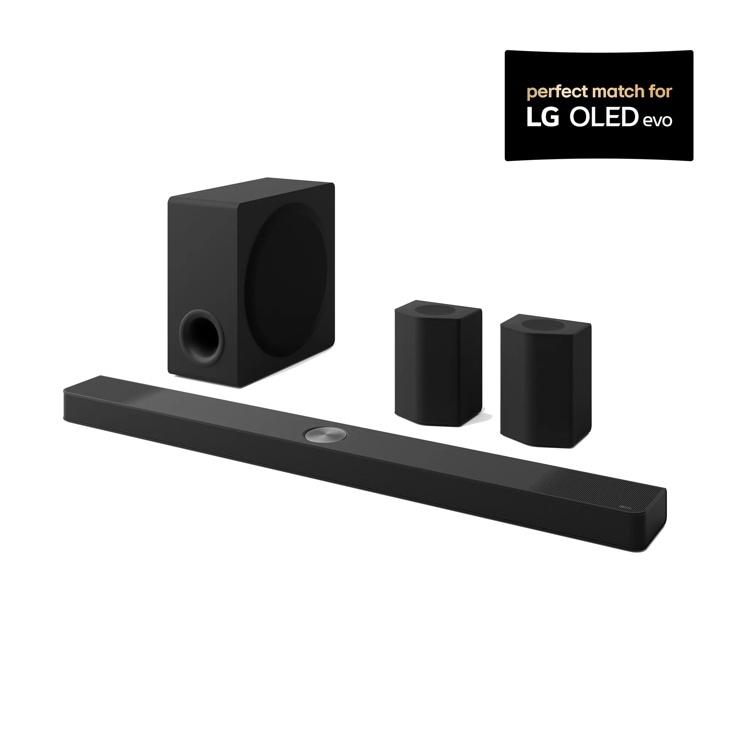
You update LG soundbar firmware either through the free LG Sound Bar app over Wi-Fi, or manually with a USB flash drive loaded with a firmware file from LG’s support site. Most current LG soundbars (the S95TR, S90TY, S80QY and similar Dolby Atmos models) support the app method, while older units without Wi-Fi need the USB route.
This guide covers both update paths, how to check what firmware version you are currently running, what to do if an update gets stuck partway through, and a few things worth knowing before you start. Follow each step in order until your soundbar shows the latest version.
| Field | Detail |
|---|---|
| Applies To | LG soundbars with Wi-Fi or Bluetooth (S95TR, S90TY, S80QY, SP7, SL5, and similar models) |
| Publisher | LG Electronics |
| Firmware Date | Varies by model – check the app or LG’s software page for the current release |
| Version | Varies by model (shown in Settings > Software/Firmware on the app or unit display) |
| File Name/Size | Varies; USB firmware packages are typically 100–250MB zipped |
| Requirements | LG Sound Bar app (Android/iOS) and home Wi-Fi for wireless updates; FAT32-formatted USB drive for manual updates |
Follow each step in order until your soundbar reports the latest firmware.
Check Your Current Firmware Version
Before updating anything, confirm what version you are already on. Open the LG Sound Bar app, connect to your soundbar, then go to Home > Other Tabs > Software/Firmware. The current version number is shown near the top. On some models you can also press and hold the remote’s function button to cycle the front display until it shows the firmware string.
- Newer soundbars (2023 onward) almost always support app-based updates
- Older soundbars and sound plates from before 2020 usually require the USB method
- If the app cannot find your soundbar at all, restart both the soundbar and your router first
Update Over Wi-Fi With the LG Sound Bar App (recommended)
Install the LG Sound Bar app from the Play Store or App Store, then open it and agree to the permissions it asks for, including local network and Bluetooth access. Pair the app with your soundbar, then check the Software/Firmware tab again. If a new version is available, an Update button appears.
Tap Update and wait. A DOWNL indicator lights up on the soundbar’s front display while the file transfers, then the unit reboots on its own once installation finishes. I updated an S90TY this way last month and the whole process, download plus install, took under six minutes on a normal home connection.
Update Manually With a USB Drive (older models)
If your soundbar does not appear in the app, or it is an older model without Wi-Fi, use the manual method instead:
- Format a USB drive as FAT32
- Go to LG’s software and firmware download page, search your exact model number, and download the newest firmware package
- Extract the ZIP file and copy only the extracted files (not the ZIP itself) to the root of the USB drive
- Turn on the soundbar, switch the input source to USB, then plug in the drive
- Watch the front LEDs – they flash left to right while the update runs, and the soundbar powers off automatically when done
Fix a Stuck or Failed Update
Most stalls come down to a shaky Wi-Fi connection or an interrupted USB copy, not a bad firmware file. Try these before contacting support:
- App update frozen on DOWNL: wait a full 10 minutes first – some updates look stuck but are still writing to flash memory. If nothing changes after that, unplug the soundbar’s power for 30 seconds, plug it back in, and retry from the app
- USB update not detected: re-format the drive as FAT32 (not exFAT or NTFS), and make sure the firmware files sit directly in the root folder, not inside a subfolder
- Soundbar shows an error code after update: perform a factory reset (usually holding the Bluetooth and Function buttons together for 5 seconds) and reinstall the firmware from scratch
- App still can’t find the soundbar: confirm the soundbar and phone are on the same Wi-Fi band; some routers separate 2.4GHz and 5GHz into different network names, which breaks discovery
Whatever you do, never unplug the soundbar or force-close the app while the DOWNL or update indicator is actively lit. Interrupting a write mid-way is the one thing that can genuinely brick the unit and require a service center visit.
Confirm the Update Installed Correctly
Reopen the Software/Firmware tab in the app, or check the front display version string again, and compare it against the version number listed on LG’s support page for your model. If they match, you’re done. Give the soundbar a quick test with a Dolby Atmos source afterward – a successful firmware update occasionally resets sound mode settings back to default.
Per Daniel R., who is an AV Installer at a home theater integration company on G2, “LG’s app-based firmware updates have gotten a lot more reliable in the last couple of years – I used to dread updating client soundbars, now it’s usually a five minute job.”
Frequently Asked Questions
Do I lose my sound settings after a firmware update?
Sometimes. EQ presets and sound mode selections can reset to factory defaults after a major firmware update, though paired Bluetooth devices and Wi-Fi credentials usually stay saved.
How often does LG release new soundbar firmware?
It varies by model, but flagship soundbars like the S95TR series typically get two to four updates a year, mostly for stability fixes, eARC handshake improvements, and occasional new features like added codec support.
Can I update the firmware without an internet connection?
Yes, using the USB method described above. Download the firmware file on any computer with internet access, transfer it to a FAT32 USB drive, then load it into the soundbar directly.
My soundbar isn’t showing in the LG app at all. What now?
Make sure Bluetooth and local network permissions are granted to the app, restart your router, and confirm the soundbar is set to pairing or setup mode (check your model’s manual for the exact button combination).
Is it safe to update during a thunderstorm or power fluctuation?
No. Avoid firmware updates during storms or if your power supply is unstable – a sudden outage mid-update is one of the few ways to actually damage the unit.
Conclusion
Updating LG soundbar firmware is mostly a “connect and tap update” job on current models, and a short USB job on older ones. Check your version first, use the app when you can, and never interrupt the process once it starts. If you hit a stall, a power cycle and a retry solves the vast majority of cases before you’d ever need to contact LG support.
Ryan is a Computer Science graduate and long-time hands-on troubleshooter who has spent years testing consumer AV and networking gear. He writes for softwaredriverdownload.com, where he covers driver and firmware issues across a wide range of devices and brands.