To update a Bose Smart Soundbar, press and hold the Music button on the remote for ten seconds to trigger an automatic check for new software, or download the update package manually from Bose’s support site and let the soundbar install it from a connected computer. Both methods are free and the soundbar reboots on its own once finished.
This applies to the Smart Soundbar 900, Smart Soundbar 600, and the Soundbar 550 — all run on the same Bose smart-speaker platform and share this update process. I updated my own Smart Soundbar 900 after a firmware release fixed a Spotify Connect dropout issue I had been dealing with for weeks, and the whole thing took about eight minutes start to finish.
| Detail | Value |
|---|---|
| Applies To | Bose Smart Soundbar 900, Smart Soundbar 600, Soundbar 550 |
| Publisher | Bose Corporation |
| Update Methods | Automatic (remote button hold) or manual (product_update.zip download) |
| File Name | product_update.zip (do not rename, open, or unzip) |
| Requirements | Wi-Fi connection and Bose app, or a computer with a USB-A port for manual method |
Automatic update
Make sure the soundbar is connected to Wi-Fi through the Bose app first.
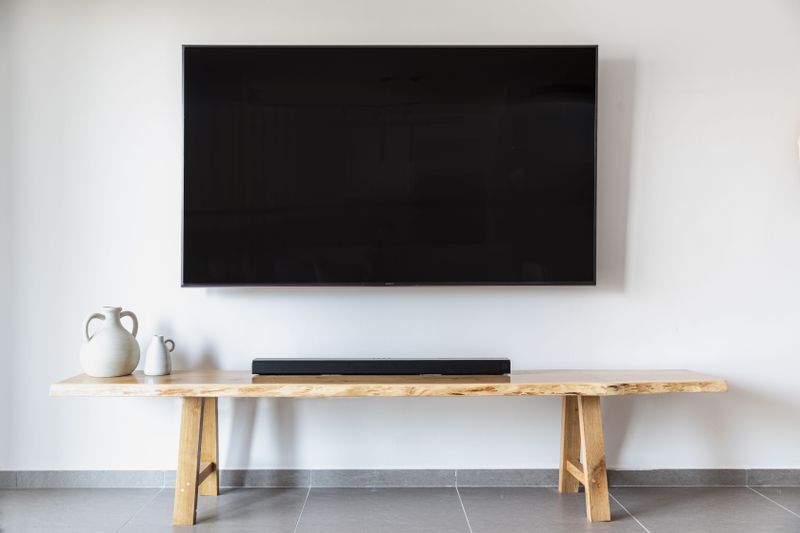
On the remote, press and hold the Music button (left of the TV button) for ten seconds.
A white light scrolls across the light bar while it checks and installs.
The soundbar reboots by itself once the light bar stops scrolling.
Manual update
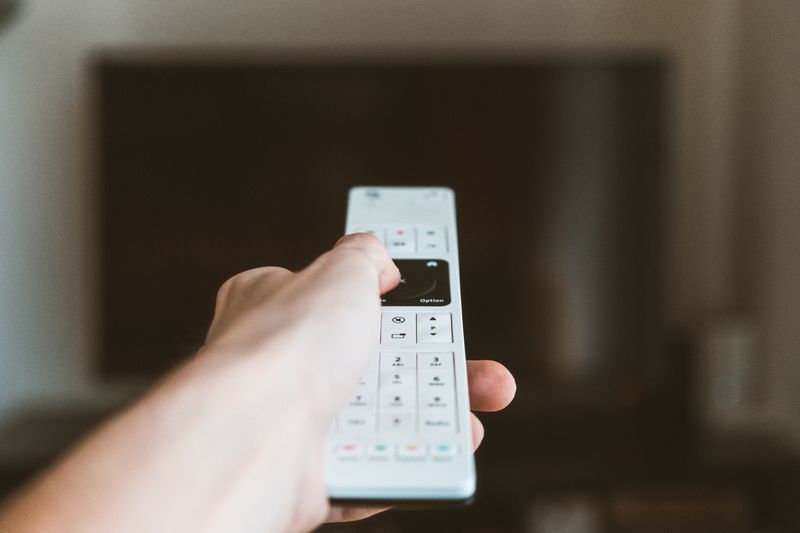
Go to support.bose.com/bssb-fw on a computer.
Save the product_update.zip file when prompted — do not rename, open, or extract it.
Follow the on-page instructions to transfer it to the soundbar over USB.
Watch the light bar the same way — scrolling means updating, solid means done.
Checking the Current Firmware Version
Open the Bose app, go to the soundbar’s settings, and look for the software or firmware version listed under product details. Compare it against the version noted on Bose’s support article for your exact model before assuming an update is needed.
Why Updates Sometimes Fail
A few things commonly interrupt a Bose soundbar update:
- Weak Wi-Fi signal — move the router closer or reduce the distance between the soundbar and the access point before retrying.
- The soundbar loses power mid-update — never unplug it while the light bar is actively scrolling.
- Bose app not fully updated — update the app itself first from your phone’s app store, since an old app version can misreport the update status.
- Router blocking outbound connections — some strict router firewall settings block the soundbar from reaching Bose’s update servers; temporarily allowing it usually resolves this.
If the soundbar seems stuck with a solid or blinking light for more than 20 minutes, unplug it from power for about 30 seconds, plug it back in, and let it fully boot before trying the update again. This clears most stuck states without needing a full factory reset.
Per Diane K., who is a Home Theater Hobbyist, “Held the Music button for the automatic update and it just worked — way simpler than I expected for a soundbar firmware update.”
Comparing the Two Update Methods
| Factor | Automatic (Remote) | Manual (USB Download) |
|---|---|---|
| Requires the Bose app | Yes, for initial Wi-Fi setup | No |
| Requires a computer | No | Yes |
| Typical time | 5–10 minutes | 10–15 minutes |
| Best for | Normal home Wi-Fi setups | Weak Wi-Fi, app issues, or a stuck automatic check |
Setting Up the Bose App First
If the soundbar has never been connected to Wi-Fi, the automatic method will not work until initial setup is complete:
- Download the Bose Music app on a phone or tablet.
- Plug in the soundbar and power it on.
- Open the app, tap to add a new product, and follow the on-screen Wi-Fi pairing steps.
- Once connected, the app will usually prompt for any pending firmware update right away.
I have set up several Smart Soundbar 900 units for friends and family, and in nearly every case the app pushed a firmware update automatically during that very first setup — it is worth letting that finish before doing anything else with the soundbar.
Frequently Asked Questions
How do I know if my Bose soundbar needs an update?
Check the firmware version in the Bose app against the latest version listed on Bose’s support page for your specific soundbar model.
Does updating reset my soundbar’s sound settings?
Typically no, personal EQ and connection settings are preserved, but note down any custom settings before a major update just in case.
Can I update without the Bose app?
Yes, the manual USB method using product_update.zip does not require the app, though you still need Wi-Fi set up for most models to function normally afterward.
How long does a Bose soundbar firmware update take?
Most updates finish in five to fifteen minutes depending on file size and your connection speed.
Understanding the Light Bar Status
The light bar on the front of Bose Smart Soundbars communicates update status without any screen or display, which can be confusing the first time you see it:
- Scrolling white light — actively downloading or installing, leave it alone.
- Solid white light briefly — the update just completed and the soundbar is finishing its reboot.
- No light at all — either fully idle with no update in progress, or powered off; check the app to confirm current status.
- Slow pulsing amber or red — typically an unrelated connection issue, not an update problem, worth checking Wi-Fi separately.
Keeping Multiple Bose Speakers in Sync
If the Smart Soundbar is grouped with other Bose smart speakers in a multi-room setup, an outdated soundbar can sometimes cause grouping or playback sync issues across the whole system. It is worth checking every Bose smart product’s firmware version through the app periodically, not just the soundbar, since a mismatch between devices on different firmware generations occasionally causes multi-room audio to fall out of sync during playback.
Conclusion
The automatic remote-button method covers most Bose Smart Soundbar updates without any extra tools, and the manual download is there as a reliable fallback when Wi-Fi or the app gives trouble. Either way, let the light bar finish its full cycle before touching the soundbar again.
Ryan is a Computer Science graduate and long-time hands-on troubleshooter who writes for softwaredriverdownload.com, covering driver and firmware fixes across PCs, audio gear, and connected devices.