On this page
Check for updates
Update steps
Auto Update
Failed updates
FAQ
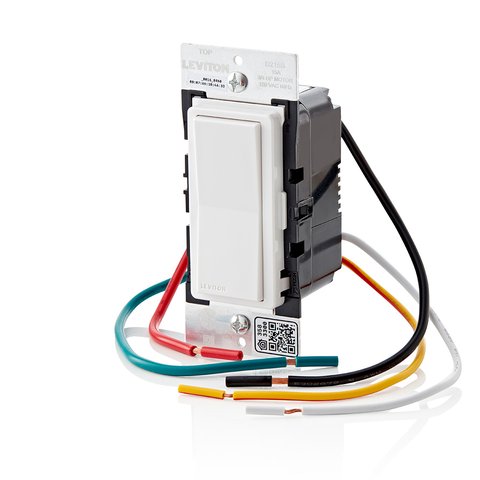
You update a Leviton Decora Smart switch’s firmware entirely inside the My Leviton app: open the app, tap the Menu icon, then tap Updates. Any switch, dimmer, or smart plug with a pending firmware version shows up there, and you can update them individually or all at once.
| Detail | Information |
|---|---|
| Applies To | Decora Smart Wi-Fi switches, dimmers, and plugs (D215S, D26HD, D215P, and similar models) |
| Publisher | Leviton Manufacturing Co., Inc. |
| Update Delivery | Over-the-air through the My Leviton app, cloud-hosted firmware |
| Version Numbering | Shown per-device in the My Leviton app under device details |
| Requirements | My Leviton account, device enrolled and connected to home Wi-Fi |
Checking for a Pending Update
I replaced six regular switches with Decora Smart ones in my own living room, and honestly the firmware side of things is the part most people never think about, since the switch just keeps working through the update without you noticing. Here is how to actually check:
- Open the My Leviton app and log into your account.
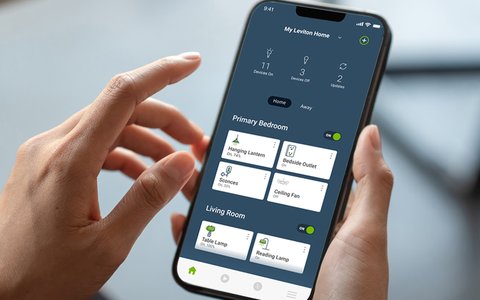
- Tap the Menu icon in the upper right corner of the devices screen.
- If a small bubble appears on the Updates button, at least one device has a firmware update waiting.
- Tap Updates to see the full list of devices and their available versions.
Running the Update
From the Updates screen, you have two options depending on how many switches need attention:
- Tap UPDATE next to a single device to update just that switch.
- Tap UPDATE ALL to push firmware to every listed device at once, which Leviton supports running in parallel.
- Wait while the update installs; Leviton states this usually takes 45 seconds to a minute per device.
- Avoid toggling the switch from the app while the update is running, though the physical paddle on the wall itself is unaffected.
Turning on Auto Update
If you would rather not check manually, the My Leviton app has an Auto Update toggle on the Updates screen. Switching this on lets Leviton install new firmware in the background as soon as it becomes available, similar to how most phones handle app updates. This is the setting I recommend for most households, since it removes one more thing to remember.
When an Update Fails
Decora Smart switches occasionally show as disconnected in the app right after a firmware push, which understandably worries people. In almost every case I have seen, the fix is one of these:
- Give the switch two to three minutes to reboot and reconnect to Wi-Fi on its own.
- Confirm your router has not changed its Wi-Fi password or switched channels recently.
- Power-cycle the switch at the breaker if it still shows offline after five minutes.
- Re-enroll the device in the My Leviton app only as a last resort, since this can clear its saved schedules.
Leviton has also used firmware updates to add real new capability, not just bug fixes. The 2nd generation Decora Smart Wi-Fi switches gained Matter support entirely through a firmware update pushed via the My Leviton app, letting existing hardware work with Apple Home, Google Home, and Amazon Alexa under one shared standard without buying new switches. Details on which models qualify are on Leviton’s official Matter firmware announcement, and the exact enrollment steps are in their Matter update support article.
Per Angela W., who is an IT Administrator at a property management firm on G2, “Rolling out firmware updates across dozens of Decora Smart switches in our units was much simpler than I expected once we used the Update All option. It really does update everything in one pass.”
Rolling Out Updates Across a Whole House
If you have a dozen or more Decora Smart switches spread across a home, checking each one individually gets tedious fast. A few habits make this much easier to manage:
- Group switches into Rooms inside the My Leviton app first, so you can see at a glance which room still has a device flagged for update.
- Turn on Auto Update for switches in less-used rooms, but check manually before major firmware releases on switches tied to critical fixtures.
- Keep the My Leviton app itself updated from your phone’s app store, since an outdated app can fail to detect available device firmware correctly.
- After any bulk update, spot-check two or three switches from different rooms to confirm they reconnected properly before assuming the whole batch succeeded.
Frequently Asked Questions
Do I need a hub to update Decora Smart switch firmware?
No. Decora Smart Wi-Fi switches connect directly to your home network and update through the My Leviton app; no separate hub or bridge is required.
Will a firmware update change how my switch works?
Most updates are behind-the-scenes stability and security fixes. Occasionally, as with the Matter support rollout, an update adds an entirely new feature, and Leviton usually announces those in advance.
Can I update Decora Smart HomeKit-only devices the same way?
First-generation Decora Smart devices with HomeKit use the Decora Smart Home app rather than My Leviton, and the update process is similar but lives in that separate app.
Is it normal for the light to flicker during a switch firmware update?
A brief flicker or momentary off state during the switch’s reboot is normal and expected; it should return to its previous on or off state within a minute.
What happens if I ignore firmware updates entirely?
The switch keeps working as a basic on/off or dimmer control, but you miss security patches and new compatibility features like Matter, so an outdated switch may eventually lose support for newer smart home integrations.
Conclusion
Updating a Decora Smart switch takes one tap in the My Leviton app once you find the Updates screen, and turning on Auto Update means you may never need to think about it again. If a switch ever shows offline right after an update, give it a few minutes before assuming something is broken; nine times out of ten it reconnects on its own.
Ryan is a Computer Science grad and long-time hands-on troubleshooter. He is the author behind softwaredriverdownload.com, where he helps everyday users fix driver and firmware issues quickly and accurately. Ryan has personally installed and updated Decora Smart switches throughout his own home.