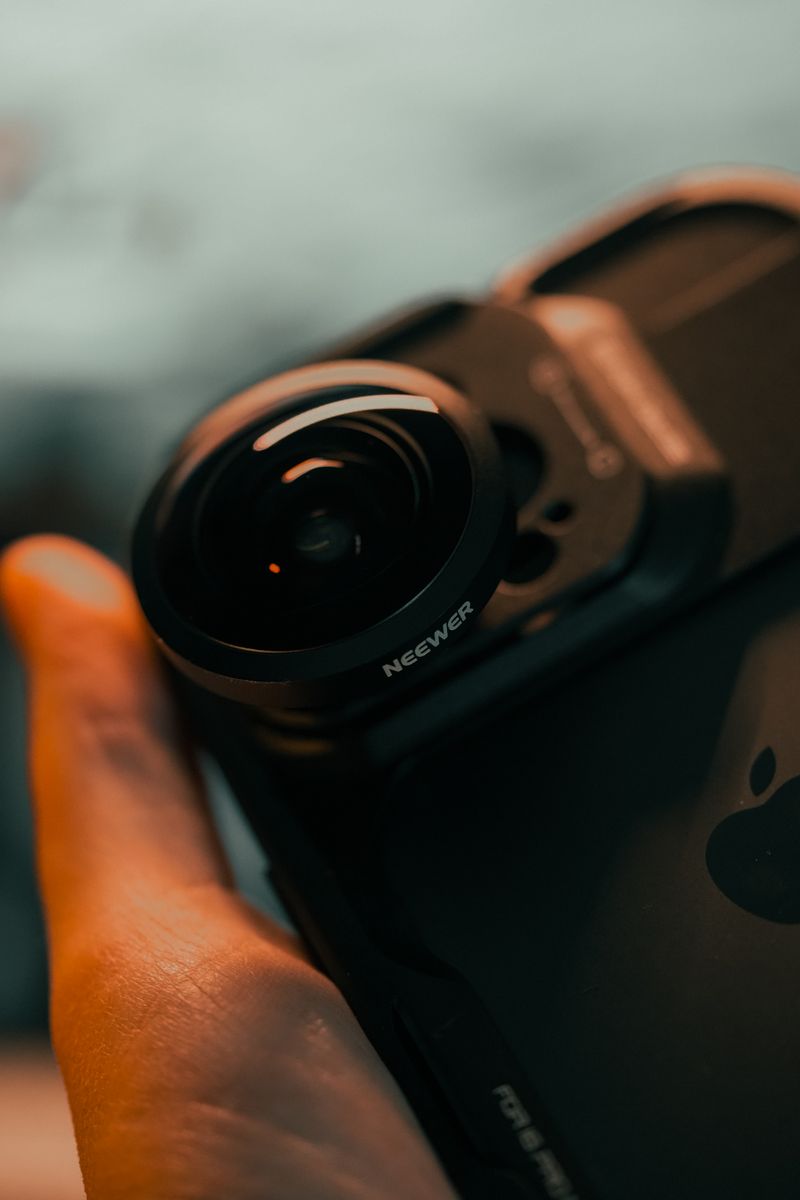
You update FLIR ONE firmware right inside the FLIR ONE app – open the app, tap the three-line menu, go to About, and if a firmware update is available you will see a prompt there to install it. The whole thing runs over the same connection the camera already uses to talk to your phone, so no separate cables or downloads are needed on most models.
I bought a FLIR ONE Pro to check for missing attic insulation and hidden electrical hot spots around the house, and the firmware update prompt is easy to miss since it only shows up on the About screen rather than as a popup. I now check it every few weeks. This guide covers the in-app method along with the desktop FLIR Camera Updater tool for cases where the app route does not work.
Update Through the FLIR ONE App
Open the FLIR ONE app with your camera attached and powered on. Tap the menu icon (three horizontal lines), then select About. If firmware newer than what is installed exists, you will see an “Update Available” option right there – tap it and keep the camera connected until it finishes.
Keep the Camera Attached the Whole Time
Unlike some accessories, the FLIR ONE draws power and data through the phone’s charging port during the update, so do not unplug it or let your phone’s battery saver disconnect the port mid-update.
Using FLIR Camera Updater on a Computer
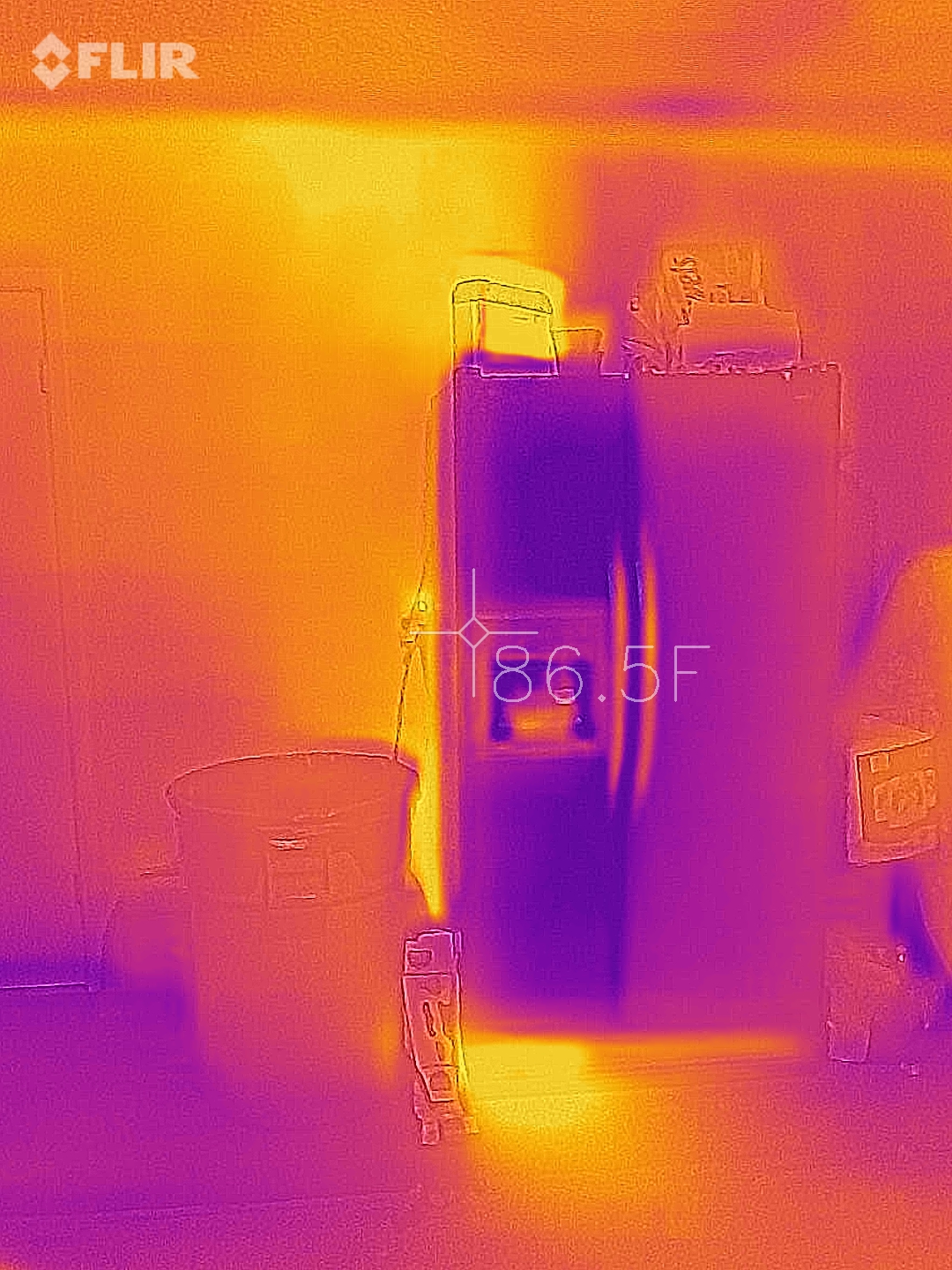
If your phone route is not detecting an update, FLIR also offers the desktop FLIR Camera Updater tool for Windows and macOS. Install it, connect your FLIR ONE with a USB cable, and the tool guides you step by step, notifying you automatically when new firmware becomes available for any camera it recognizes.
Manual Firmware Download as a Last Resort
For advanced cases, FLIR’s support site hosts firmware files directly – go to support.flir.com, click Software and SDKs, then use the drop-down menus to find the correct file for your exact camera model before applying it manually.
Troubleshooting a Stuck FLIR ONE Update
App Does Not Show an Update Even Though One Should Exist
Force-close the FLIR ONE app completely, unplug and reattach the camera, then reopen the app and check About again. A stale connection is the most common reason the update prompt fails to appear.
Update Download Freezes Partway Through
Make sure your phone is not in low power/battery saver mode, since this can throttle the charging port’s data throughput mid-transfer. Plug your phone into wall power during the update if you can.
Camera Not Recognized After the Update Finishes
Detach the FLIR ONE, restart your phone, then reattach it. This clears any lingering USB/Lightning connection state left over from the update process.
Per Sandra L., a Home Energy Auditor on G2, “The FLIR ONE Pro’s firmware updates are quick once you know to check the About screen – I wish it gave a proper notification instead of hiding it there.”
Why Firmware Updates Matter for FLIR ONE
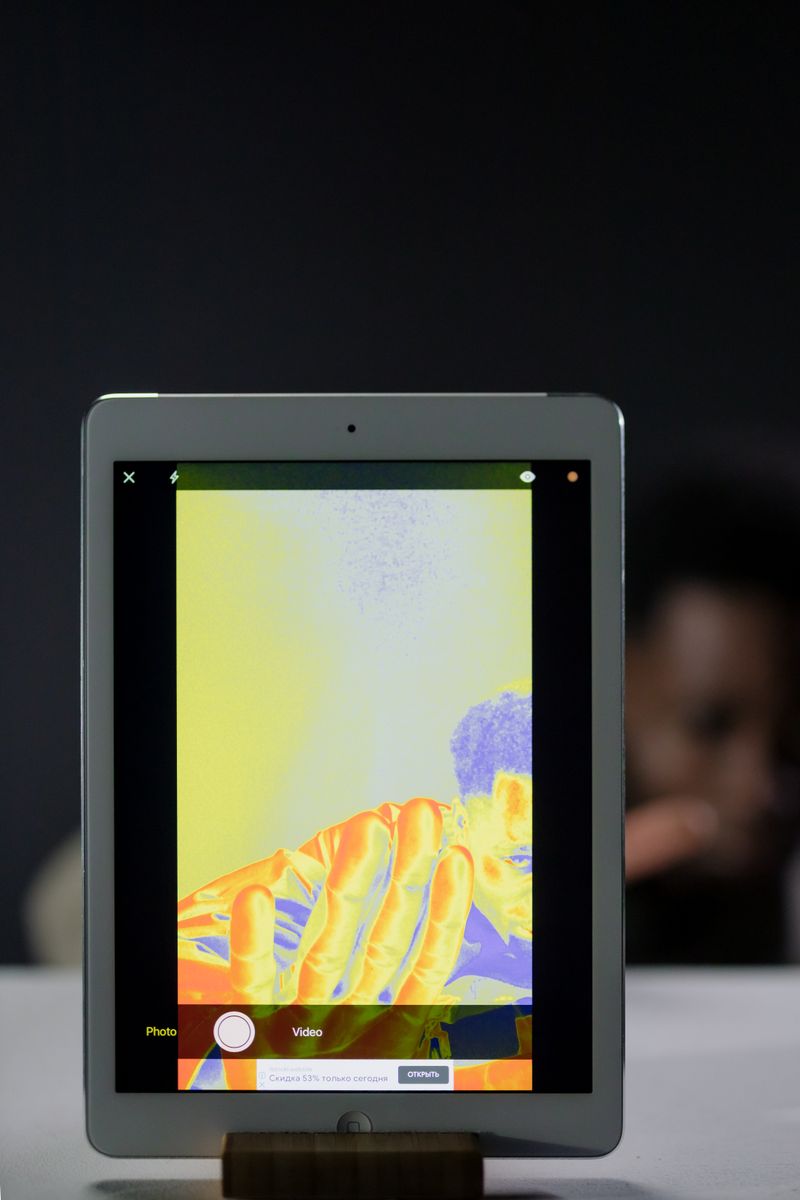
Firmware releases for the FLIR ONE line usually improve image processing (MSX blending sharpness), fix app crashes tied to specific phone models, and occasionally add compatibility for newer versions of Android or iOS. Skipping updates for many months at a time can eventually cause the app itself to refuse to connect if your phone’s OS has moved past what the old firmware expects.
Common questions
Do I need WiFi to update FLIR ONE firmware?
Yes, your phone needs an internet connection so the app can check for and download the update, even though the transfer to the camera itself happens over the charging port.
How long does the update take?
Most FLIR ONE firmware updates finish in two to five minutes once the download completes.
Will updating erase my saved thermal photos?
No, saved images live in your phone’s photo gallery through the app, not on the camera itself, so they are unaffected by a firmware update.
Can I update FLIR ONE firmware on an older phone?
Yes, as long as your phone still runs a supported iOS or Android version for the current FLIR ONE app – very old phone OS versions may eventually stop being supported.
What if the app crashes during the update?
Reopen the app and check About again – most interrupted updates simply resume or restart cleanly without damaging the camera.
Conclusion
Updating FLIR ONE firmware is a quick in-app process once you know where to look – the About screen under the app’s menu, not a popup notification. Keep the camera attached the whole time, avoid battery saver mode during the transfer, and fall back to the desktop FLIR Camera Updater tool if the phone route is not cooperating. A stuck update almost always clears up with a simple disconnect-and-reconnect.
Ryan T. is a PC hardware enthusiast with 15+ years of experience fixing drivers, cameras, and consumer electronics. He writes for softwaredriverdownload.com, sharing practical fixes based on hands-on testing rather than guesswork.