If your DJI FPV Goggles V2 will not update, freezes at the progress bar, or shows a firmware mismatch warning, the fix usually comes down to using DJI Assistant 2 (FPV Series) on a computer instead of the in-goggle update, and updating the goggles and the air unit together so their firmware versions stay in sync.
I run a small FPV group locally, and the Goggles V2 firmware update is one of the questions I get asked the most — usually right after someone buys a used pair or resets their goggles. When I updated my own set after a long gap, the update sat at 0% for almost five minutes before it actually started moving, which had me nervous it had frozen. It had not — it was just slow to initialize. Below is the full process, plus what to do when it actually does get stuck.
Follow each step in order until resolved.
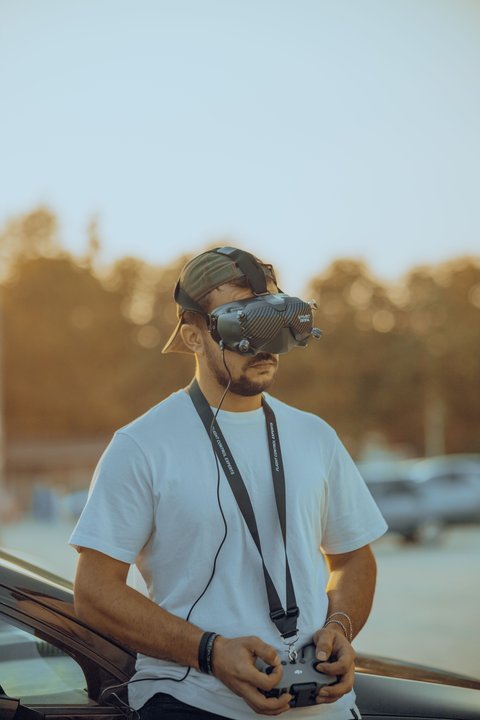
Install DJI Assistant 2 (FPV Series) on a computer (most reliable method)
DJI moved most goggle firmware updates to a dedicated desktop tool a while back, and it is far more stable than updating over the goggles’ own Wi-Fi connection. Download DJI Assistant 2 (FPV Series) from DJI’s official software page, install it, then connect the goggles to the computer with the original USB-C cable that came in the box — a cheap or damaged cable is a common reason updates fail partway through.
Power on the goggles and log in to your DJI account
Put the goggles into pairing/USB mode by holding the power button, then open DJI Assistant 2 on your computer. Sign in with your DJI account — the software needs an active login to pull the latest firmware package from DJI’s servers. If the goggles do not show up in the software at all, try a different USB port, preferably directly on the motherboard rather than through a front-panel hub.
Start the firmware update and do not disconnect anything
- Click Firmware Update once the goggles are detected, and confirm the version shown matches what you expect.
- Keep the goggles plugged in, powered on, and above roughly 50% battery for the entire process.
- Do not close DJI Assistant 2, unplug the cable, or let the computer sleep until the tool reports the update finished.
- Expect the goggles to reboot once, sometimes twice, during a larger version jump — this is normal, not a failure.
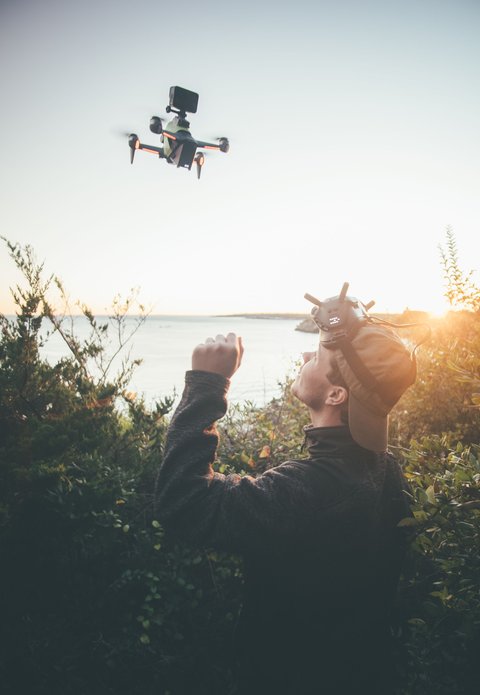
Update the air unit / goggle module firmware to match
The Goggles V2 actually run two separate firmware sets — one for the goggle body, one for the internal receiver module — and DJI Assistant 2 usually updates both together. After the update finishes, check Settings > About on the goggles to confirm the version number, and update your drone or air unit’s firmware separately through DJI Fly or DJI Assistant 2 so both ends of the link speak the same protocol version. A mismatched pair is one of the most common causes of a black screen or “signal lost” message right after an update.
If the update fails or the goggles will not boot afterward
Force a full shutdown by holding the power button for around 15 seconds, then power the goggles back on while still connected to DJI Assistant 2 — the software should detect them again and offer to retry or repair the firmware. If the goggles are completely unresponsive with no display and no charging light, leave them plugged into a wall charger (not just the computer) for 30 minutes before trying again, since a firmware update can drain the internal battery faster than usual.
Common Firmware Update Problems and What They Mean
| Symptom | Likely Cause | What To Try |
|---|---|---|
| Update stuck under 5% | USB cable or port issue | Swap the cable, use a rear/motherboard USB port |
| “Firmware verification failed” | Interrupted download or low battery | Charge to 50%+, retry with a stable internet connection |
| Goggles boot to a black screen | Goggle and air unit firmware mismatch | Update both goggles and air unit to the same release |
| DJI Assistant 2 does not detect goggles | Driver not installed, or wrong USB mode | Reinstall DJI Assistant 2, hold power button to enter pairing mode |
Per Daniel R., who is a Drone Operator at a small aerial survey company, “Once I stopped trying to update over Wi-Fi and just used DJI Assistant 2 on my laptop, every firmware update went through cleanly on the first try.”
Should You Always Update to the Newest Firmware?
Not automatically. If your current setup flies well and you are mid-season with a build you trust, it is reasonable to wait a week or two after a new release before updating, since DJI occasionally ships a version with a known bug that gets patched quickly afterward. Check the official DJI FPV support and release notes page before updating if you want to see what changed. That said, if your goggles are showing “power bug” symptoms — random shutdowns, low-battery warnings that do not match the actual charge — updating is the recommended fix rather than something to postpone.
Frequently Asked Questions
Do I need to update the goggles and the drone firmware at the same time?
Yes, ideally. DJI’s FPV system checks that both sides are running compatible firmware, and an outdated air unit paired with newly updated goggles can cause connection drops or a refusal to bind.
Can I update DJI FPV Goggles V2 without a computer?
The goggles support Wi-Fi based updates through a connected phone in some cases, but DJI Assistant 2 on a desktop or laptop is more reliable and is DJI’s recommended method for the V2 goggles specifically.
Why did my goggles reboot twice during the update?
Larger firmware jumps sometimes install in two stages, each followed by a reboot. This is expected behavior, not a sign of failure, as long as DJI Assistant 2 eventually reports the update as complete.
Is it safe to update firmware with less than half battery?
It is not recommended. A firmware update that loses power partway through can leave the goggles in a state that only DJI Assistant 2’s repair function can recover from, so charge to at least 50% first.
My goggles show a version number but DJI Assistant 2 says it is outdated. Why?
This usually means the update download was interrupted or the install did not fully commit. Rerun the update through DJI Assistant 2 rather than trusting the on-screen version alone.
Conclusion
Most DJI FPV Goggles V2 firmware problems trace back to updating over an unreliable Wi-Fi connection instead of a wired USB connection through DJI Assistant 2. Keep the goggles charged, use the original cable, update the air unit alongside the goggles, and do not interrupt the process once it starts. If you still get stuck after a forced restart and a retry, DJI’s support team can usually walk you through a deeper repair without needing to send the unit in.
Ryan
CS degree · 15 years hardware troubleshooting